
How to Extract Company Info from LinkedIn Profile URL: Complete 2026 Guide
Pull company name, size, industry, and tech stack from any LinkedIn profile URL in bulk. A Google Sheets workflow that clears 200 profiles in 10 minutes.


When you're prospecting on LinkedIn, you often start with a person's profile. But what you really need is comprehensive data about their company-industry, size, revenue, tech stack, and more. Manually copying company information from LinkedIn profiles is time-consuming and error-prone. According to LinkedIn Marketing Solutions, 82% of B2B marketers say LinkedIn delivers the best results for reaching decision-makers, making accurate company data extraction critical for successful prospecting.
This guide shows you exactly how to extract company information from LinkedIn profile URLs automatically, saving hours of manual work while building high-quality lead lists.
Three ways to reach company data on LinkedIn: from a person's profile URL (the method in this guide), from a Sales Navigator lead once you convert it to a public profile URL, or from the author of a LinkedIn post by following the post back to their profile. All three feed the same enrichment step below, in the Derrick web app or in Google Sheets, and return the company name, industry, size, and tech stack in one pass. If you only need the person's full name rather than their employer, use the dedicated extract a name from a LinkedIn URL workflow instead.
What you'll learn (and results you'll get)
- How to automatically extract company data from LinkedIn profile URLs in bulk (100+ profiles in minutes)
- The specific company attributes you can pull: name, industry, size, location, revenue, tech stack, funding data
- Step-by-step process using Google Sheets for scalable extraction
- How to enrich your CRM with fresh company data from LinkedIn profiles
- Time saved: Extract 200 profiles in 10 minutes vs. 6+ hours manually
Prerequisites
Before starting, you'll need:
- A list of LinkedIn profile URLs (from Sales Navigator, searches, or your CRM)
- Google Sheets (free account works)
- A data enrichment tool that works in a web app or connects to Google Sheets (we'll use Derrick in this guide). If you want the wider picture first, see the methods for getting LinkedIn data into Google Sheets.
- Estimated time: 10-15 minutes for setup, then automated extraction
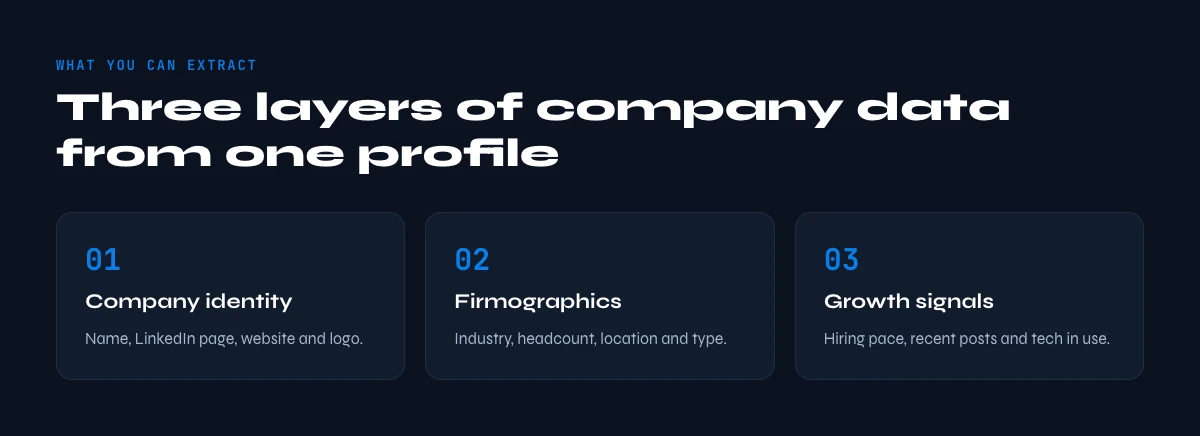
Step 1: Understand what company data you can extract
Not all company data is equally valuable. When extracting from LinkedIn profile URLs, you can typically pull these company attributes:
Basic company information:
- Company name
- LinkedIn company page URL
- Company website
- Industry
- Company size (employee count ranges)
- Headquarters location (city, country)
Advanced company intelligence:
- Company description
- Founding year
- Number of LinkedIn followers
- Specialties and focus areas
- Recent funding rounds
- Technologies used (tech stack)
- Revenue estimates
Result expected: You know exactly which data points to prioritize for your prospecting use case. For example, a sales team targeting SaaS companies would prioritize company size, tech stack, and funding data.
One distinction is worth making before you build the list: the follower count above belongs to the company page. The audience attached to a person is a different data point, and it is the one that tells you whether a contact actually publishes and is followed, or simply holds an account. Derrick returns follower count, connections count and creator status from a LinkedIn profile URL with the LinkedIn Followers & Connections Count feature, at 1 credit per profile.
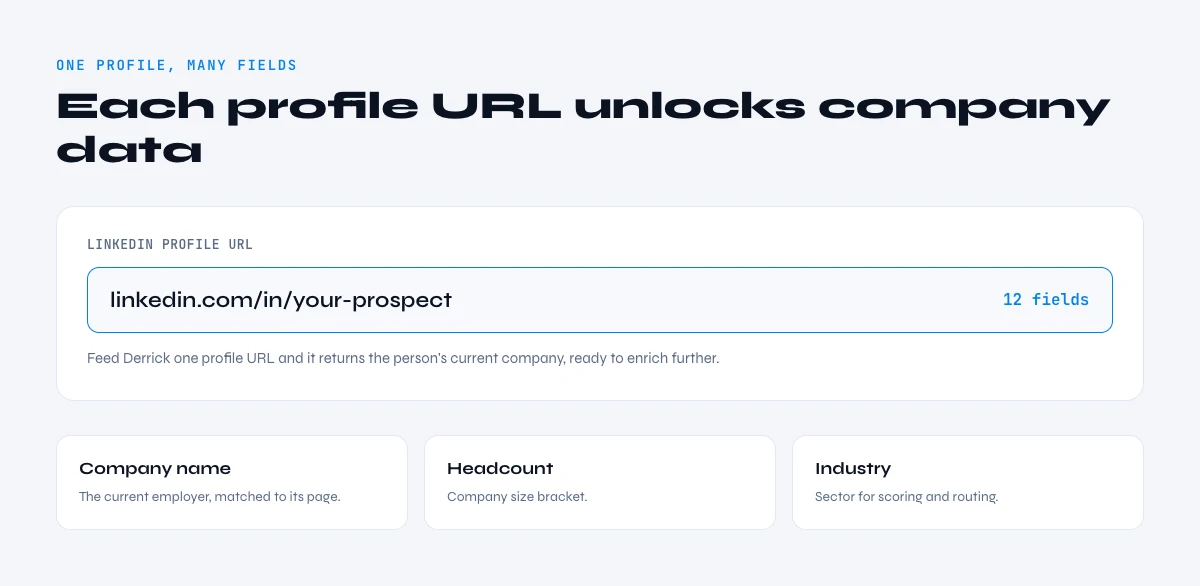
Step 2: Collect LinkedIn profile URLs
You need a list of LinkedIn profile URLs as your starting point. Here are the most effective methods:
Method A: Export from LinkedIn Sales Navigator
Sales Navigator is the most reliable source for quality profile URLs. The search filters let you target your ideal customer profile precisely.
If you're using Sales Navigator, you can export leads directly to Google Sheets with tools designed for this purpose. Not sure which one fits your volume? Our breakdown of the best LinkedIn scrapers compared on pricing and limits covers the trade-offs.
Method B: Use LinkedIn search
Regular LinkedIn search works for smaller lists:
- Run a search with your target criteria (job title, location, industry)
- Open relevant profiles in new tabs
- Copy the profile URLs (format: linkedin.com/in/username)
Method C: Upload existing profile URLs
If you already have profile URLs in your CRM or spreadsheets, export them to Google Sheets. Make sure they're clean LinkedIn profile URLs (not Sales Navigator URLs, which need conversion first).
Result expected: A Google Sheets column containing 50-500+ LinkedIn profile URLs ready for enrichment. Each URL should look like: https://www.linkedin.com/in/john-doe-12345678/
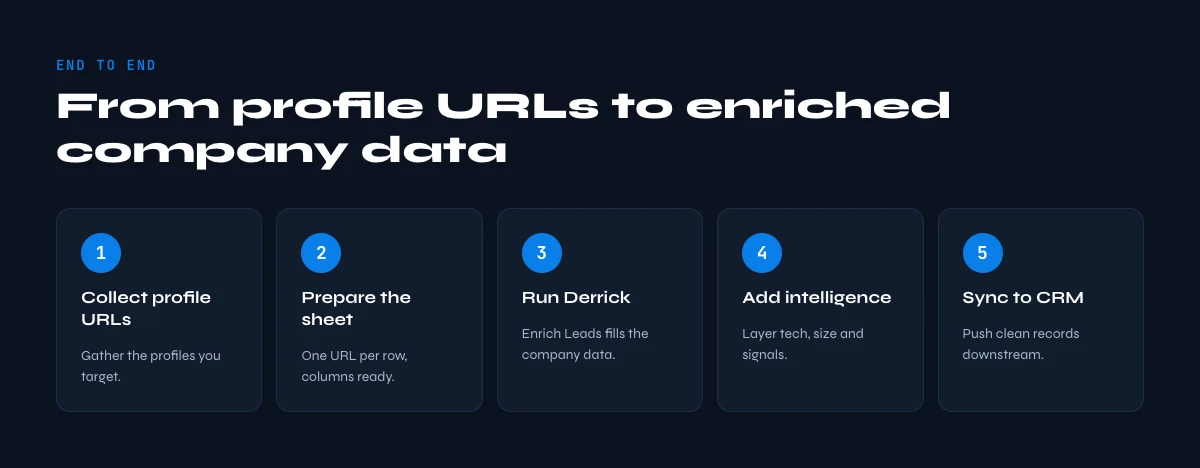
Step 3: Set up your Google Sheets for company data extraction
The same enrichment runs in the Derrick web app, with nothing to install; this walkthrough uses the Google Sheets add-on. Google Sheets is your workspace for bulk company data extraction. Here's how to structure it:
- Create a new Google Sheet or open your existing lead list
- Add a column labeled "LinkedIn Profile URL" (Column A)
- Paste your profile URLs into this column
- Reserve columns B-Q for company data you'll extract:
- Column B: Company Name
- Column C: Company Website
- Column D: Company LinkedIn URL
- Column E: Company Industry
- Column F: Company Size
- Column G: Company Location
- Column H: Company Description
- (Continue with additional attributes as needed)
Pro tip: Keep your original data intact. Add new columns to the right rather than overwriting existing data.
Result expected: A structured Google Sheet with LinkedIn profile URLs in Column A and empty columns ready to receive company data. This setup makes it easy to compare profiles and companies side-by-side.
In the web app or Google Sheets
The company block, from the profile URL
The article extracts company information from a profile. Derrick does the second half properly: give it the company page or the domain and it returns name, industry, headcount band, location and description in your list.
- Feature
- LinkedIn Companies Profile Enrichment
- Credit cost
- 1 credit per company enriched
The first button opens the web app (nothing to install): 1 credit per company enriched, 100 free credits every month. The second details the feature and its cost per plan.
Step 4: Install and configure your extraction tool
To extract company data automatically, you need a tool that connects to Google Sheets and can parse LinkedIn profiles. We'll use Derrick as the example, but the principles apply to most LinkedIn enrichment tools. If you'd rather work from your browser, a LinkedIn scraper Chrome extension follows the same logic from the page itself.
Installing Derrick in Google Sheets:
- Go to the Google Workspace Marketplace (or skip the install and use the Derrick web app)
- Search for "Derrick" or "LinkedIn email phone finder"
- Click "Install" and grant necessary permissions
- The Derrick sidebar will appear in Google Sheets
Configuring for company data extraction:
Once installed, Derrick provides multiple workflows to extract company information from LinkedIn profile URLs:
- LinkedIn Profile Scraper: Extracts 50+ attributes including current company data
- Company data workflows: Extract specific company attributes like description, size, industry
- Bulk processing: Process hundreds of profiles simultaneously
Result expected: Derrick extension is installed and visible in your Google Sheets sidebar. You can see the available workflows for LinkedIn profile enrichment.
Prefer to stay in your AI assistant? You can pull the same data straight into Claude via MCP instead of the spreadsheet sidebar.
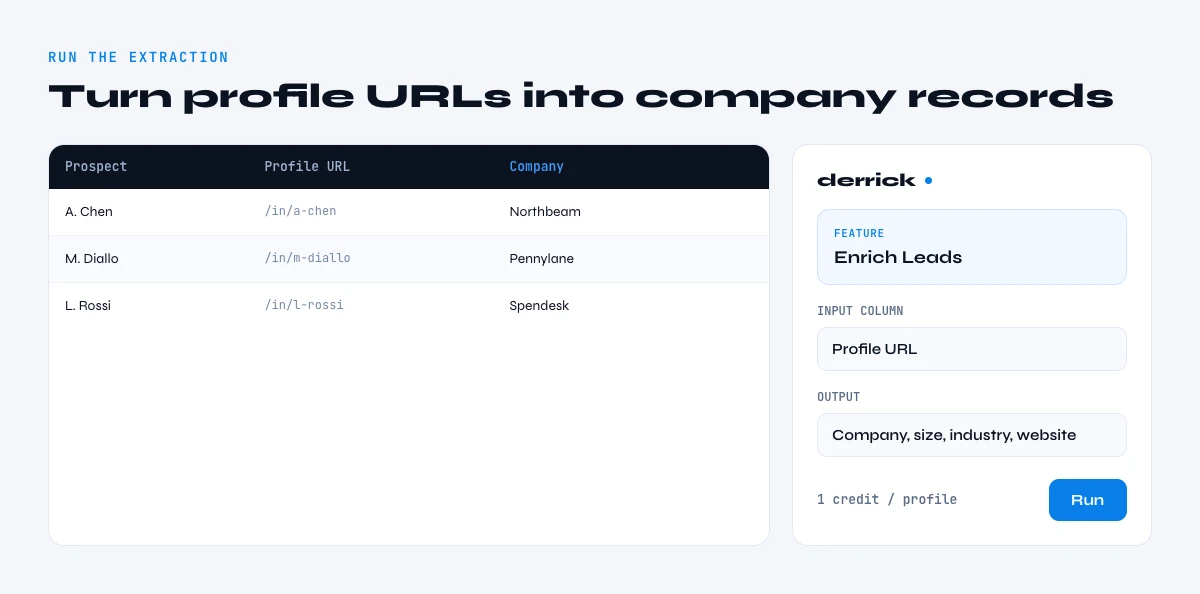
Step 5: Run the company data extraction
Now for the actual extraction. Here's the exact process:
- Select the profile URLs you want to enrich (highlight Column A with your LinkedIn profile URLs)
- Open the Derrick sidebar in the web app or in Google Sheets
- Choose "LinkedIn Profile Scraper" from the workflow menu
- Select your input column (where your LinkedIn profile URLs are)
- Choose which company attributes to extract:
- Company Name ✓
- Company Website ✓
- Company Industry ✓
- Company Size ✓
- Company Description ✓
- Company LinkedIn URL ✓
- Employee Count ✓
- Headquarters Location ✓
- Click "Run Enrichment" to start the extraction
- Wait for completion: For 100 profiles, this typically takes 5-10 minutes
Result expected: New columns in your Google Sheet are populated with company data extracted from each LinkedIn profile. Each row now contains comprehensive company information associated with that person's profile. The underlying step that pulls a company's full record is Derrick's Import LinkedIn Companies feature, billed at 1 credit per company.
Step 6: Extract additional company intelligence (optional)
Once you have the basic company data, you can layer on additional intelligence to better qualify your leads:
Tech stack information:
If you have company websites from Step 5, you can identify the technologies each company uses. This is invaluable for sales teams targeting companies using (or not using) specific tools.
Derrick's Website Tech Lookup can detect:
- CMS platforms (WordPress, Shopify, Webflow)
- Marketing tools (HubSpot, Marketo, Pardot)
- Analytics (Google Analytics, Mixpanel, Amplitude)
- CRM systems (Salesforce, HubSpot CRM)
Funding and financial data:
For B2B companies targeting specific funding stages, extract:
- Last funding round date and amount
- Total funding raised
- Investor information
- Valuation estimates
Social proof metrics:
- LinkedIn follower count (company engagement indicator)
- Employee growth rate (hiring velocity)
- Glassdoor ratings (company health)
Result expected: Your Google Sheet now contains not just company basics, but actionable intelligence for personalized outreach. For instance: "I noticed your company recently raised Series B funding and uses Salesforce…"
The app works through your list row by row: 1 credit per company enriched.
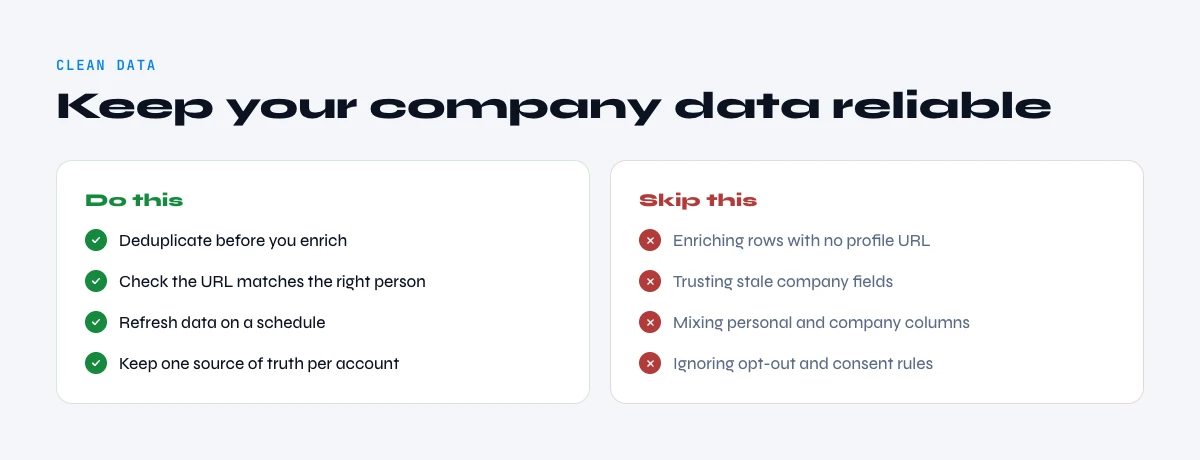
Step 7: Clean and validate your extracted company data
Automated extraction is fast, but you should verify data quality before using it for outreach:
Remove duplicates:
Multiple people from the same company will generate duplicate company records. Use Derrick's "Remove Duplicates" function or Google Sheets' built-in deduplication:
- Select all your data
- Data → Remove duplicates
- Choose "Company Name" as the deduplication column
Validate company websites:
Not all extracted websites are accurate. Quick validation:
- Check that URLs start with http:// or https://
- Test 10-15 random websites to ensure they resolve
- Remove invalid entries (LinkedIn sometimes has outdated websites)
Normalize industry classifications:
LinkedIn industry classifications can be inconsistent. You might see:
- "Computer Software" and "Software" (same thing)
- "Internet" and "Online Media" (similar but different)
Consider standardizing these for better segmentation.
Result expected: A clean dataset with unique company records, validated websites, and consistent industry classifications. Your data is now ready for segmentation and outreach.
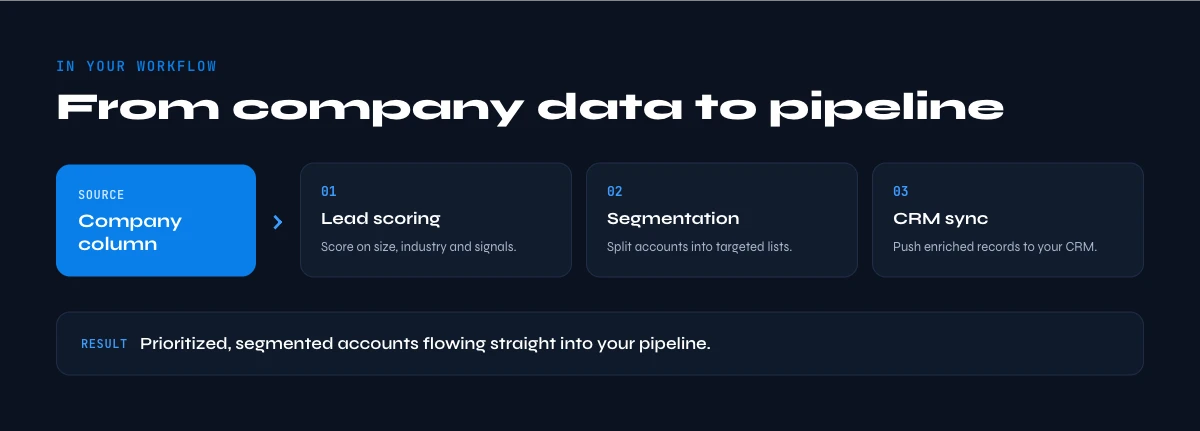
Step 8: Segment and score your company data
With clean company data, create targeted segments for personalized outreach:
Segment by company size:
Different messaging for different company sizes:
- 1-50 employees: Founder-focused messaging
- 51-200 employees: Department head messaging
- 201-1000 employees: Enterprise procurement angle
- 1000+ employees: Complex sales cycle, multiple stakeholders
Segment by industry:
Tailor your value proposition by industry:
- SaaS companies: Focus on MRR growth, churn reduction
- E-commerce: Focus on conversion rate, CAC reduction
- Manufacturing: Focus on efficiency, supply chain
- Healthcare: Focus on compliance, patient outcomes
Score leads by company attributes:
Create a simple scoring system:
- Company size in target range: +10 points
- Industry matches ICP: +15 points
- Tech stack includes target tools: +10 points
- Recent funding (6 months): +10 points
- Fast hiring (20% growth): +5 points
Companies scoring 40+ become your top priority outreach list.
Result expected: Your leads are organized into high-priority segments with personalized messaging angles. A startup founder gets different outreach than an enterprise procurement manager.
Step 9: Export or sync to your CRM
Your enriched company data needs to flow into your sales workflow:
Option A: Direct CRM sync (recommended)
Most enrichment tools offer direct CRM integrations:
- Salesforce: Map company fields to custom objects
- HubSpot: Sync to company records automatically
- Pipedrive: Update organization data
- Close: Enrich lead and opportunity records
Option B: CSV export and import
If direct sync isn't available:
- Download your Google Sheet as CSV
- Map columns to your CRM's company fields
- Import via your CRM's bulk import feature
- Verify no duplicates are created
Option C: Automation with Zapier/Make
For ongoing enrichment:
- Set up a trigger: "When new row is added to Google Sheets"
- Add action: "Create or update company in [CRM]"
- Map the company data fields
- Enable the automation
Result expected: Your CRM now contains rich company data for every prospect. Sales reps can see company size, industry, tech stack, and other context before reaching out, leading to more personalized and effective conversations.
With company data in your CRM, the natural next step is to match each contact to a verified email before your reps reach out.
Final result: What you've accomplished
By following these steps, you've transformed raw LinkedIn profile URLs into a comprehensive company database:
What you now have:
- Company names, websites, and LinkedIn pages
- Industry classifications and size ranges
- Location data (headquarters and regions)
- Business descriptions and specialties
- Tech stack information (tools they use)
- Funding data and growth metrics
- A scored and segmented lead list ready for outreach
Time saved calculation:
Manual extraction: 200 profiles × 2 minutes per profile = 6.67 hours Automated extraction: 200 profiles × 3 seconds per profile = 10 minutes Time saved: 6+ hours (95% faster)
Business impact:
According to Martal Group research, leads enriched with company data convert at 2.74% compared to 0.77% for unenriched leads-a 3.5x improvement in conversion rates. When your SDR team reaches out with context about a prospect's company size, industry, and tech stack, they're no longer making cold calls. They're having informed conversations with qualified prospects.
Common problems (and how to solve them)
Problem 1: "I'm getting incomplete company data for some profiles"
Symptom: Some LinkedIn profiles return company names but no website, industry, or other details.
Impact: Your lead list has gaps, making segmentation and scoring less effective. You can't personalize outreach properly.
Solution: This happens when users work at companies without complete LinkedIn company pages. Try these fixes:
- Use the company LinkedIn URL to enrich: If you have the company LinkedIn URL, use workflows like Find Company Industry by LinkedIn Company URL to get more complete data.
- Search for the company website separately: Use a company name to website finder tool to get the domain, then use website-based enrichment to fill gaps.
- Cross-reference with other sources:
- Accept some gaps: For very small companies or freelancers, complete company data might not exist. Focus your outreach on companies with complete profiles.
Problem 2: "The extraction is taking too long"
Symptom: Processing 500 LinkedIn profile URLs is taking 30+ minutes instead of the promised 10-15 minutes.
Impact: Your workflow is bottlenecked, and you can't scale your prospecting efficiently.
Solution: Several factors can slow down extraction. Here's how to optimize:
- Batch your extraction: Instead of processing 500 URLs at once, process them in batches of 100-150. This reduces timeouts and errors.
- Check your internet connection: Slow or unstable connections can delay API calls. Use a wired connection if possible.
- Reduce the number of attributes: If you're extracting 20+ attributes per profile, pare down to essential fields (company name, website, industry, size). You can always enrich further later.
- Use cached data when available: Some tools (like Datablist) offer cached results from recent scrapes. Enable this option to speed up extraction for popular profiles.
- Schedule overnight extractions: For very large lists (1000+ profiles), set up your extraction to run overnight or during off-hours.
Problem 3: "I'm getting LinkedIn rate limit errors"
Symptom: After extracting 100-200 profiles, you see error messages about rate limits or restricted access.
Impact: Your extraction halts mid-process, and you risk getting your LinkedIn account flagged or banned.
Solution: LinkedIn aggressively protects against scraping. Here's how to stay under the radar:
- Use tools that manage rate limits: Quality enrichment tools like Derrick, Evaboot, or Phantombuster have built-in rate limiting to avoid detection. They space out requests to mimic human behavior. If you're testing the waters before committing budget, several free LinkedIn scrapers and their daily quotas handle this throttling too.
- Don't use your main LinkedIn account: If you're using a tool that requires LinkedIn login, create a separate account for data extraction. Never risk your primary professional account.
- Spread extraction over time: Instead of extracting 500 profiles in one hour, extract 100 per day over five days. This looks like normal browsing behavior.
- Use proxy rotation: Advanced tools rotate IP addresses to avoid triggering LinkedIn's anti-bot measures. Check if your tool offers this feature.
- Consider tools that don't require LinkedIn login: Some enrichment platforms access LinkedIn data through APIs or partnerships, eliminating the risk to your personal account entirely.
Problem 4: "Company data doesn't match what I see on LinkedIn"
Symptom: The extracted company industry says "Technology" but when you check the LinkedIn company page, it says "Computer Software."
Impact: Your segmentation is inaccurate, leading to poorly targeted outreach and lower conversion rates.
Solution: Data discrepancies happen due to LinkedIn's dynamic nature and classification systems:
- Understand LinkedIn's industry taxonomy: LinkedIn has 150+ industry categories, and companies can only select one. But their business might span multiple industries. The enrichment tool returns the primary classification.
- Check the data freshness: Company data changes. A startup might have been "Internet" when they launched but now classify as "Financial Services" after pivoting. Look for enrichment tools that refresh data regularly.
- Cross-validate critical data points: For your top prospects, manually verify company size, industry, and website on LinkedIn. Don't rely 100% on automated extraction for high-value deals.
- Use multiple sources: If industry classification is critical for your segmentation, consider enriching from multiple sources (LinkedIn + Crunchbase) and using the most common answer.
- Set up data validation rules: In your Google Sheet, flag companies where industry is "Unknown" or employee count is "1" (often incorrect) for manual review.
Problem 5: "LinkedIn profile URLs are from Sales Navigator and won't enrich"
Symptom: Your LinkedIn URLs look like this: linkedin.com/sales/lead/123456789 instead of linkedin.com/in/john-doe
Impact: Enrichment tools can't process Sales Navigator URLs directly because they're not public profile URLs.
Solution: Sales Navigator URLs need to be converted to public profile URLs first:
- Use a Sales Navigator URL converter: Tools like Derrick's LinkedIn Profile Finder can convert Sales Navigator lead URLs to public profile URLs automatically.
- Export correctly from Sales Navigator: When exporting from Sales Navigator, choose "Profile URL" instead of "Lead URL" if the option exists. This gives you the public URL directly.
- Manual conversion (small batches): For a few profiles, open each Sales Navigator lead, scroll to their profile section, and copy the public profile URL (it's displayed as "View profile").
- Use browser extensions: Some Chrome extensions can batch-convert Sales Navigator URLs to public URLs by opening each profile and extracting the public link.
Advanced techniques: Automate ongoing company enrichment
Once you've mastered basic extraction, set up automation for continuous enrichment:
Trigger-based enrichment:
When a new lead enters your CRM, automatically enrich their company data:
- New lead created in CRM → Trigger
- Extract LinkedIn profile URL from lead
- Enrich company data via a LinkedIn data extraction API
- Update CRM company record
- Score and assign to appropriate SDR
Scheduled re-enrichment:
Company data goes stale. Set up monthly re-enrichment:
- Identify companies in your CRM older than 90 days
- Re-extract company data to catch updates
- Flag significant changes (e.g., employee count doubled = hiring surge)
- Alert sales reps to companies showing growth signals
Multi-source fallback enrichment:
Not every LinkedIn profile yields complete company data. Set up a multi-source lookup that falls back through several sources in order:
- Try LinkedIn profile enrichment first (most accurate, most attributes)
- If incomplete, try company website enrichment
- If still incomplete, try company name lookup in B2B databases
- Final fallback: Manual research for high-value prospects
This multi-source fallback approach maximizes data completeness across your entire lead list.
And if you'd rather script it yourself in Python, the same enrichment can run on a schedule without ever touching a sheet.
Legal and compliance considerations
Extracting company data from LinkedIn requires understanding the legal landscape:
LinkedIn's Terms of Service:
LinkedIn explicitly prohibits automated scraping in its Terms of Service. However, extracting publicly available information is generally considered legal under the hiQ Labs v. LinkedIn ruling (9th Circuit, 2019), which held that scraping public data doesn't violate the Computer Fraud and Abuse Act.
Best practices to stay compliant:
- Only extract publicly available company information
- Don't access data behind login walls without authorization
- Respect robots.txt directives
- Don't overload LinkedIn's servers with aggressive scraping
- Use tools that implement rate limiting and respectful extraction
GDPR and data privacy:
Company information (industry, size, location) is generally not personal data under GDPR. However, when combined with individual profiles, you must:
- Have a lawful basis for processing (legitimate interest for B2B prospecting)
- Provide opt-out mechanisms in all outreach
- Store data securely
- Delete data upon request
- Not use data for purposes beyond the original collection intent
Recommendations:
- Use reputable enrichment tools that prioritize compliance
- Consult with legal counsel if processing EU residents' data
- Implement a data retention policy (e.g., delete after 12 months of inactivity)
- Be transparent in outreach: "I found your company information on LinkedIn…"
Conclusion: Scale your B2B prospecting with automated company enrichment
Extracting company information from LinkedIn profile URLs transforms how you approach B2B prospecting. Instead of manually researching each company-a process that takes 2+ minutes per profile-you can enrich hundreds of profiles in minutes.
The result? Your sales team operates with complete company context for every outreach. They know the company's industry, size, tech stack, and growth trajectory before the first conversation. This intelligence leads to more personalized outreach, higher response rates, and ultimately, more closed deals.
Start with these three actions:
- Compile a list of 50-100 LinkedIn profile URLs from your target accounts
- Set up a Google Sheet with columns for company attributes you want to extract
- Use an enrichment tool to automatically pull company data from those profiles
With automated company data extraction, you're not just prospecting faster-you're prospecting smarter. Your outreach is more targeted, your conversations are more relevant, and your conversion rates improve. The companies generating 80% of B2B leads from LinkedIn aren't doing it with manual research-they're using automated enrichment at scale.
Ready to 10x your prospecting efficiency? Start extracting company data automatically and watch your pipeline fill with qualified leads.
Frequently asked questions
What company data can I extract from a LinkedIn profile URL?
How do I extract company info from LinkedIn profiles in bulk?
Why are some company fields missing after extraction?
Why won't my Sales Navigator URLs enrich?
Is extracting company info from LinkedIn legal?
Can I extract a company from a LinkedIn post instead of a profile URL?
I only need the person's name, not the company. Is there a faster route?
Keep reading
Continue exploring this cluster


Best LinkedIn Scrapers 2026: 10 Tools Compared (Pricing, Limits & Workflows)
Read →

Best LinkedIn Scraper Chrome Extensions 2026: 12 Tools Compared (Workflow, Risk, Pricing)
Read →

LinkedIn Scraper MCP: How to Pull LinkedIn Data Straight Into Claude (2026 Guide)
Read →

How to Export Members of a LinkedIn Group (with Emails) - 2026 Tutorial
Read →