
How to Find Company Employee Count: 5 Proven Methods for Sales Teams
Find any company employee count for free: LinkedIn size bands (51-200), SEC filings, or bulk enrichment in Google Sheets. 5 methods compared on speed.


Knowing a company's employee count is critical for sales qualification, market research, and investment decisions. Whether you're an SDR qualifying leads, a recruiter identifying growing companies, or a business analyst conducting competitive research, understanding workforce size helps you tailor your approach and prioritize high-value opportunities.
The challenge? Employee count data isn't always readily available, and when it is, accuracy varies wildly across sources. Manual research for each prospect eats up hours you could spend actually closing deals.
This guide shows you five proven methods to find company employee count quickly and accurately, from free LinkedIn checks to automated data enrichment that scales across hundreds of prospects.
How Many Employees Does a Company Have? LinkedIn Size Bands at a Glance
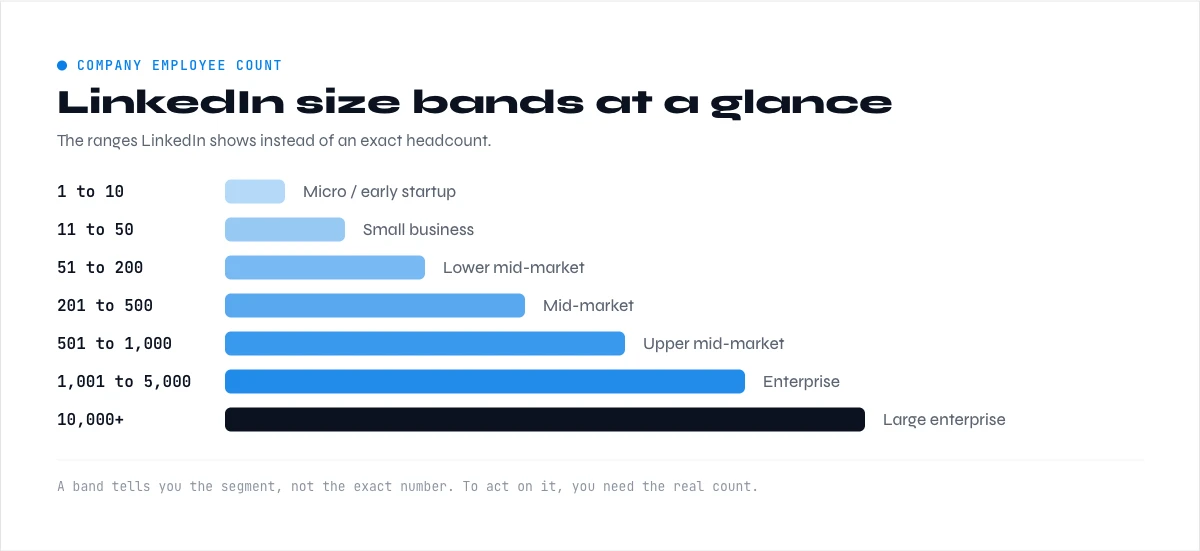
LinkedIn never publishes an exact headcount on a company page. It shows one of nine standardized size bands instead. If a search like "number of employees" or "company size" brought you here, this table is the quick answer: match the band to the company, then use one of the five methods below when you need the precise figure.
| LinkedIn size band | Approximate headcount | Typical company stage |
|---|---|---|
| Self-employed | 1 | Solo founder or freelancer |
| 1-10 employees | 1 to 10 | Pre-seed or early startup |
| 11-50 employees | 11 to 50 | Seed to Series A |
| 51-200 employees | 51 to 200 | Series A or B, scaling |
| 201-500 employees | 201 to 500 | Mid-market |
| 501-1,000 employees | 501 to 1,000 | Upper mid-market |
| 1,001-5,000 employees | 1,001 to 5,000 | Large company |
| 5,001-10,000 employees | 5,001 to 10,000 | Enterprise |
| 10,001+ employees | Over 10,000 | Global enterprise |
These bands are ranges, not exact counts. When you qualify leads or match an ICP across many accounts, you need the real number for each one, which is where bulk enrichment (Method 5) saves hours over manual checks.
Why Employee Count Matters for B2B Sales and Recruitment
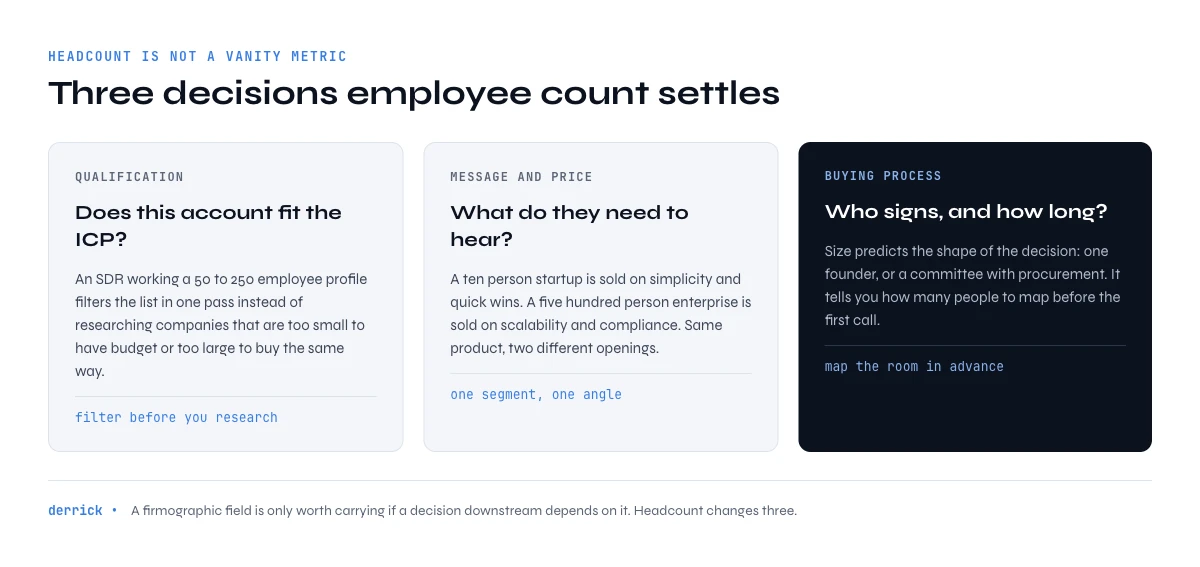
Employee count is more than a vanity metric. It's a foundational firmographic data point that directly impacts your entire go-to-market strategy.
For sales qualification and ICP matching: According to SalesHive, 81% of B2B marketers use firmographic segmentation including company size as their primary targeting method. Companies that strategically apply firmographic data to personalize outreach see a 5-8x increase in ROI compared to untargeted campaigns.
Mike, an SDR at a mid-market SaaS company, needs to qualify 150 leads per week. His ideal customer profile targets companies with 50-250 employees. Without employee count data, he wastes hours researching companies that are either too small (no budget) or too large (wrong buying process). With accurate workforce data, he instantly filters his list and focuses only on high-fit accounts.
For tailored messaging and pricing: Sarah, a marketing manager at a B2B automation platform, segments her campaigns by company size. Her messaging for 10-person startups emphasizes simplicity and quick wins. For 500-person enterprises, she highlights scalability and compliance. Research from Infobel Pro shows precise firmographic segmentation improves response rates by 20-40% compared to generic outreach.
For investment and competitive analysis: Employee count reveals growth trajectory, operational capacity, and market positioning. A company that grew from 30 to 120 employees in 18 months signals aggressive expansion. Stagnant headcount over three years might indicate market challenges or intentional bootstrapping.
The cost of poor data quality: Organizations lose an average of $15 million annually due to poor data quality, including inaccurate firmographics like employee count that lead to wasted outreach and lost sales opportunities, according to research cited by Landbase from IBM and Gartner studies.
Now let's dive into the five methods you can use to find employee count, starting with the fastest free option.
Method 1: Check the LinkedIn Company Page
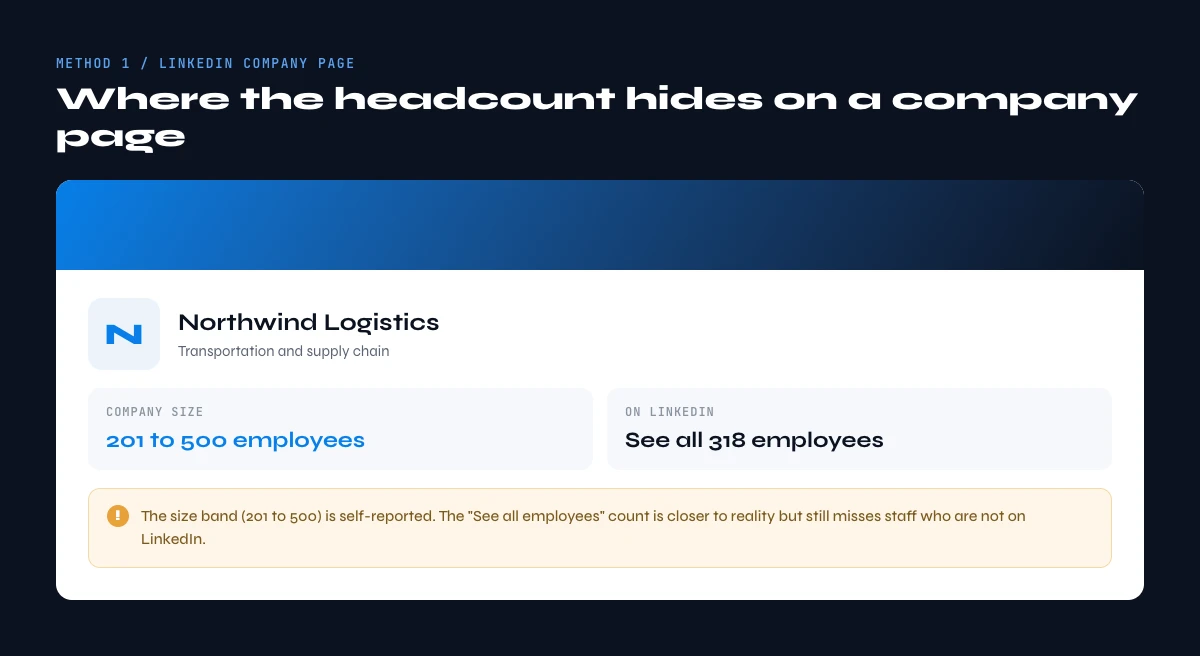
LinkedIn company pages are the fastest way to see employee count for most businesses. The platform displays an employee range based on how many LinkedIn members list that company as their current employer.
Step 1: Navigate to the company's LinkedIn page
Open LinkedIn and use the search bar at the top. Type the company name and select it from the dropdown results. Alternatively, if you have a company website URL, add "/company/[company-name]" to linkedin.com.
Expected result: You'll land on the company's official LinkedIn page with their logo, tagline, and basic information visible.
Step 2: Locate the employee count
On the company page, look directly under the company name. You'll see a range like "51-200 employees" or "1,001-5,000 employees" displayed prominently.
Click "See all X employees on LinkedIn" to view the full list of people who work there. This opens LinkedIn's People search for that company.
Expected result: You now have both the size range and access to individual employee profiles.
Step 3: Filter employees by department and seniority
Click the "People" tab on the company page. Use LinkedIn's filters on the left sidebar:
- Filter by job function (Sales, Marketing, Engineering, etc.) to see department sizes
- Filter by location to understand regional distribution
- Filter by seniority level to identify decision-makers
For example, if you're selling sales enablement software, filter by "Sales" function and "Director" level to see exactly how many sales leaders work there.
Expected result: You have a breakdown of the workforce by role, location, and level, giving you deeper intelligence than just total headcount. The same company page also surfaces other signals worth capturing, like its audience of LinkedIn followers, that round out an account's firmographic picture.
Accuracy and limitations
LinkedIn employee counts are generally reliable for established companies with active employee bases. However, the data has some quirks:
What LinkedIn counts: Only employees who have LinkedIn profiles AND list this company as their current employer. If someone left but hasn't updated their profile, they may still appear in the count temporarily.
What LinkedIn doesn't count: Employees without LinkedIn profiles, contractors who don't list the company, and recent hires who haven't updated their profiles yet.
According to Reverse Email Lookup data, LinkedIn employee count accuracy typically ranges from 70-90% depending on company size and industry. Tech companies with LinkedIn-savvy workforces show higher accuracy than traditional industries.
Pro tip for Sales Navigator users: If you have LinkedIn Sales Navigator, use the "Company headcount" filter when building prospect lists. This lets you search for all companies within specific size ranges (e.g., 51-200 employees in the SaaS industry) directly within your prospecting workflow.
In the web app or Google Sheets
Headcount for the whole list, in one pass
Of the five methods in this article, four work for one company at a time. Derrick fills the headcount band for every account in your list at once, which is what you need before you can filter by size.
- Feature
- LinkedIn Companies Profile Enrichment
- Credit cost
- 1 credit per company enriched
The first button opens the web app (nothing to install): 1 credit per company enriched, 100 free credits every month. The second details the feature and its cost per plan.
Method 2: Check the Company Website
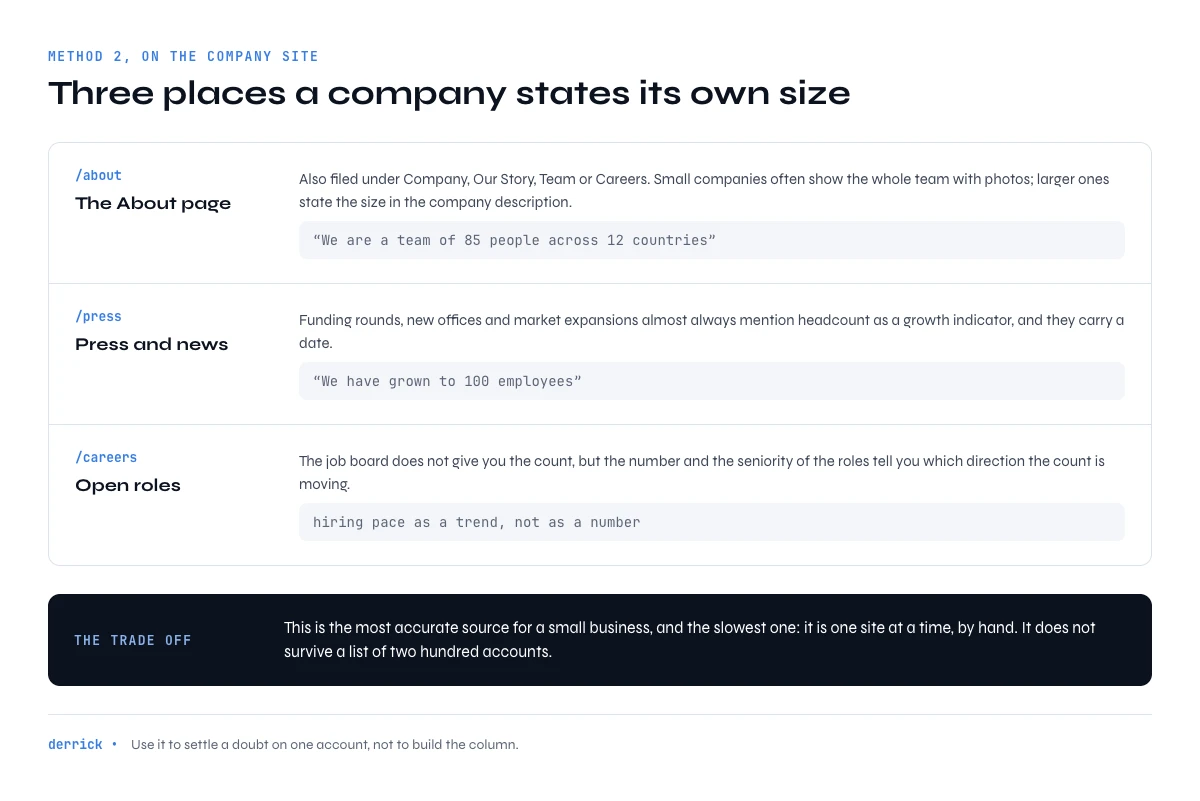
Most companies disclose employee count on their own website, typically in the "About Us" or "Careers" section. While this method requires manual work for each company, it's often more accurate than third-party sources for smaller businesses.
Step 1: Navigate to the About page
Open the company's official website and look for navigation links like:
- "About Us" or "About"
- "Company" or "Our Story"
- "Team" or "Meet the Team"
- "Careers" or "Join Us"
Smaller companies often showcase their entire team with photos and bios. Larger companies may state workforce size in their company description, often right next to the same one-line positioning you find in their LinkedIn company tagline.
Expected result: You'll find statements like "We're a team of 85 people across 12 countries" or "500+ employees worldwide."
Step 2: Check press releases and news sections
Look for a "News" or "Press" section. Companies often announce milestones like "We've grown to 100 employees" or "We're hiring our 50th team member."
Press releases about funding rounds, new office openings, or expansion into new markets frequently mention employee count as a growth indicator.
Expected result: Recent workforce size mentioned in context of company growth or achievements.
Step 3: Review job postings for team size clues
Visit the Careers or Jobs page. Individual job descriptions often mention team size in statements like:
- "Join our 20-person sales team"
- "Report to the VP of Engineering managing 15 developers"
- "Help scale our 8-person marketing department to 20"
Count the number of open positions. A company with 30 active job postings is likely hiring aggressively and may have grown significantly since their last public headcount update.
Expected result: Directional signals about team sizes and growth trajectory, even if you don't get an exact total employee number.
When company websites work best
This method is most effective for:
- Smaller companies (under 100 employees) that showcase their full team
- Companies in hiring mode that highlight growth in recruiting materials
- Transparency-focused startups that share metrics publicly
This method is less reliable for:
- Large enterprises that rarely update About pages
- Private companies that don't disclose workforce metrics
- Fast-growing startups where published numbers become outdated quickly
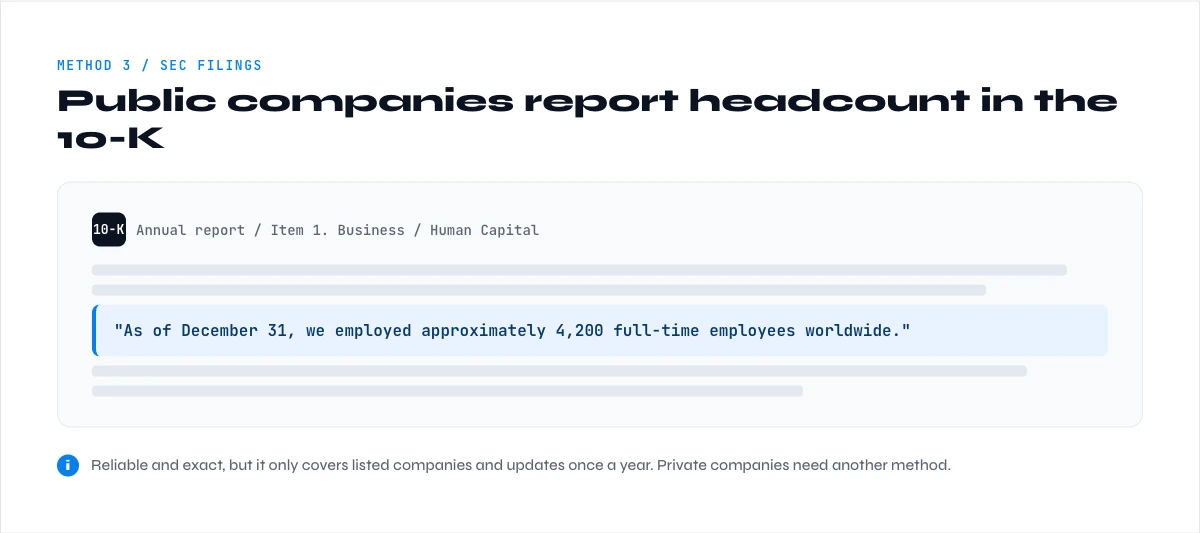
Method 3: Review SEC Filings for Public Companies
If you're researching public companies, SEC filings provide the most accurate and legally verified employee count data available.
Step 1: Access the SEC EDGAR database
Navigate to the SEC's EDGAR database at sec.gov/edgar/searchedgar/companysearch.html.
Enter the company name in the search box. The system will display all registered entities matching your query.
Expected result: You'll see the company's profile with a list of all their SEC filings.
Step 2: Locate the 10-K annual report
Look for the most recent "10-K" filing. This is the comprehensive annual report that public companies must file.
Alternatively, check quarterly "10-Q" reports for more recent updates, though these may not always include employee count.
Click the "Documents" button next to the filing date, then select the main document (usually the first link, often ending in .htm).
Expected result: A full annual report opens in your browser.
Step 3: Find the employee count section
Use your browser's search function (Ctrl+F or Cmd+F) and search for:
- "employees"
- "full-time employees"
- "team members"
- "headcount"
Employee count is typically listed in one of these sections:
- Item 1. Business: Usually near the beginning of the report
- Human Capital: A dedicated section for workforce information
- Business Overview: General company description
For example, a 10-K might state: "As of December 31, 2026, we employed 2,847 full-time employees, including 1,200 in sales and marketing, 950 in research and development, and 697 in general and administrative functions."
Expected result: Exact employee count as of a specific date, often broken down by department and sometimes by geographic region.
What makes SEC filings reliable
SEC filings are legally binding documents. Companies face serious penalties for misrepresenting material information, making employee count data in these reports highly trustworthy.
However, this data has limitations:
- Only covers public companies: Private companies don't file with the SEC
- Can be outdated: Annual reports are filed once per year; a company's workforce may have changed significantly since the filing date
- Time-consuming: Manually searching through documents for each prospect doesn't scale
When to use this method: SEC filings are ideal for in-depth research on publicly traded companies where accuracy is critical, such as investment analysis or competitive intelligence for your enterprise sales team.
The app works through your list row by row: 1 credit per company enriched.
Method 4: Use Business Directories and Databases
Third-party business directories aggregate company information from multiple sources, providing estimated employee counts for millions of businesses.
Popular business directories
Several platforms offer company size data:
Derrick: Enriches company size in the web app or from the Google Sheets sidebar. Paste a list of LinkedIn company pages and Enrich Companies fills in the headcount alongside the rest of the company data, at 1 credit per company, with 100 free credits every month. No export, no second tool to learn.
Crunchbase: Company profiles include employee ranges, funding data, and growth signals. Free tier provides basic information, paid plans unlock detailed firmographics.
Owler: Community-powered business intelligence platform showing estimated employee counts plus growth or decline indicators over time.
How to verify data accuracy
Employee count varies significantly across sources due to:
- Different data collection methods: Some count LinkedIn profiles, others scrape job boards or company websites
- Different definitions: Some include only full-time employees, others count contractors and part-time workers
- Update frequency: Data may be weeks or months old
Best practice: Cross-check employee count from at least two sources before using it for sales qualification. If LinkedIn shows "51-200 employees" and Crunchbase estimates 175, you have reasonable confidence. If one source says 50 and another says 500, investigate further. To be sure you are comparing the same entity across tools, anchor every record to the company's unique LinkedIn company ID rather than its name, which subsidiaries and rebrands often duplicate.
The scale problem
Business directories solve the coverage problem, you can look up employee count for millions of companies. But they create a new problem: manual lookups don't scale when you're qualifying hundreds of prospects.
Alex, a Sales Operations Manager, needs to enrich 500 leads with company size data each week. Looking up each company manually in Crunchbase takes approximately 2 minutes per company. That's 16+ hours of pure data entry work just to populate one field in the CRM.
This is where automation becomes essential. Which brings us to Method 5.
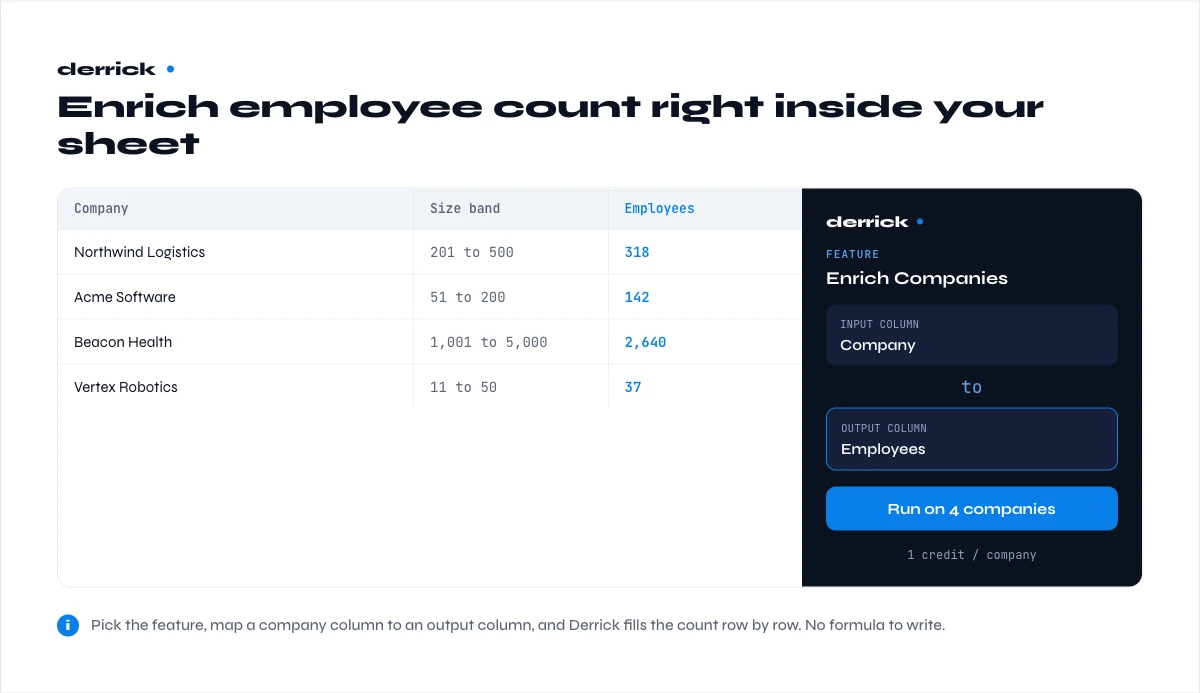
Method 5: Automate Employee Count Enrichment with Data Tools
When you need employee count for dozens or hundreds of companies, automation is the only practical solution. Data enrichment tools extract company size information from multiple sources and add it directly to your spreadsheets or CRM.
How automated employee count lookup works
Derrick App automates company data enrichment in its web app, and integrates directly with Google Sheets. Instead of manually researching each company, you provide any identifier, company name, website, LinkedIn URL, or even a contact's email address, and Derrick finds the employee count automatically. Under the hood this runs the Enrich Companies feature, which returns headcount alongside the rest of a company's firmographics in a single pass.
What you can start with:
- Company name ("Salesforce")
- Company website ("salesforce.com")
- LinkedIn company URL ("linkedin.com/company/salesforce")
- Contact email ("mike@salesforce.com")
- Contact's LinkedIn profile URL
What you get back:
- Employee count
- Company industry
- Founded year
- Company headquarters location
- Revenue range
- 50+ additional firmographic attributes
Step-by-step: Finding employee count with Derrick
Step 1: Install Derrick in Google Sheets
Open Google Sheets and install Derrick from the Google Workspace Marketplace, or skip the install and use the Derrick web app. No credit card required for the free tier (100 credits monthly).
Expected result: Derrick appears in your Google Sheets Extensions menu.
Step 2: Prepare your company list
Create a column with your company identifiers. This could be:
- A list of company names
- A list of company websites
- A list of contact email addresses
For example, if you exported 200 leads from a sales intelligence tool, you might have an "Email" column with values like "sarah@acmecorp.com" or a "Company" column with "Acme Corporation."
Expected result: A clean column of data ready for enrichment.
Step 3: Run the employee count enrichment
- Click Extensions → Derrick in the Google Sheets menu
- Select "Search Company LinkedIn Page" (if you have company names or websites) OR select "Enrich Profile" (if you have contact emails or LinkedIn URLs)
- Choose the column containing your company identifiers
- Click "Search" or "Enrich"
Derrick processes each row and adds company information including employee count in new columns.
Expected result: Your spreadsheet now contains employee count for every company in your list, along with other firmographic data like industry, location, and founding year.
Step 4: Use the data for segmentation and prioritization
With employee count data in your spreadsheet, you can now:
- Sort by company size to prioritize prospects
- Filter to show only companies matching your ICP (e.g., 50-250 employees)
- Create separate outreach campaigns for SMB vs. enterprise prospects
- Export enriched data to your CRM for automated lead scoring
Real-world example: SDR workflow optimization
Jenny, an SDR at a B2B marketing platform, receives 300 inbound leads weekly from various channels. Her ICP targets companies with 100-500 employees. Before using automation, she spent 90 minutes each Monday manually researching companies to identify which leads matched her ICP.
After implementing Derrick, her Monday morning workflow looks like this:
- Export last week's leads from HubSpot (5 minutes)
- Paste into Google Sheets (1 minute)
- Run Derrick employee count enrichment (2 minutes setup + 10 minutes processing)
- Filter for companies with 100-500 employees (1 minute)
- Import qualified leads back to HubSpot (5 minutes)
Total time: 24 minutes instead of 90 minutes. That's 66 minutes saved every week, which equals 57 hours per year she can spend actually talking to prospects instead of doing data entry.
Why automation wins for company size research
Consistency: Automated enrichment uses the same logic for every company, eliminating subjective judgment calls or human error.
Scale: Process hundreds or thousands of companies in the time it takes to manually research one.
Fresh data: Derrick pulls from LinkedIn and other sources in real-time, ensuring you're working with current information rather than stale database exports.
Multi-point enrichment: Beyond employee count, you get comprehensive company intelligence in one step, enabling more sophisticated segmentation than company size alone.
Learn more about data enrichment workflows and how to combine multiple firmographic attributes for better lead qualification.
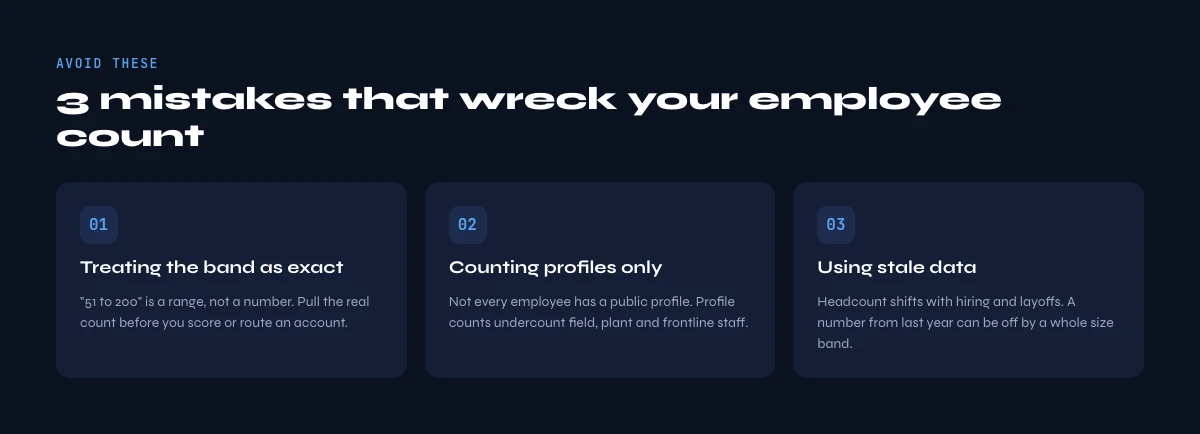
Common Mistakes When Finding Employee Count (And How to Fix Them)
Mistake 1: Relying on a single data source
Symptom: You find employee count on LinkedIn showing "51-200 employees" and use that exact range for your entire qualification process.
Impact: Single-source data can be inaccurate or outdated. Different sources use different collection methods and definitions of "employee."
Solution: Cross-reference at least two sources. If LinkedIn shows 51-200 and the company website mentions "a team of 120 people," you have validation. If sources wildly disagree (one says 50, another says 500), dig deeper or use the most recent official source like SEC filings.
Mistake 2: Ignoring the definition of "employee"
Symptom: You're comparing employee counts across sources and getting different numbers for the same company.
Impact: Some sources count only full-time employees, others include part-time workers, contractors, or freelancers. A company with 100 full-time employees might have 150 "team members" when including contractors.
Solution: Check the source's methodology. SEC filings typically specify "full-time equivalent employees." LinkedIn counts anyone who lists the company as their current employer. Company websites may use broader terms like "team members" or "people." Be consistent in which definition you use for qualification.
Mistake 3: Using outdated employee count data
Symptom: Your CRM shows a prospect company has 75 employees based on data from 18 months ago. In reality, they've grown to 200 employees and now fit your enterprise segment.
Impact: Stale data leads to mistargeting. You treat a rapidly growing mid-market company like a small business, using the wrong pitch, wrong pricing, and wrong buyer personas.
Solution: Refresh employee count data at least quarterly. Use tools that pull live data rather than static database exports. Set up automated enrichment to update company size before major campaigns or when leads move through qualification stages.
Mistake 4: Overweighting employee count in qualification
Symptom: You automatically disqualify any company under 100 employees because your ICP specifies "100-500 employees."
Impact: Employee count is one signal, not the only signal. A 75-person company with $50M ARR is very different from a 150-person company with $5M ARR. Rigid size requirements cause you to miss high-value opportunities that don't exactly match your employee range.
Solution: Use employee count as part of a multi-factor qualification framework. Combine company size with revenue, industry, technology stack, growth signals, and funding stage for more nuanced lead scoring. Consider exceptions for companies just below your threshold that show strong growth indicators.
Mistake 5: Not accounting for company structure
Symptom: You target "companies with 200-500 employees" and reach out to the US subsidiary of a 10,000-person global enterprise. The buying process and budget authority are completely different than you expected.
Impact: Employee count at the entity level doesn't reflect true company size if you're dealing with a subsidiary, regional office, or business unit. You underestimate decision-making complexity and sales cycle length.
Solution: When researching employee count, note whether you're looking at:
- Total global headcount: The entire organization across all regions
- Regional headcount: US employees only, EMEA only, etc.
- Subsidiary headcount: A specific legal entity within a larger corporation
For complex organizations, use LinkedIn's People filters to understand how employees distribute across locations and business units. Once you have pinpointed the right entity, you can move from headcount to outreach by learning how to find a company contact email for the decision-makers inside it.
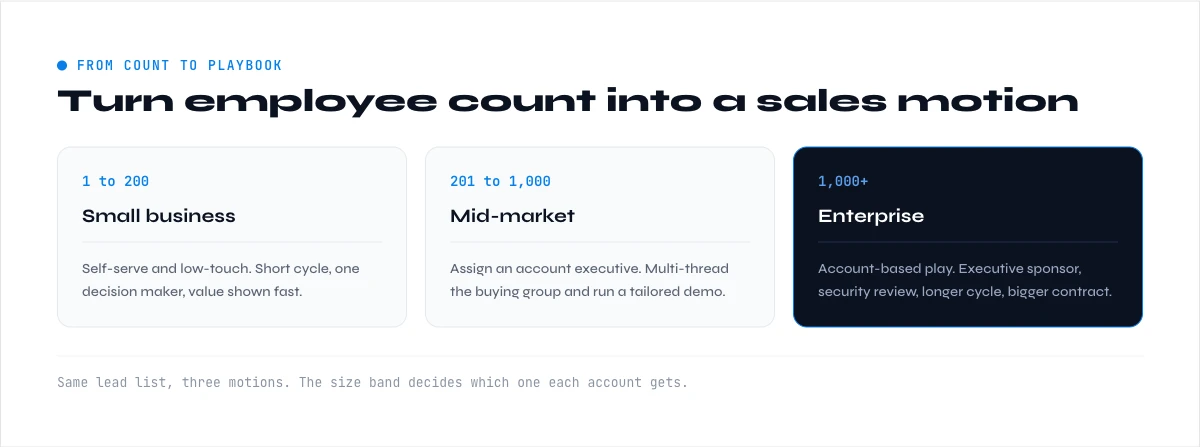
How to Use Employee Count Data for Sales and Marketing
Finding the employee count is just the first step. Here's how to apply this data to improve your go-to-market strategy.
Worked examples make these bands easier to calibrate. Our company profiles show the tracked headcount split by management level and by function for real organisations: Discord (around 4,900 tracked profiles), Salesforce (around 88,000) and Walmart (around 2.1 million). The full company directory lets you compare size bands side by side.
Segment your prospect lists by company size
Create distinct size-based segments:
Micro (1-10 employees):
- Buying process: Founder makes all decisions
- Budget: Limited, price-sensitive
- Sales cycle: Short (days to weeks)
- Messaging: Emphasize simplicity, quick setup, immediate ROI
Small (11-50 employees):
- Buying process: Founder or department head decides
- Budget: Growing but still cost-conscious
- Sales cycle: Short to medium (2-6 weeks)
- Messaging: Focus on scaling, efficiency, time savings
Mid-market (51-500 employees):
- Buying process: Multiple stakeholders, some procurement involvement
- Budget: Moderate, looking for best value
- Sales cycle: Medium (1-3 months)
- Messaging: Emphasize scalability, integration, support quality
Enterprise (500+ employees):
- Buying process: Complex, multiple departments, formal procurement
- Budget: Larger, but longer approval chains
- Sales cycle: Long (3-12+ months)
- Messaging: Focus on security, compliance, customization, enterprise support
Build your Ideal Customer Profile (ICP)
Analyze your best customers to identify the company size sweet spot. Pull a list of your top 20 customers by revenue and calculate the median employee count.
For example, if your best customers cluster around 150-300 employees, your ICP should prioritize companies in that range. Use employee count as a qualification filter to focus outreach on lookalike prospects, and pair it with a list of companies similar to your best customers to expand the target set without drifting off-profile.
Tailor your outreach and pricing
Adjust your messaging based on company size:
Small company email:
"I noticed Acme Corp's team has grown to 35 people. We help fast-growing teams like yours automate their prospecting without adding headcount. Our customers in the 25-50 employee range typically save 10 hours per SDR per week."
Enterprise company email:
"I see your sales organization has grown to 300+ people globally. We help enterprise sales teams at similar scale centralize their data enrichment while maintaining security and compliance standards. Happy to share how companies like [similar 300+ employee reference] have scaled their operations with our platform."
Identify growth signals for timing
Track employee count changes over time to spot growth momentum:
- Company grew from 50 to 150 employees in 12 months → Aggressive expansion mode, likely needs scaling solutions
- Company shrank from 200 to 120 employees → Cost-cutting, may be interested in efficiency tools but budget-sensitive
- Company maintains steady 100 employees over 24 months → Stable operations, predictable buyer behavior
Use LinkedIn's employee growth tracking or set up quarterly enrichment runs to detect headcount changes.
Allocate sales resources efficiently
Route leads to the right rep based on company size:
- SDRs handle companies under 100 employees (shorter sales cycles, simpler deals)
- Mid-market AEs handle 100-500 employees (moderate complexity)
- Enterprise AEs handle 500+ employees (strategic, high-touch sales)
This ensures each rep works deals that match their skill set and quota structure.
For more advanced qualification strategies, explore Boolean search on LinkedIn to combine employee count filters with industry, location, and technology filters for precision targeting.
Conclusion: Start Finding Employee Count the Smart Way
Employee count is foundational firmographic data that impacts every stage of your sales and marketing workflow, from initial qualification to tailored messaging and resource allocation. But manual research doesn't scale when you're working hundreds of prospects.
The fastest path forward:
- Use LinkedIn for quick single-company checks
- Cross-reference with company websites or SEC filings for accuracy
- Automate everything else with data enrichment tools that scale across your entire prospect list
Start with your next 50 leads. Enrich them with accurate employee count data and segment them properly. You'll immediately see which prospects deserve your time and which messaging will resonate based on their company size.
Frequently asked questions
How accurate is LinkedIn employee count?
What's the fastest way to find employee count for 100+ companies?
Do I need Sales Navigator to find company employee count?
How often should I update employee count data?
What if employee counts differ across sources?
Can I find employee count from just a contact's email address?
Keep reading
Continue exploring this cluster


LinkedIn Company Followers: How to Identify and Leverage Them for B2B Prospecting
Read →

LinkedIn Company Hashtags: The Complete Guide to Maximizing Your B2B Visibility
Read →

LinkedIn Company Tagline: Definition, Creation, and B2B Prospecting Use Cases
Read →

LinkedIn Company ID: How to Find and Use It for B2B Prospecting
Read →