
LinkedIn Headline 2026: Character Limit + Examples That Work
LinkedIn headline character limit: 220 (240 on mobile, ~70 visible). Get the 2026 rules, real examples, templates that convert, and how to extract them.


Your LinkedIn headline is much more than a job title. It's your digital business card, your sales pitch, and for sales teams, a goldmine of data for qualifying prospects. Whether you're looking to optimize your own profile or extract headlines to enrich your B2B prospecting, this guide covers everything you need to know.
What is a LinkedIn headline and why it's crucial
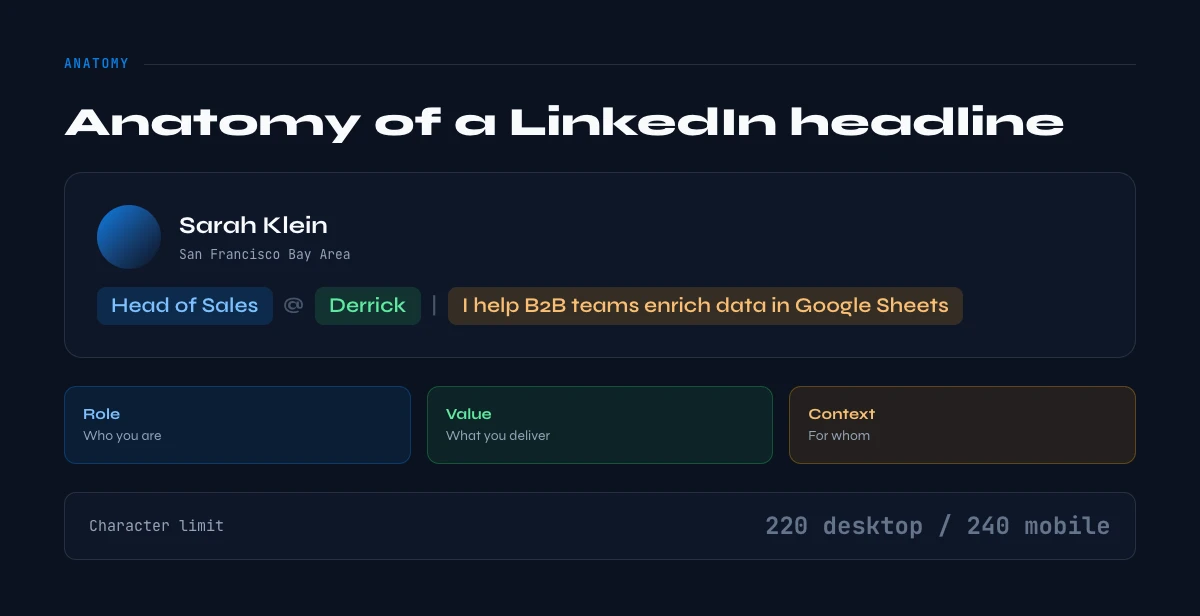
Your LinkedIn headline is the 220-character text (240 on mobile) that appears directly below your name on your profile. It's the first piece of information visible to anyone viewing your profile, searching for you, or receiving a message from you.
Specifically, your headline appears in:
- LinkedIn search results
- Your connection requests
- Your comments and posts
- InMail messages
- Google search results (LinkedIn is indexed)
For professionals optimizing their profile, it's your only chance to grab attention in a few words. For sales or marketing teams prospecting, it's strategic data that instantly reveals a prospect's seniority level, industry, and exact function.
The business impact of LinkedIn headlines
For your own profile:
- An optimized headline generates up to 40% more profile views according to LinkedIn
- It improves your appearance in recruiter and sales searches
- It determines whether someone will accept your connection request
For B2B prospecting:
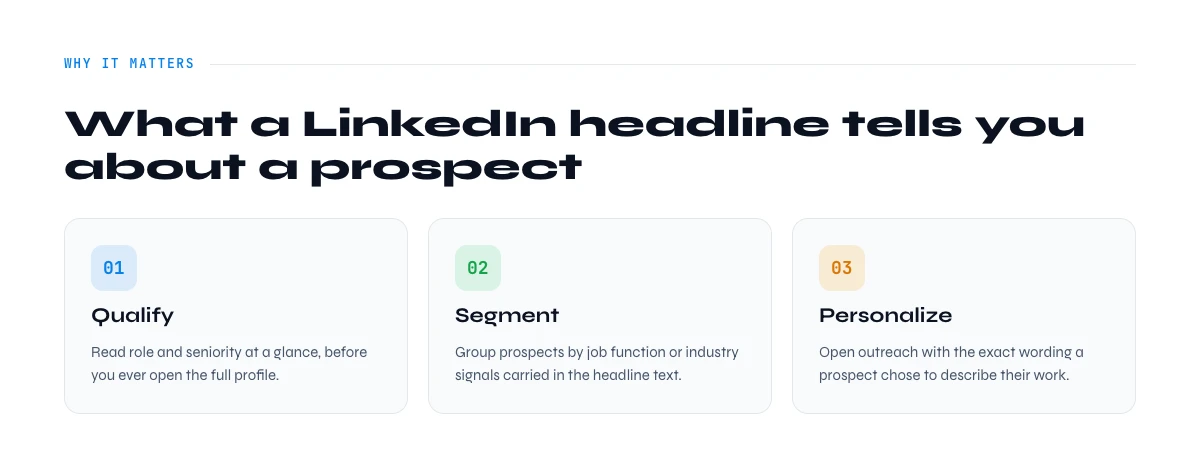
- Headlines let you qualify a lead in 2 seconds (decision-maker vs. individual contributor)
- They help segment your lists by seniority, function, or industry
- They provide personalization data for cold emails
- They reveal if a prospect changed jobs (different headline vs. job title)
An SDR prospecting 200 leads per day can, thanks to headlines, immediately identify "Head of," "VP," "Founder" and prioritize their outreach. Without this data, they waste time on unqualified contacts.
How LinkedIn headlines work: anatomy and standards
Structure of a LinkedIn headline
Headlines typically follow a 3-part structure:
1. Role/Title: What you do (e.g., "SDR", "Growth Marketer", "CEO") 2. Value/Specialization: Your differentiation (e.g., "specialized in B2B SaaS", "automation expert") 3. Context/Company: Where you do it (e.g., "at Derrick", "@ Startup X")
Examples of effective structures:
| Structure | Example |
|---|---|
| Role + Value + Context | "Head of Sales @ Derrick | B2B Prospecting Specialist | Ex-Salesforce" |
| Value + Role + Result | "I help SaaS startups generate 10K MRR via LinkedIn | Growth Marketer" |
| Role + Industry + CTA | "Tech Recruiter | I find your IT talent in 15 days | 500+ placements" |
Technical limits of headlines
Character limits:
- Desktop: 220 characters maximum
- Mobile: 240 characters maximum
- Golden rule: Aim for 180-200 characters to ensure full display everywhere
LinkedIn's official headline character limit is 220 characters on desktop (240 on mobile), but only about 70 characters show in the mobile preview and in search results. The About section follows a different limit, so here is the full LinkedIn character-limit cheat sheet for 2026:
| LinkedIn profile field | Character limit (2026) |
|---|---|
| Headline | 220 desktop, 240 mobile (~70 visible on mobile) |
| About / Summary section | 2,600 |
| Experience role title | 100 |
| Experience description | 2,000 |
| Post (text update) | 3,000 |
| Company name | 100 |
Accepted special characters:
- Emojis: Work and catch the eye (use sparingly)
- Pipe
|: Visually separates sections - Dashes
-: Alternative to pipe - Bullets
•: Create visual lists
What does NOT appear in the headline:
- Your photo (it's next to it)
- Your location (displayed separately)
- Your connection count (visible elsewhere)
Default headline vs. custom headline
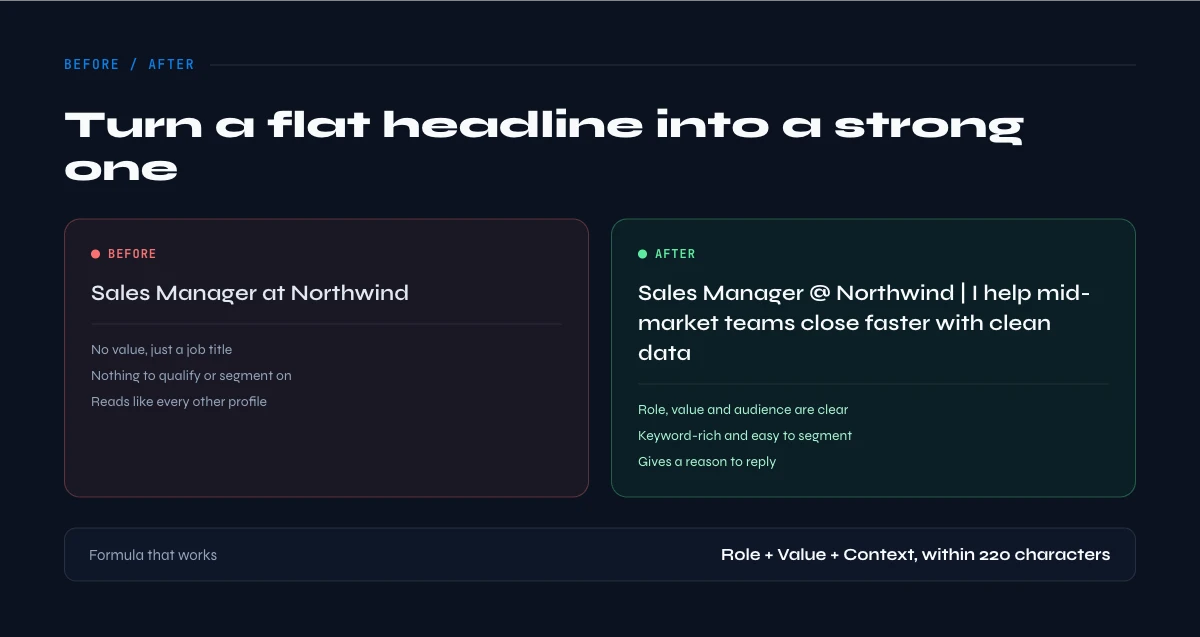
If you don't customize your headline, LinkedIn automatically generates: [Your current title] at [Your current company]
Once you have it, Derrick can extract the current company from any profile in bulk, straight into the web app or your sheet.
Generic example: "Sales Development Representative at Acme Corp"
Problem: This generic version says nothing about your unique value, doesn't include strategic keywords, and makes you invisible in searches.
Optimized example: "SDR @ Acme Corp | B2B SaaS Pipeline Generation | +15% conversion rate | Multi-channel prospecting"
The difference? The second headline positions you as a domain expert and optimizes for searches on "pipeline generation," "SaaS prospecting," etc.
Why extract LinkedIn headlines for B2B prospecting
Headlines as instant qualification data
For a sales team, a LinkedIn headline is instant qualification data. It's one of the most valuable attributes in a B2B data enrichment process. To sharpen that qualification, cross-reference it with the skills on each profile.
Real use case: Sarah, Head of Sales at a marketing automation startup, is prospecting marketing managers. She has a list of 1,000 names extracted from LinkedIn Sales Navigator.
Without headlines:
- She must manually visit each profile
- Estimated time: 1,000 profiles × 15 seconds = 4.2 hours
- High risk of qualification errors
With automatically extracted headlines:
- Immediate filtering on "CMO," "VP Marketing," "Head of Marketing"
- Identification of specializations ("B2B," "SaaS," "Growth")
- Detection of active prospects (recent headline vs. old title)
- Time saved: 4 hours → invested in personalized outreach
Segmentation and outreach personalization
Headlines enable prospecting list segmentation across multiple axes:
1. Segmentation by seniority level
- C-level: "CEO", "CTO", "CMO", "CFO"
- VP/Director: "VP of", "Director of", "Head of"
- Manager: "Manager", "Lead", "Responsible"
- Individual contributor: "Specialist", "Coordinator", "Assistant"
2. Segmentation by function
- Sales: "SDR", "AE", "Sales", "Business Development"
- Marketing: "Growth", "Marketing", "Content", "SEO"
- Product: "Product Manager", "PM", "Product Owner"
- Tech: "Developer", "Engineer", "DevOps", "CTO"
3. Segmentation by industry/specialization
- B2B SaaS
- E-commerce
- Fintech
- Healthcare
- Agency
Example of headline-based email personalization:
Extracted headline: "VP Sales @ Fintech Startup | Scaling B2B SaaS teams"

Personalized email:
"Hi [First name],

I saw you're currently scaling a B2B fintech sales team.
Many VPs in your position lose 30% of their time
on manual lead enrichment.

[Rest of email...]"
The headline enabled:
- Confirming seniority level (VP)
- Identifying the pain point (scaling team)
- Adapting the message (fintech context)
Detecting job changes
LinkedIn headlines update faster than the rest of the profile when someone changes jobs.
Why? Because it's the first thing people update when starting a new job. The "Experience" section often comes later.
Commercial opportunity: A prospect who just changed jobs is 3x more receptive to new solutions:
- They're rebuilding their tech stack
- They have budget to allocate
- They want to stand out with new tools
By comparing the current headline with one captured 3 months ago, you identify movers (people who changed roles) and can target them as a priority.
In the web app or Google Sheets
Read the headline of a whole list
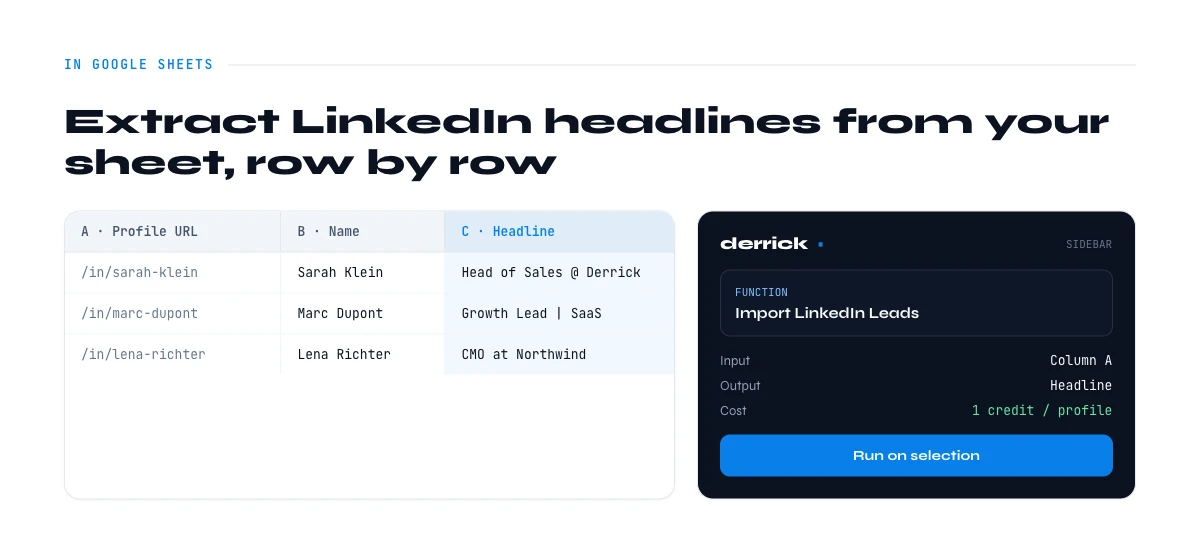
A headline is the sentence a prospect wrote about themselves, which makes it the best personalisation variable on the profile. Derrick returns it in your list with the other profile fields, row by row.
- Feature
- LinkedIn Leads Profile Enrichment
- Credit cost
- 1 credit per lead enriched
The first button opens the web app (nothing to install): 1 credit per lead enriched, 100 free credits every month. The second details the feature and its cost per plan.
How to extract LinkedIn headlines from prospects: step-by-step guide
Method 1: Manual extraction (for small volumes)
When to use it: Lists under 20 prospects, one-time research
Process:
Step 1: Open the prospect's LinkedIn profile
Search for the person on LinkedIn via their name or profile URL.
Expected result: You see the full profile with the headline visible below the name.
Step 2: Copy the headline
Select the headline text (the 220 characters below the name) and copy it (Ctrl+C / Cmd+C).
Expected result: The headline is in your clipboard.
Step 3: Paste into your Google Sheet or CRM
Open your prospecting file and paste the headline into a dedicated column.
Expected result: You have a new "LinkedIn Headline" column filled manually.
Limitations of this method:
- Time: ~15 seconds per profile (50 profiles = 12 minutes)
- Frequent copy/paste errors
- Impossible for 100+ prospect lists
Method 2: LinkedIn scraping via third-party tools (medium volumes)
When to use it: Lists of 50-500 prospects, regular extraction
LinkedIn scraping tools (Phantombuster, Evaboot, Captain Data) allow automatic headline extraction.
Common characteristics:
- Require your LinkedIn cookies
- Risk of limitation/ban if too many requests
- Price: $50-150/month depending on volume
- Delay: 1-2 seconds per profile (100 profiles = 3-4 minutes)
Data extracted beyond headline:
- First name, last name
- Current job title
- Current company
- Location
- LinkedIn profile URL
Limitations:
- Configuration complexity (cookies, workflows)
- Regular maintenance (cookies expire)
- High cost if you need other enrichments (email, phone)
Method 3: Automated extraction with Derrick (large volumes + complete enrichment)
When to use it: Lists of 100+ prospects, need email + phone in addition to headline
Derrick lets you extract LinkedIn headlines in one step, in the web app or directly from Google Sheets. And the same workflow returns the prospect's country, so you can segment by geography in the same pass.
Available workflows:
| Initial data (I have) | Extracted data (I want) | Derrick Workflow |
|---|---|---|
| First + Last name + Company | LinkedIn headline | Find Headline by Fullname |
| Professional email | LinkedIn headline | Find Headline by Email |
| LinkedIn profile URL | LinkedIn headline | Find Headline by LinkedIn URL |
Step 1: Install Derrick in Google Sheets
Go to the Google Workspace Marketplace (or skip the install and use the Derrick web app) and install the Derrick add-on.
Expected result: The Derrick icon appears in your Google Sheets.
Step 2: Prepare your data in a Google Sheet
Create or open a Google Sheet with your prospects. You need at minimum:
- A "First name" column
- A "Last name" column
- A "Company" column (optional but recommended)
Expected result: Your data is clean and structured.
Step 3: Launch the "Find Headline by Fullname" workflow
- Select your name column
- Click Extensions → Derrick → Find Headline by Fullname
- Map your columns (First name, Last name, Company)
- Launch enrichment
Expected result: Derrick processes your rows and adds a "LinkedIn Headline" column with results.
Processing time: ~2-3 seconds per row.
Step 4: Use headlines to segment your lists
Once headlines are extracted, use them to:
- Filter by keywords ("Head of", "VP", "Manager")
- Create segments ("C-level fintech", "SaaS sales managers")
- Personalize your outreach messages
Expected result: Your lists are segmented and ready for targeted prospecting.
Method comparison
| Method | Time (100 profiles) | Monthly cost | Complexity | Bonus data |
|---|---|---|---|---|
| Manual | ~25 minutes | Free | Very simple | None |
| Scraping (Phantombuster) | ~3-4 minutes | $50-150 | Medium | Job title, company |
| Derrick | ~5-6 minutes | €20-175 | Simple (Google Sheets) | Email, phone, 50+ attributes |
Our recommendation:
- < 20 prospects: Manual extraction
- 20-100 prospects: LinkedIn scraping or Derrick
- 100+ prospects + need email/phone: Derrick (best ROI)
The app works through your list row by row: 1 credit per lead enriched.
Common mistakes when extracting headlines (and how to fix them)
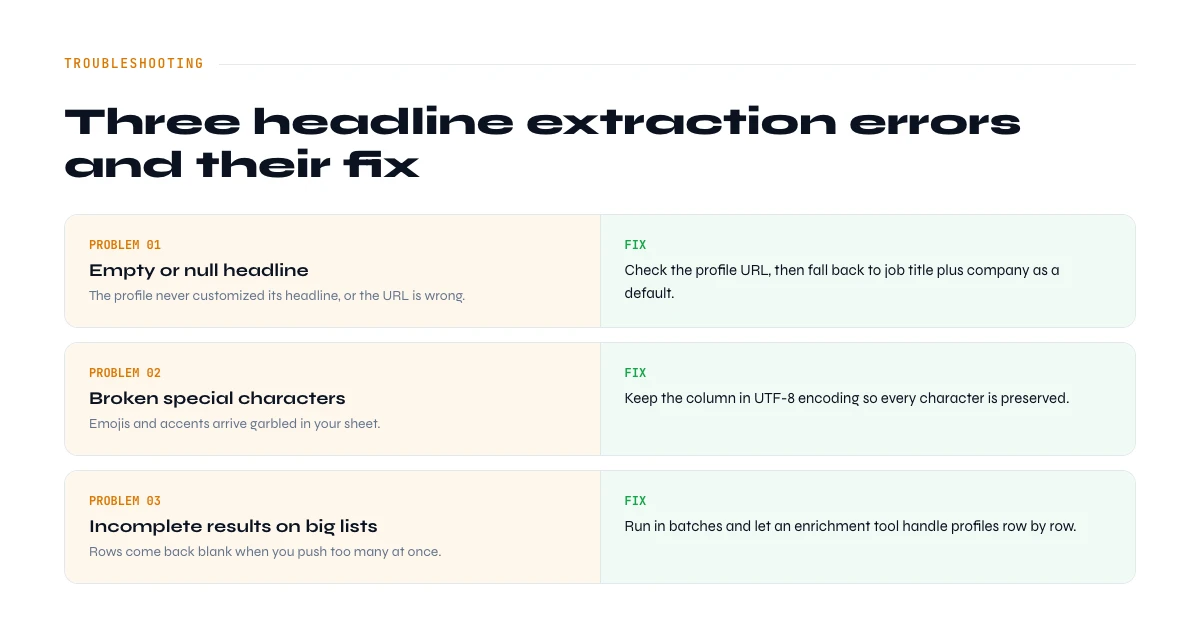
Problem 1: Empty or null headline
Symptom: Some LinkedIn profiles return an empty or "null" headline during extraction.
Impact: You lose qualification data and can't segment properly.
Solution: This happens when:
- The LinkedIn profile is incomplete (person never customized their headline)
- The profile is in private mode and limits data access
- The provided URL is incorrect
How to fix:
- Verify the LinkedIn URL is correct
- If the profile is truly empty, use the "Current job title" as fallback
- In Derrick, the "LinkedIn Profile Scraper" feature also extracts job title if headline is empty
Problem 2: Truncated or poorly formatted headline
Symptom: The extracted headline contains weird characters (..., &, etc.) or is cut off.
Impact: Data difficult to use for segmentation.
Solution:
- Emojis can be misinterpreted by some scrapers
- HTML special characters (
&for&) require cleaning - Some tools cut after 120 characters (old LinkedIn limit)
How to fix:
- Use a cleaning function in Google Sheets:
=SUBSTITUTE(A2,"&","&") - Verify your tool scrapes the full 220 characters
- Trim extra spaces and line breaks with
=TRIM(CLEAN(A2))before using the headline
Problem 3: Outdated headline
Symptom: The extracted headline no longer matches the person's current position.
Impact: You contact a prospect with outdated information (bad first impression).
Solution: This happens if:
- The person changed jobs but didn't update their profile
- Your database hasn't been refreshed in several months
- You're using data purchased from a broker (often outdated)
How to fix:
- Enrich in real-time rather than with static databases
- Update your lists every 3 months minimum
- Compare headline with "Current Job Title" to detect inconsistencies
Problem 4: LinkedIn rate limiting (scraping blocked)
Symptom: After extracting 200-300 headlines, LinkedIn logs you out or blocks your requests.
Impact: You can't scrape temporarily and risk account ban.
Solution: LinkedIn limits the number of profiles viewed per day:
- ~300-400 profiles/day max for a free account
- ~800-1,000 profiles/day for Sales Navigator
How to fix:
- Distribute extraction over several days (100 profiles/day)
- Add random delays between each request (2-5 seconds)
- Use a service that manages proxies and rotations automatically
- With Derrick, you don't consume your LinkedIn limits (extraction via third-party API)
Problem 5: Unusable data (generic headlines)
Symptom: 30% of your extracted headlines are like "Student at University X" or "Looking for opportunities."
Impact: Impossible to segment correctly, you waste time on non-prospects.
Solution: Filter upstream on Sales Navigator to target only:
- Profiles with at least 2 years of experience
- People currently employed (not "Looking for")
- Specific functions ("Sales", "Marketing", etc.)
How to fix in Google Sheets:
=IF(ISNUMBER(SEARCH("looking",A2)),"Not qualified","Qualified")
This formula identifies headlines containing "looking" and marks them as unqualified.
How to optimize your own LinkedIn headline: best practices
If you're extracting other people's headlines to qualify prospects, it's equally important to optimize your own headline to be found by the right people. For more on optimizing your LinkedIn sales profile, check out our complete guide.
Two profile fields pair naturally with the headline when you qualify a list: the public LinkedIn profile URL (your stable key for each prospect) and the job title pulled from the profile. Extracted alongside the headline, they turn a raw list into a scored, ready-to-work pipeline. You can pull all three in one pass with Enrich Leads (1 credit per profile).
Golden rules for an effective headline
1. Clarity over creativity
Don't be too cryptic. A recruiter or prospect should understand what you do in 2 seconds.
"Growth Ninja | Pipeline Disruptor | SaaS Rockstar" "Head of Growth @ B2B SaaS Startup | Paid Acquisition & SEO | Ex-HubSpot"
2. Keywords at the beginning of headline
The first words are most visible (especially on mobile where headline is truncated).
Prioritize:
- Your main function ("SDR", "CMO", "Founder")
- Your industry ("SaaS", "Fintech", "E-commerce")
- Your specialization ("LinkedIn automation", "Cold email expert")
Example: "B2B SaaS SDR | LinkedIn Pipeline Generation | 500+ qualified meetings/year" "Passionate about tech and business development in SaaS with a focus on LinkedIn"
3. Quantify your results
Numbers catch the eye and add credibility.
Examples of metrics to mention:
- "+30% conversion" (performance)
- "500K ARR generated" (revenue impact)
- "200+ clients served" (social proof)
- "3x ROI on campaigns" (efficiency)
4. Include a benefit or promise
Instead of simply listing what you do, explain who for and what result you generate.
Formula: [Role] | I help [target] achieve [result] via [method]
Examples:
- "Growth Marketer | I help B2B SaaS generate 10K MRR in 6 months via SEO"
- "Tech Recruiter | I find your senior developers in 15 days | 300+ placements"
- "LinkedIn Consultant | I optimize profiles to generate 5x more opportunities"
5. Optimize for LinkedIn SEO
LinkedIn works like a search engine. Your headline must contain keywords your prospects search for.
How to identify the right keywords:
- Go to LinkedIn search bar
- Type your function (e.g., "sales development")
- Note the autocomplete suggestions that appear
- These are the most searched terms → integrate them into your headline
- For more advanced searches, use Boolean search on LinkedIn
Example: If you're a data enrichment consultant:
- Popular terms: "data enrichment", "lead generation", "B2B prospecting", "CRM enrichment"
- Optimized headline: "Data Enrichment Consultant | Lead Generation & B2B Prospecting | Automated CRM Enrichment"
The LinkedIn headline formula (2026)
Every high-performing LinkedIn headline in 2026 follows the same three-part formula. Build yours in this order and you cover role, audience, and proof in under 200 characters:
[Role + specialization] | [Who you help + the outcome] | [Proof or differentiator]
- Role + specialization: your function and the exact niche you own, not just "Sales Manager" but "Enterprise SaaS Sales Manager".
- Who you help + the outcome: the audience you serve and the measurable result you deliver, for example "I help RevOps teams cut data-prep time by 60%".
- Proof or differentiator: a number, a client, or a credential that makes the claim believable, such as "500+ placements" or "Ex-Notion".
Keep the whole headline between 180 and 200 characters so nothing critical gets truncated, and front-load the first 70 characters because that is all that shows on a mobile preview.
LinkedIn headline examples by persona
SDR / BDR: "SDR @ B2B Fintech | Multi-channel Pipeline Generation | LinkedIn + Cold Email | 200+ demos/quarter"
Growth Marketer: "SaaS Growth Marketer | Paid Acquisition (Google Ads, LinkedIn Ads) | 3x ROI on 50+ campaigns"
Recruiter: "Tech Recruiter specialized in DevOps & Cloud | I find your hard-to-fill profiles in 3 weeks | 500+ placements"
Founder / CEO: "CEO @ Derrick | We help sales teams enrich their LinkedIn leads in the web app or in Google Sheets | Ex-Growth Lead"
Consultant / Freelancer: "LinkedIn Ads Consultant | I optimize your B2B campaigns for -40% CPA | 80+ clients served"
Product Manager: "B2B SaaS Product Manager | User-centric & data-driven | Ex-ProductBoard, Notion | Building in public"
Account Executive: "Enterprise AE @ B2B SaaS | I help RevOps leaders consolidate their data stack | 140% quota, 3 years running"
Sales Manager: "Sales Manager | I build outbound teams that book 50+ qualified demos/month | Ex-Salesforce | 12 reps led"
Tools to test and optimize your headline
1. LinkedIn Headline Analyzer (free)
Tools like Jobscan or Taplio analyze your headline and give you a score on:
- Message clarity
- SEO optimization
- Keyword usage
- Potential engagement
2. Manual A/B testing
Change your headline every 2-3 months and measure:
- Number of profile views (visible in LinkedIn Analytics)
- Number of connection requests received
- Number of InMail messages
3. Competitor headline analysis
Search for 10 people with the same job as you and analyze their headlines:
- What keywords appear frequently?
- What formats are most used?
- Which headlines make you want to click?
Get inspired (without copying) from best practices.
Legal aspects and GDPR compliance
Is extracting LinkedIn headlines legal?
Short answer: Yes, under conditions.
LinkedIn headlines are public data that users chose to display. Their extraction is considered scraping of public data, which is generally permitted for legitimate professional use.
Conditions to respect:
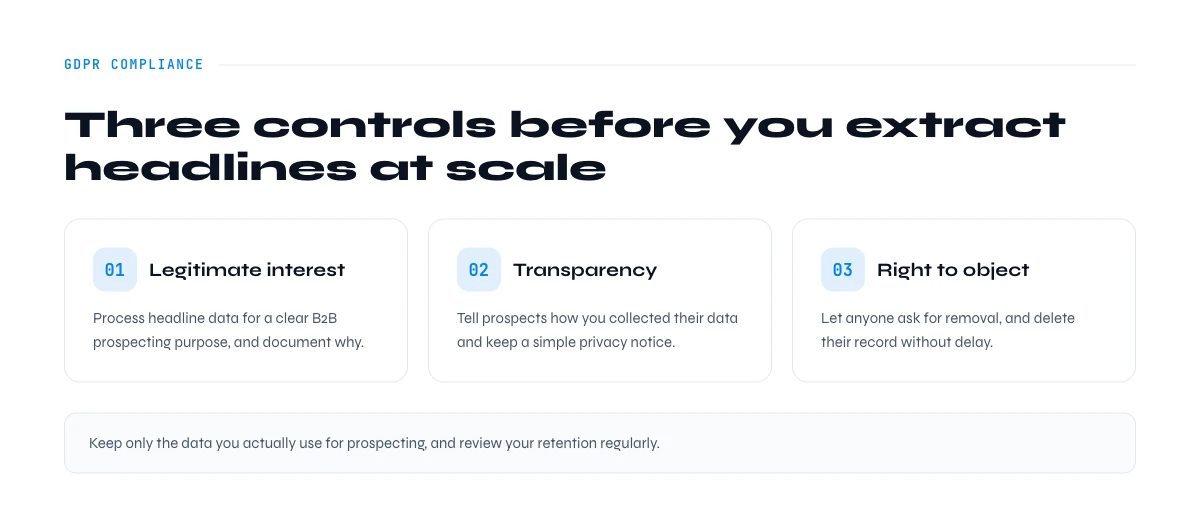
- Legitimate purpose: B2B prospecting, recruitment, or research are accepted purposes
- Public data only: Only extract headlines visible on public profiles
- No database resale: You can't resell a database of scraped headlines
- GDPR compliance: If you store this data, you must respect retention period and right to erasure rules
What LinkedIn says: LinkedIn's terms of service prohibit massive scraping. In practice, LinkedIn tolerates "reasonable" use (a few hundred profiles per month) but may block accounts scraping thousands of profiles per day.
GDPR best practices for headline extraction
1. Limited retention period
Only keep extracted headlines for the time needed for your prospecting:
- One-time campaign: 3 months max
- Recurring prospecting: 12 months max
- Delete data after use
2. Data security
Headlines can reveal a person's function, which is professional data (less sensitive than personal data, but still to be protected).
- Store your files in a secure Google Drive (not on your local computer)
- Limit access to only those who need it
- Never share your enriched lists publicly
3. Right to erasure
If a person asks you to delete their data, you must do so within 30 days.
How to manage: Keep a record of your data sources (LinkedIn, Sales Navigator, etc.) to justify the legitimacy of extraction.
4. Transparency (optional but recommended)
If you contact someone whose headline you extracted, mention it in your message:
"Hi [First name], I saw on LinkedIn that you're [headline]. I think [product] could help you [benefit]."
It's transparent and justifies your targeted approach.
Key takeaways
- Your LinkedIn headline is your 220-character professional pitch, visible everywhere on the platform and in Google
- For B2B prospecting, extracting headlines lets you instantly qualify leads and segment lists by seniority and function
- Derrick can automatically extract headlines from a name, email, or LinkedIn URL in the web app or in Google Sheets
- A good headline combines role, value proposition, and SEO keywords to maximize your visibility
- Headline extraction is legal if you respect legitimate purposes and GDPR (retention period, security)
Conclusion: turn LinkedIn headlines into a competitive advantage
LinkedIn headlines haven't been just a job title for a long time. They've become a strategic asset with two edges:
- For you: An optimized headline makes you visible to the right people (recruiters, potential clients, partners)
- For your prospecting: Your prospects' headlines are qualification data that save you hours of research
The best-performing sales teams understand this: they automate headline extraction to segment, qualify, and personalize their outreach at scale. While their competitors waste time manually sorting lists, they focus on what matters: conversations with qualified prospects.
Want to automate LinkedIn headline extraction to enrich your prospecting lists? Try Derrick for free and automatically find headlines, emails, and phone numbers of your prospects, in the web app or in Google Sheets.
Frequently asked questions
What is the maximum length of a LinkedIn headline?
Can you change your LinkedIn headline often?
Is it possible to extract prospect headlines without LinkedIn Sales Navigator?
Does the LinkedIn headline appear in Google?
How do I know if my LinkedIn headline is effective?
What is the best tool to extract LinkedIn headlines in bulk?
Keep reading
Continue exploring this cluster


How to Find a LinkedIn URL: Complete Guide for Professionals and Prospectors
Read →

How to Find Country from LinkedIn Profile URL: 3 Proven Methods
Read →

How to Find City from LinkedIn Profile URL: Complete 2026 Guide
Read →

How to Find Someone's LinkedIn Skills: Complete Guide 2026
Read →