
How to Extract a Name from a LinkedIn URL: 6 Methods (2026)
Extract a name from a LinkedIn URL in 2026: 6 methods, from slug parsing to bulk enrichment in Google Sheets, with accuracy, scale and compliance notes.


Last updated: 2026-06-16
A LinkedIn profile URL like linkedin.com/in/jane-doe-1a2b3c is a unique pointer to one person, but the URL itself rarely hands you a clean name. The slug is often a nickname, an abbreviation, or a string of random characters, and the real first and last name live inside the profile, not in the link. Extracting a usable name from a LinkedIn URL means resolving that pointer to actual profile data, and how you do it changes completely depending on whether you have one URL or ten thousand.
This guide walks through six ways to get a name (and usually the rest of the profile) from a LinkedIn URL, from a manual copy to bulk enrichment that runs inside a spreadsheet. Each method has a clear sweet spot, and the right choice comes down to volume, accuracy, and how much you care about staying inside LinkedIn's terms of service.
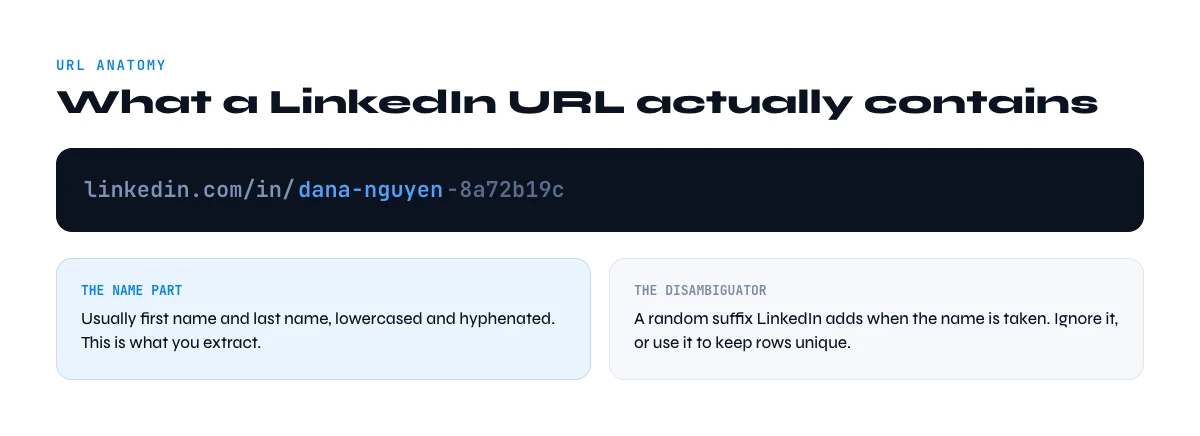
What a LinkedIn URL actually contains
There are two kinds of LinkedIn profile URL, and the difference matters. A vanity URL (linkedin.com/in/jane-doe) is the custom handle a member chooses, so it sometimes maps cleanly to a name and sometimes does not. The second kind is the internal one, built from a profile identifier that looks like random characters, which tells you nothing about the person at all. Either way, the URL is an address, not a record. The name, headline, current job title, company, and location all sit behind that address on the rendered profile page.
So "extract a name from a LinkedIn URL" almost always means one of two jobs. Either you parse the slug to guess at a name (fast, free, and unreliable), or you resolve the URL to the live profile and read the real name from the data (accurate, and the version anyone serious actually needs). For prospecting, recruiting, or data cleanup, you want the second. Guessing from the slug breaks the moment someone has a numeric handle or a localized name spelling.
One more thing worth setting straight up front: a name on its own is rarely the end goal. If you are extracting names from a list of URLs, you almost certainly also want the job title, the company, and a verified contact channel, because a name with no context is not actionable. The good news is that every method that resolves the URL to a profile gives you those fields in the same pass, so it is worth picking a method that returns the whole record rather than just the name.
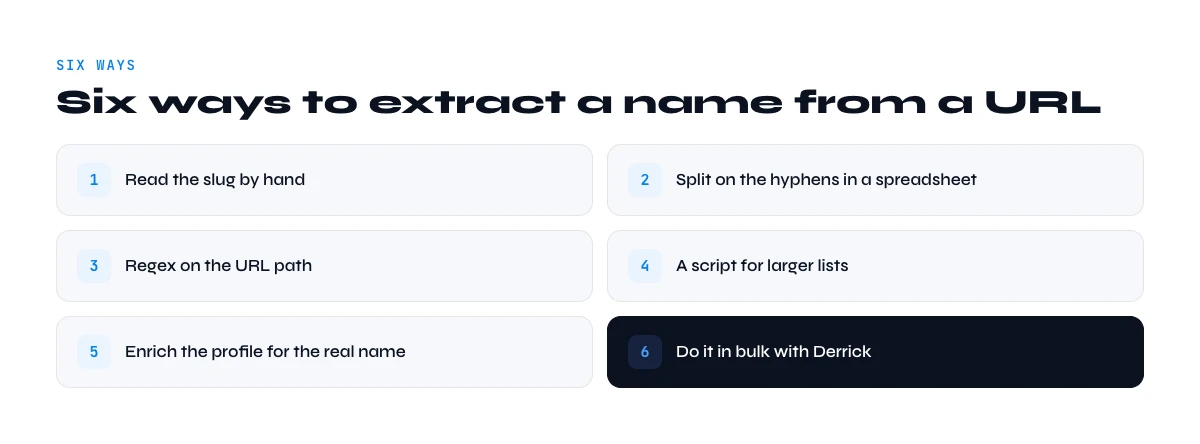
6 ways to extract a name from a LinkedIn URL
1. Parse the URL slug yourself
The fastest free method is to read the slug. Take the part after /in/, strip any trailing characters, and split on the hyphen, so jane-doe-1a2b3c becomes "Jane Doe". This costs nothing and needs no tool. The catch is reliability: many members use numeric or scrambled handles, plenty localize their name in a script the slug flattens, and you have no way to confirm the guess is right. Treat slug parsing as a rough first pass, never as a source of truth.
2. Open the profile and copy the name
The obvious method still works. Click the URL, let the profile load, and copy the name from the top of the page. You get the verified name plus the headline, current role, and company at a glance. It is accurate and free, and for one or two lookups it is the right call. It simply does not scale: a few hundred URLs turns into hours of clicking, loading, and pasting, and LinkedIn will start throttling rapid profile views from a single session. There is also a hidden cost in the copying itself, because every name you move by hand is a chance to transpose a character or paste it into the wrong row, and those small errors are exactly what poison a list before you ever send a message.
3. Use a browser extension
A scraper extension reads the profile page you have open and pulls the name and other fields into a panel or an export. It is faster than manual copying and handy when you are already browsing. The trade-offs are real: most extensions run on your own logged-in session, so heavy use raises the ban risk on your account, and quality varies widely between tools. For a comparison of which ones lean on your cookie versus proxy infrastructure, see our breakdown of LinkedIn scraper Chrome extensions.
4. Call a scraping API
If you are building a workflow rather than clicking around, a scraping API takes a profile URL and returns structured fields, including the full name. This is the right shape for product features and automated pipelines, and it removes the manual step entirely. You pay per request, you handle rate limits and retries, and you carry the compliance responsibility for what you collect. Our guide to the LinkedIn scraper API covers what to expect on cost and coverage.
5. Write your own script
Developers sometimes want full control, and a Python LinkedIn scraper gives it to them. You can parse slugs in bulk, call a data source, and shape the output however you like. The cost is maintenance: LinkedIn changes its markup, anti-bot measures evolve, and a script that worked last quarter can silently return blanks this quarter. Rolling your own makes sense when extraction is core to your product and you have engineers to keep it alive, and rarely otherwise.
6. Enrich a whole column in the web app or in Google Sheets
When you have a list of URLs and you want names back without code or copy-paste, native enrichment is the lowest-friction path. With Enrich Leads, you load a column of LinkedIn profile URLs in the Derrick web app, or paste it into a sheet and open the Derrick sidebar, and the name fills in alongside the job title, company, and location. It runs in the web app or as a sidebar inside Google Sheets, not as a spreadsheet formula, so the data lands in columns next to the URLs you already have. This is the method built for volume, and it is where most sales and recruiting teams end up. We will come back to it in detail below.
In the web app or Google Sheets
The slug is a guess, the profile is not
Parsing a name out of a URL breaks on nicknames, accents and numbers. Derrick enriches the profile from that same URL and returns the first and last name as written on it, along with the current role and company.
- Feature
- LinkedIn Leads Profile Enrichment
- Credit cost
- 1 credit per lead enriched
The first button opens the web app (nothing to install): 1 credit per lead enriched, 100 free credits every month. The second details the feature and its cost per plan.
Which method fits your volume
The honest way to choose is by the size of the job and the risk you can tolerate. The table below lines the six methods up on what they actually return, how far they scale, and where each one breaks.
| Method | What you get | Scale | Main risk |
|---|---|---|---|
| Parse the slug | A guessed name only | Any volume | Often wrong, no verification |
| Open and copy | Verified name + headline | A handful | Slow, throttled at speed |
| Browser extension | Name + profile fields | Dozens to hundreds | Account ban risk |
| Scraping API | Structured full record | High, automated | Setup and compliance on you |
| Your own script | Whatever you build | High, if maintained | Breaks when markup changes |
| Enrich in Sheets | Name + title + company + more | A few to tens of thousands | Lowest friction, no code |
Read the table by your situation, not by the tool. One URL on a Tuesday afternoon: open it and copy. A few hundred for a campaign this week: native enrichment in the web app or a sheet. Extraction baked into a product you ship: an API or your own code. The trap is using a manual method for a job that has clearly outgrown it, which is how a quick task quietly eats an afternoon. The mirror trap is over-engineering a one-off, since standing up an API or a script for three URLs costs more time than it ever saves. Match the method to the volume in front of you, not to the volume you imagine you might have one day.
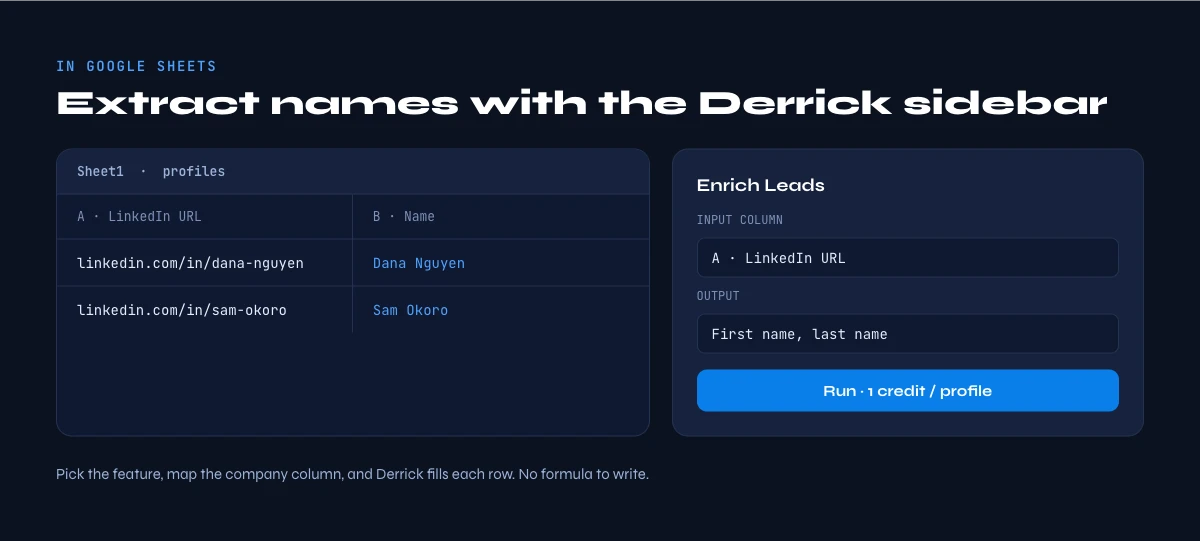
Extracting names at scale with Derrick
When the list is the unit of work, the question stops being "how do I read this one profile" and becomes "how do I turn a column of URLs into a column of names and titles". Derrick answers that in the web app or in Google Sheets. You paste your LinkedIn profile URLs into a column, open the sidebar, and run Enrich Leads, which fills the name plus the job title, company, and location for each row. It is a sidebar, not a formula, so there is nothing to install in the sheet itself and no syntax to learn.
Pricing is per row: Enrich Leads costs 1 credit per profile, billed per request. The free plan includes 100 credits per month with no credit card, which is enough to extract names from a real list and judge the accuracy on your own data before paying anything. When you need more volume, paid plans start at 20 euros per month, and the same workflow handles ten rows or ten thousand without changing how you work. That last point matters: there is no separate "bulk mode" to graduate into and no different tool for big lists, so the workflow you learn on a small batch is the one you keep at scale.
The reason this beats stitching together an extension and a manual cleanup pass is that the data never leaves the sheet where your list already lives. You keep your own columns, filters, and notes, and the extracted names appear right next to the URLs they came from, ready for the next step. A common flow is to extract names and titles first, then pull company info from the same profile URLs, and finally push the cleaned rows wherever your outreach runs. If your list lives elsewhere, the LinkedIn to Google Sheets path gets it into the right shape first.
Derrick also runs the same enrichment in its web app, through a Chrome extension and an API, so the spreadsheet is one door among several. Whichever surface you use, the underlying job is the same: resolve the URL, return the real name and the fields around it, and bill only for the rows you actually enrich.
Start with 100 free credits and extract names from your own list of URLs before committing to anything.
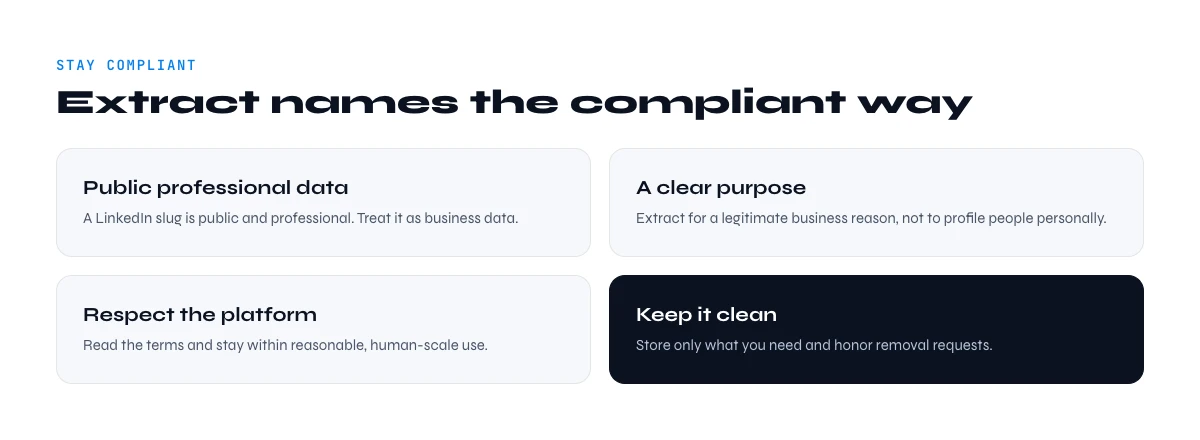
Stay compliant when you extract
Reading a name from a profile you can see is one thing; collecting names from URLs at scale is another, and the rules deserve attention. LinkedIn's terms of service restrict automated access, and aggressive scraping from a logged-in account can get it restricted, which is the practical reason heavy manual and extension-based extraction is risky. US case law (hiQ v. LinkedIn) held that scraping publicly accessible data is not a computer-fraud violation, but that ruling does not override LinkedIn's own terms or data-protection law.
On the privacy side, a name tied to a profile is personal data. Under GDPR in the EU and UK GDPR, you need a lawful basis to process it, usually legitimate interest for B2B prospecting, plus a clear way for people to opt out. The rule of thumb that keeps you safe is to collect only what you have a real business reason to use, contact people in their professional capacity, and honor every removal request on the first ask. Using a tool that relies on compliant data sources, rather than hammering profiles from your own session, also lowers both the account risk and the legal exposure. For a wider view of approaches and their trade-offs, our guide to the best LinkedIn scrapers compares tools on exactly this dimension.
The bottom line
Extracting a name from a LinkedIn URL is easy for one profile and a real workflow problem for a list. Parse the slug only as a throwaway guess, open and copy for one-offs, and reach for native enrichment the moment you have a column of URLs to resolve. The methods that return the full record (name, title, company, location) in one pass are worth choosing over the ones that hand back a bare guess, because a name with context is the only kind you can actually act on. Start free, validate the accuracy on your own data, and scale the same workflow as the lists grow.
Frequently asked questions
Can you get a name directly from a LinkedIn URL?
What is the fastest way to extract names from many LinkedIn URLs?
Is it legal to extract names from LinkedIn profiles?
Why doesn't the LinkedIn URL slug always match the person's name?
How much does it cost to extract names with Derrick?
Can I also get the job title and company, not just the name?
Keep reading
Continue exploring this cluster


Best LinkedIn Scrapers 2026: 10 Tools Compared (Pricing, Limits & Workflows)
Read →

Best LinkedIn Scraper Chrome Extensions 2026: 12 Tools Compared (Workflow, Risk, Pricing)
Read →

Free LinkedIn Scrapers 2026: 10 Tools Compared (Quotas, Limits, Workflow)
Read →

LinkedIn Scraper MCP: How to Pull LinkedIn Data Straight Into Claude (2026 Guide)
Read →