
How to Find Someone's Current Company from a LinkedIn Profile
Get the current company and job title from any LinkedIn profile in bulk via Google Sheets. 3 methods compared, free and paid, with real 2026 match rates.


Of every field you can pull from a LinkedIn profile, the current company is the one that drives the most decisions. It tells you which account a person belongs to, whether they just moved into a new role, and whether they are still inside your ideal customer profile. Yet a LinkedIn profile URL such as linkedin.com/in/john-smith gives you none of that on its own. The company lives on the page, not in the link, so you either read it by hand or enrich the URL to extract it.
This guide walks through what the current company field actually is, why it is worth the effort, and the three reliable ways to get it: reading it manually, enriching a list of profile URLs in the Derrick web app or in Google Sheets, and starting from a name when you have no URL at all. By the end you will have a repeatable workflow that turns a raw list of profiles into a clean, account-mapped prospecting list.
What "current company" actually means on LinkedIn
LinkedIn surfaces the current company in two places: the top card of the profile, just under the person's name, and the first entry of the Experience section. In most cases the two agree, but not always. Someone can keep an older title pinned at the top of their profile while a more recent position sits below it, and a person who holds two roles at once will show whichever they marked as current. When you extract the field programmatically, the value most tools return is the top-card employer, and that is the one that matters for mapping a person to an account.
Three edge cases are worth keeping in mind before you trust the field blindly. People who are between jobs sometimes display no company at all, or a placeholder like "Open to work". Founders, consultants and freelancers often list their own single-person company, which is factually correct but rarely useful for account-based targeting. And large enterprises appear under several legal entity names (for example a local subsidiary versus the global parent), so two employees of the same group can show slightly different company strings. A good workflow accounts for all three rather than assuming every row is clean.
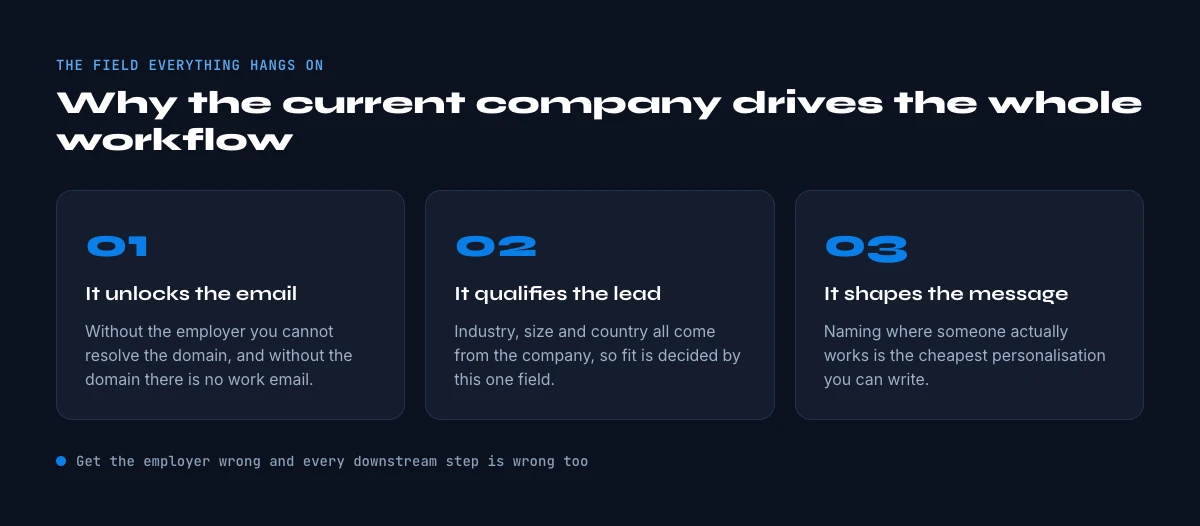
Why the current company is the highest-value field for prospecting
Knowing where someone works right now changes what you do with the lead. It is the field that connects an individual to a company record, and that connection is what makes account-based prospecting possible in the first place.
Account mapping. Once each contact carries a clean company name, you can group your prospects by account, count how many stakeholders you have inside a target, and spot the accounts where you only have one contact and need more. Without the company field, a list of names is just a list of names.
Job-change signals. A prospect who changed companies in the last 90 days is one of the strongest buying signals in B2B. They are setting up a new stack, they have budget to prove themselves, and they remember the tools they liked at their last company. Tracking the current company over time is how you catch those moves.
Territory and routing. Pairing the company with the person's location lets you route each lead to the right rep, region or language. A list that carries current company plus country is enough to split inbound by territory automatically.
Disqualification. The company also tells you who to drop. If a contact moved to an industry you do not serve, or to a company that is already a customer or an active opportunity, you want to know before you spend a personalized message on them.
Personalization. The current company is also the anchor for a relevant opening line. Once you know where someone works, you can reference their company's recent news, the stack their team likely uses, or the challenge their industry is facing right now. A first line that ties your message to the prospect's actual employer reads as researched rather than blasted, and that is the difference between a reply and a delete. Every other enrichment you layer on top, from headline to skills, only sharpens an angle that starts with the company.
Method 1: Read it manually from the profile
For one or two prospects, the fastest path is to open the profile and copy the company name straight from the top card or the Experience section. It is free, it is accurate, and it is the right call when you only need a handful of names or when you want to sanity-check a value an automated tool returned.
The manual approach falls apart the moment you have more than a few dozen profiles. Opening tabs, reading the top card, copying the company, pasting it into a sheet, and repeating that a hundred times is slow, error-prone and exactly the kind of repetitive work that belongs in an automated workflow. Use it for spot checks, not for building a list.
In the web app or Google Sheets
The current employer, not the one in your file
The company on an old record is the single field most likely to be wrong. Derrick re-reads the profile and writes the current company back on the row, which is also what tells you the contact has moved.
- Feature
- LinkedIn Leads Profile Enrichment
- Credit cost
- 1 credit per lead enriched
The first button opens the web app (nothing to install): 1 credit per lead enriched, 100 free credits every month. The second details the feature and its cost per plan.
Method 2: Enrich a list of profile URLs in Google Sheets
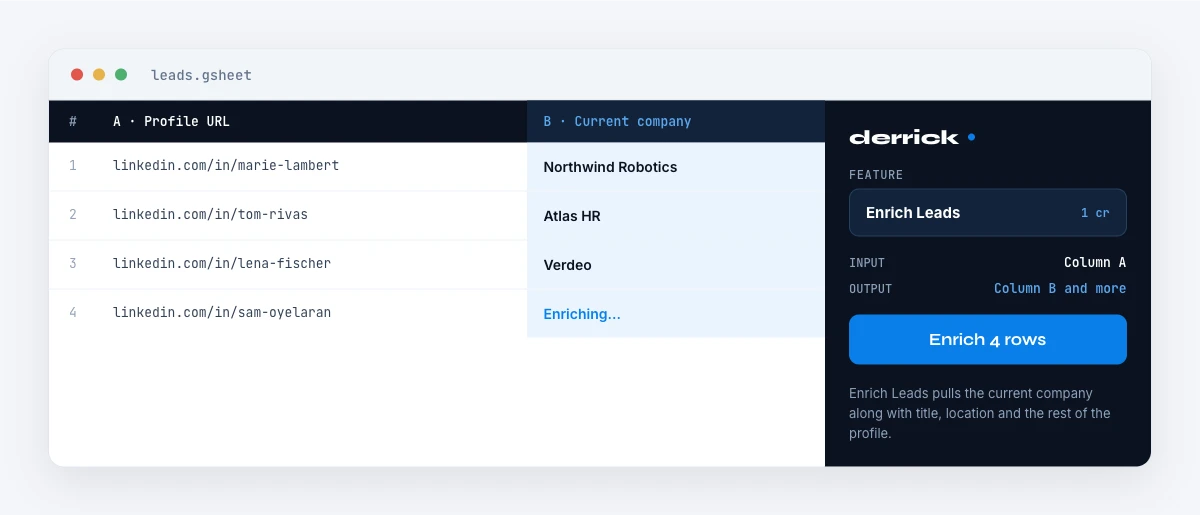
When you already have a column of LinkedIn profile URLs, the fastest path is to enrich the whole list at once. You point an enrichment tool at the URL column, and it reads each profile and returns the current company, job title and other fields in new columns, one row per profile. No tab-switching, no copy-paste, and the same logic applied consistently to every row.
With Derrick this runs in its web app, and also as a Google Sheets sidebar. You open your list in the web app or your sheet, pick the Enrich Leads feature, map it to your column of profile URLs, and it processes the list row by row, writing the current company and the rest of the profile fields into the columns you choose. Enrich Leads costs 1 credit per profile and is available from the free plan, which includes 100 credits per month, so your first list of up to 100 profiles costs nothing to run. Whether you run it in the web app, with nothing to install, or inside the spreadsheet you already use, there is no export and no new tool to learn.
The app works through your list row by row: 1 credit per lead enriched.
Method 3: Start from a name when you have no URL
Sometimes you only have a first and last name, maybe with a company, but no profile URL. In that case you resolve the profile first, then enrich it. Derrick's Search Leads feature, available on paid plans (1 credit per profile), finds the matching LinkedIn profile from a name, and you chain it with Enrich Leads to read the current company off that profile. End to end, that is 2 credits per profile: one to find, one to enrich.
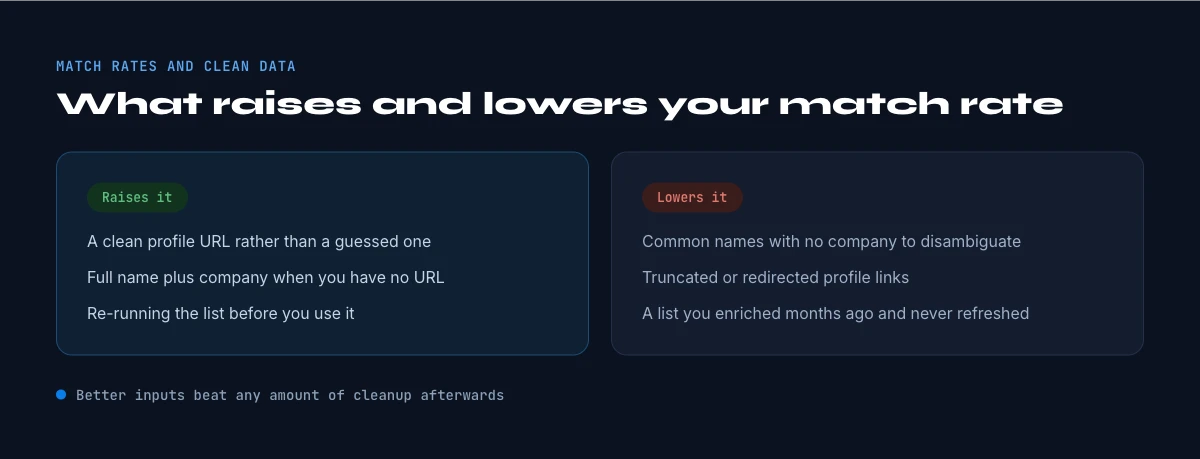
The one thing to watch with name-based lookups is disambiguation. Common names return several possible profiles, so adding the company or the location you already know to the search narrows it to the right person and keeps your match rate high. If you are missing URLs across a whole list, it is usually worth resolving them first, then running a single enrichment pass over the cleaned list.
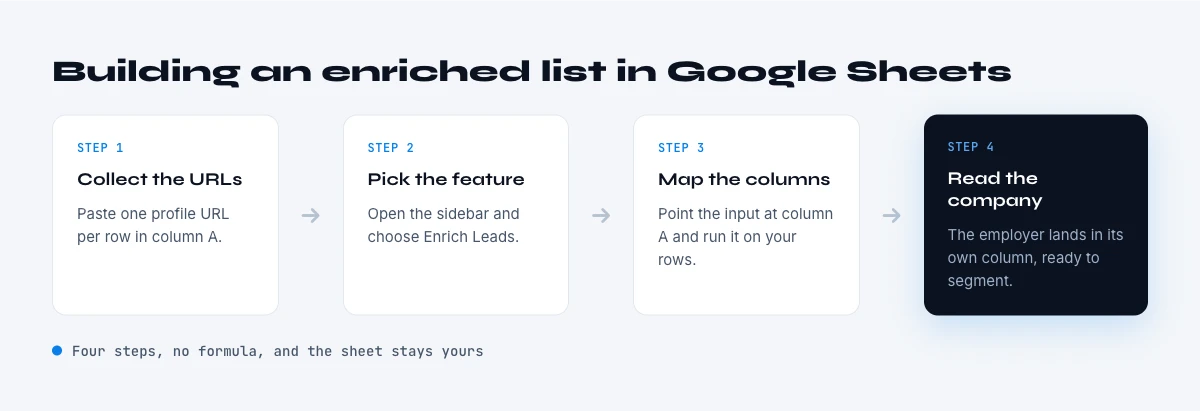
Step by step: building an enriched list in Google Sheets
Here is the concrete workflow once everything is in place. It takes a few minutes for a list of a few hundred profiles.
1. Collect your inputs. Put your LinkedIn profile URLs in one column. If you only have names, resolve them with Search Leads first so every row ends up with a URL.
2. Run Enrich Leads. Open the Derrick web app or its Google Sheets sidebar, pick Enrich Leads, map the input to your URL column, and choose the output columns you want: current company, job title, location, and any other profile field you need.
3. Let it process row by row. Derrick fills the columns one profile at a time. A few hundred rows complete in minutes, and you watch the current company appear next to each contact.
4. Clean and group. Normalize obvious duplicates (subsidiary versus parent names), drop the rows with no company or an "Open to work" placeholder, and group the rest by company to see your account coverage.
5. Route and refresh. Send each segment to the right sequence or rep, and schedule a re-enrichment of your key accounts so the data does not drift.
Match rates and keeping the data clean
| Method | Best for | Scale | Cost |
|---|---|---|---|
| Manual read | 1 to 20 profiles, spot checks | Low | Free |
| Enrich a URL list | You already have profile URLs | High | 1 credit / profile |
| Search then enrich | You only have names | High | 2 credits / profile |
Most tools match 85-95% of public profiles for the current company field. The gap is rarely the tool: it is private profiles, brand-new accounts, and people who simply have not updated their LinkedIn. The bigger issue is not coverage but freshness. Current company is one of the fastest-decaying fields in any B2B dataset because people change jobs constantly, so a list you enriched six months ago is already partly wrong today.
The fix is a cadence, not a one-off. Re-enrich your key accounts on a regular schedule (monthly for active opportunities, quarterly for the wider list) and treat the current company as a living field rather than a fixed attribute. Pairing it with the person's location gives you enough to keep both account mapping and territory routing accurate over time.
Common mistakes to avoid
Trusting the headline instead of the company. The headline is free text the person wrote, and it often lags behind reality or describes an aspiration. The current company field is the structured value; prefer it.
Ignoring entity names. Treating "Acme France" and "Acme Inc" as two different accounts splits your coverage and hides the fact that you already have three contacts in the same group. Normalize before you count.
Enriching once and forgetting. A stale company field quietly sends the wrong message to the wrong account. Build the refresh into your process from the start.
Skipping disambiguation on name lookups. Searching a common name without a company or location attached returns the wrong profile often enough to pollute your list. Always add a second signal.
Putting it together
For a clean, account-mapped prospecting list the workflow is simple and repeatable: collect the profile URLs (or resolve them from names), enrich the list once to get the current company and job title, normalize and group by account, then refresh the accounts you care about on a regular cadence. You can extend the very same sheet to pull the skills or the headline of each profile when you need a sharper personalization angle, all in the same list, in the web app or in Google Sheets.
Start with the current company, because it is the field that turns a list of names into a map of accounts. Treat it as the foundation of your prospecting data, keep it fresh on a regular cadence, and every other attribute you enrich compounds in value as your list grows. Everything else you add builds on top of it.
Frequently asked questions
Can I get the current company straight from a LinkedIn URL?
How do I find the current company for a whole list of profiles?
What if I only have names, not profile URLs?
How accurate is the current company field?
Is this allowed and is it free to try?
Keep reading
Continue exploring this cluster


How to Find a LinkedIn URL: Complete Guide for Professionals and Prospectors
Read →

LinkedIn Headline 2026: Character Limit + Examples That Work
Read →

How to Find Country from LinkedIn Profile URL: 3 Proven Methods
Read →

How to Find City from LinkedIn Profile URL: Complete 2026 Guide
Read →