
How to Extract Job Title from a LinkedIn Profile URL
Extract the job title from any LinkedIn profile URL, one by one or in bulk inside Google Sheets. See the methods, the match rates, and start free today.


Of every field on a LinkedIn profile, the job title is the one most likely to decide whether a lead goes into a campaign or gets dropped. Seniority, function, and decision power all live in that one string. The problem is that a profile URL such as linkedin.com/in/jane-doe only identifies the person. The title sits inside the profile, in the current Experience entry, and you have to read it or extract it. This guide walks through every reliable way to do that, from a single profile to a list of ten thousand.
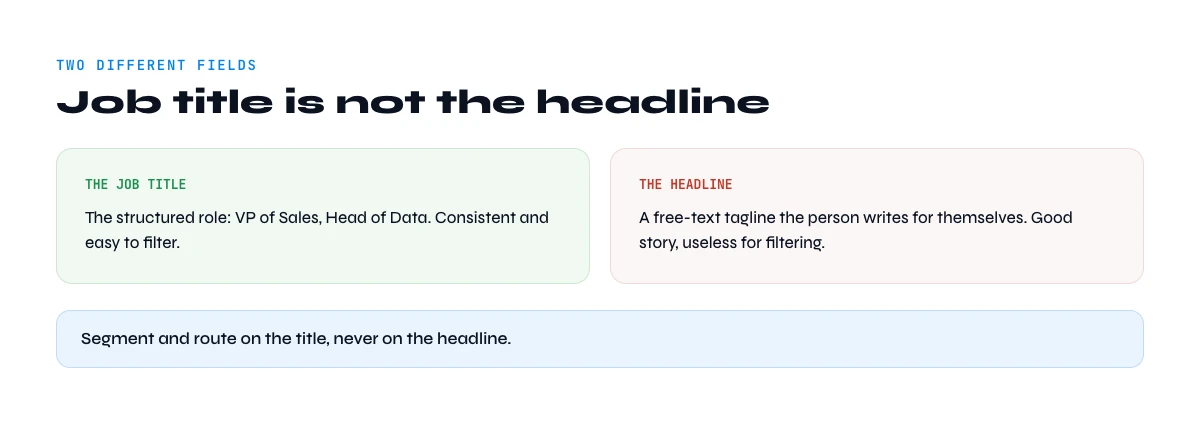
Job title is not the headline
This trips up almost everyone, so it is worth clearing first. A LinkedIn profile carries two separate role-related fields that look similar and mean different things.
- The headline is the free-text line under the name. It can say anything: "Helping B2B teams book more meetings", "Ex-Google | Advisor | Dad". It is marketing copy, not a structured field. We cover that field in depth in our guide to the LinkedIn headline and its character limit.
- The job title is the role label attached to the person's current position in the Experience section, for example "Head of Sales" at a specific company. It is structured, it maps to a real employer, and it is what you filter and segment on.
If you scrape the headline thinking it is the title, your seniority filters will be garbage. When the goal is to qualify and route leads, you want the job title tied to the current Experience entry, not the slogan under the name.
What a profile URL actually exposes
The URL string itself exposes nothing but the public identifier (the slug after /in/). The title lives on the rendered profile. What you can see also depends on who is looking: a logged-out visitor, a 1st-degree connection, and a recruiter seat all get slightly different views. For prospecting at scale this matters, because the cleanest reads come from a real, logged-in LinkedIn session rather than an anonymous request that LinkedIn is quick to throttle.
One more nuance: a person can hold several current positions at once. The "primary" title is the top one in the Experience list. Past titles form the title history, which is useful if you care about tenure or a recent job change, a topic close to pulling the current company from a profile.
Method 1: read it manually from the profile
For a handful of profiles, manual is fine. Open the profile URL, look at the line directly under the name and photo (that is usually the current title and company), and confirm it against the top Experience entry. Copy it into your sheet. Done.
This breaks the moment you have more than a few dozen people. It is slow, it is error prone, and LinkedIn starts showing you the "you have reached the weekly limit" wall after enough profile views. Manual is a fine answer for one prospect and a terrible one for a list.
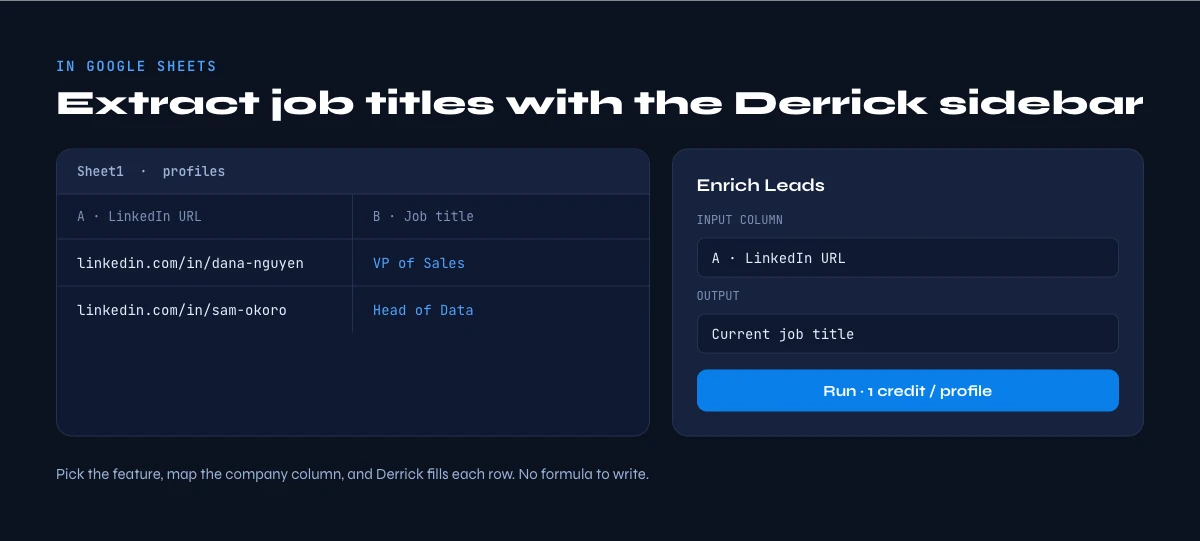
Method 2: extract job titles in bulk inside Google Sheets
This is the path most sales and ops teams actually need, because titles are rarely useful one at a time. You have a column of LinkedIn profile URLs (or names plus companies) and you want a column of titles next to them.
Derrick is built for exactly this, in its web app or as a Google Sheets sidebar. You pick the enrichment, map the column that holds the profile URLs, and it runs row by row, writing the job title (and the rest of the profile fields) into new columns. In Google Sheets, it reads each profile through your own LinkedIn session using the Derrick Helper Chrome extension, which is what keeps the data clean and the reads durable instead of getting blocked.
The relevant feature here is Enrich Leads, which costs 1 credit per profile and is available even on the free plan (the FREE plan gives you 100 credits per month, no card required). If you are starting from a search rather than a list of URLs, Search Leads builds the list of people first, also at 1 credit per profile. Because credits roll over on paid plans and the per-profile cost stays flat, the same workflow handles 100 rows or 10,000 rows without changing tools. Derrick is not a spreadsheet formula and there are no =FORMULA() tricks here: it fills columns, in its web app or its Google Sheets sidebar, which is why it scales to a full list instead of choking on one.
In the web app or Google Sheets
The title as it reads today
Job titles change more often than lists get refreshed. Derrick reads the profile URL from your list and returns the current title on the row, which is the field most qualification rules are written against.
- Feature
- LinkedIn Leads Profile Enrichment
- Credit cost
- 1 credit per lead enriched
The first button opens the web app (nothing to install): 1 credit per lead enriched, 100 free credits every month. The second details the feature and its cost per plan.
Method 3: scrapers and extraction APIs
A whole category of tools will pull profile fields, the job title among them. They split into three rough groups, each with a different trade-off between control, ban risk, and setup cost.
| Approach | How it gets the title | Best when | Watch out for |
|---|---|---|---|
| Native Sheets enrichment | Reads the profile via your own session, writes a column | You live in Google Sheets and want bulk without code | Needs the Chrome helper for LinkedIn fields |
| Browser scrapers / extensions | Renders the page and parses the DOM | Ad hoc, small batches | LinkedIn layout changes and view limits break them |
| Extraction APIs | You send a URL, get JSON back | You have engineering time and want a pipeline | Proxy farms carry higher ban and data-quality risk |
The honest summary: scrapers and APIs work, but you pay for them in maintenance and in the constant cat-and-mouse with LinkedIn's defenses. For a sales team that just wants titles in a sheet, a native enrichment that uses a real session is less fragile.
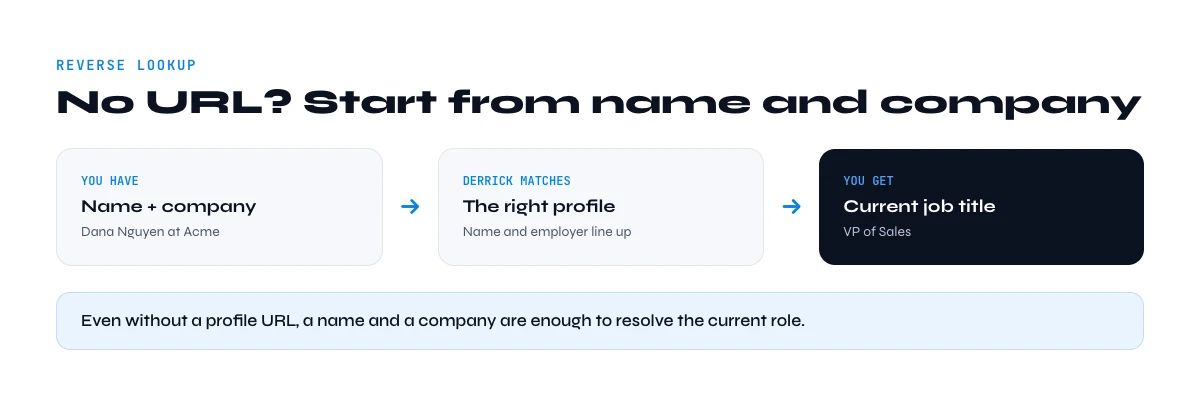
From name and company to job title (reverse lookup)
Sometimes you do not even have the profile URL, only a name and a company. You can still resolve a title. Matching a clean name plus company back to a profile lands a correct title roughly 80 to 90 percent of the time, and higher when the company name is unambiguous. If you only have the name, accuracy drops fast because of namesakes. When you are missing the URL entirely, start with our guide to recovering a LinkedIn profile URL and enrich from there.
The app works through your list row by row: 1 credit per lead enriched.
What to do with the title once you have it
Extracting the title is the means, not the end. Once it is in a column you can:
- Filter by seniority. Keep the VPs, Heads, Directors, and Chiefs; route or drop the rest. This is the single biggest lift to list quality.
- Route by function. A "Head of RevOps" and a "Head of Demand Gen" get different messaging even at the same company.
- Personalize the opener. A line that references the actual role beats "Hi {first_name}" every time.
- Catch job changes. A title that no longer matches your CRM is a signal: new role, new budget, new conversation.
Titles are also messy. "VP Sales", "VP of Sales", and "Vice President, Sales" are the same person-type written three ways, so plan to normalize before you filter. If role matters less than seniority, map titles to a seniority tier and filter on that instead. For richer personalization signals you can pair the title with the skills listed on the profile or the person's country for time-zone and language routing.
A worked example: 500 URLs into a title column
Say you exported 500 LinkedIn profile URLs from a saved search and you want a clean title next to each one. The manual route would mean 500 page views, most of a day, and a real chance of hitting LinkedIn's view ceiling halfway through. The bulk route looks different. You paste the URLs into column A of a Google Sheet, open the enrichment sidebar, point it at column A, and run (the same run works in the Derrick web app, with nothing to install). It works down the rows one by one, writing the current title into column B and, if you want them, the company, location, and headline into columns C, D, and E. At 1 credit per profile that batch costs 500 credits, and because the cost is flat per row the next batch of 5,000 behaves exactly the same way. You walk away, come back, and you have a title column instead of a to-do list. That is the whole point of doing this inside the spreadsheet you already segment in.
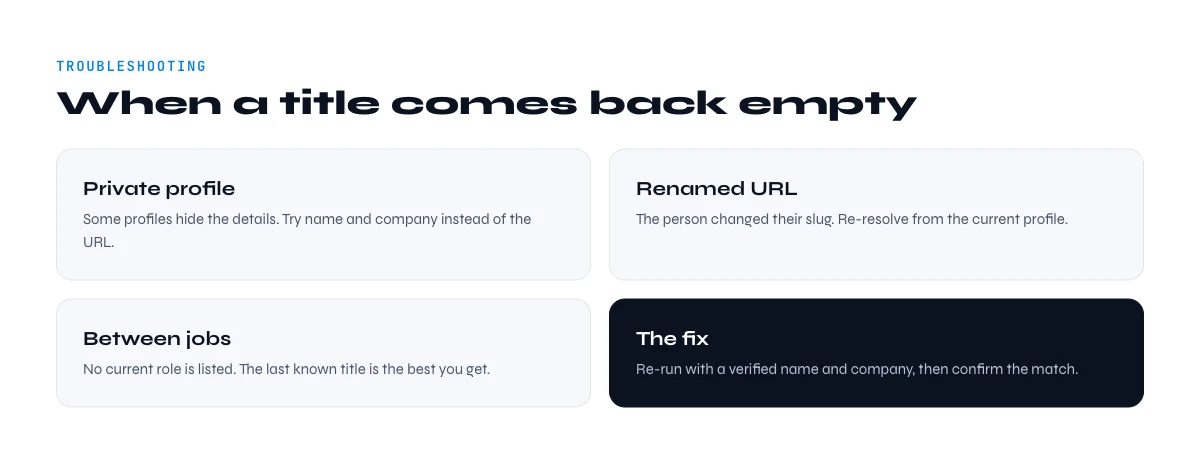
Why a title comes back empty, and how to fix it
No extraction method hits 100 percent, and it helps to know why a cell lands blank so you can react instead of assuming the tool failed.
- The profile is private or restricted. Some people lock down their experience section. There is no title to read, and no tool can invent one.
- The URL is stale. People change their custom URL, and an old link 404s. Re-find the current URL before you blame the enrichment.
- The person is between jobs. A profile with no current position has no current title, only history. That is itself a signal worth keeping.
- The name plus company match was ambiguous. Two people with the same name at large companies will lower confidence. Add a second anchor, like location, to disambiguate.
The practical move is to run the batch, sort by the rows that came back empty, and treat that short list differently rather than throwing out the 90 percent that worked. A blank title is information, not a dead end.
Title history and job-change signals
The current title answers "who are they now". The title history answers "where are they going", and for outbound that second question is often more valuable. A prospect who moved from "Sales Manager" to "VP Sales" three weeks ago is in a new-budget, new-mandate window that you will miss if you only look at today's label. Pulling the experience entries, not just the top one, lets you spot these moves across a list. Pair it with the current employer from our guide on extracting the company, and a row that no longer matches your CRM becomes a clean trigger to reach out. The title is not just a filter; tracked over time, it is one of the cheapest intent signals you can build into a sheet.
Is extracting job titles allowed?
Job title, employer, and the public parts of a profile are professional data, and using them for B2B prospecting in the European Union generally rests on legitimate interest rather than consent, provided you stay transparent and honor opt-outs. That said, two things keep you on the right side of the line. First, how you collect matters: reading public profiles through your own logged-in session at a measured pace is very different from running anonymous proxy farms that hammer LinkedIn against its terms. Second, what you store matters: keep the professional fields you actually use to qualify, document why you hold them, and delete on request. None of this is legal advice, and rules differ by region, so check your own obligations. The short version is that extracting a title to decide whether someone is a relevant business contact is a defensible, everyday practice when you do it cleanly and respect the person on the other end.
Which method should you pick?
If you have one profile, read it by hand. If you have a list and you want to stay in Google Sheets without writing code, enrich the URLs in bulk and let the title land in a column. If you are building a data pipeline and have engineering time, an API is defensible. Most people reading this are in the middle case, and the middle case is where a native enrichment, in the web app or in Sheets, earns its keep: same workflow at 100 rows or 10,000, a flat cost per profile, and no DOM parser to babysit. Whichever method you land on, the deciding factor is rarely the title for one person; it is whether the approach still holds up when the list grows to the size you actually prospect at.
Use the picker below to see which extraction fits your data and volume, then start with whatever you already have - a list of URLs, or just names and companies.
Try Derrick free in the web app or in Google Sheets - 100 credits per month, no card required.
Frequently asked questions
Can I get the job title straight from a LinkedIn profile URL?
What is the difference between the job title and the headline?
How do I extract job titles for a whole list at once?
Is it accurate to find a title from just a name and company?
Will scraping job titles get my LinkedIn account limited?
Why normalize titles after extracting them?
Keep reading
Continue exploring this cluster


How to Find a LinkedIn URL: Complete Guide for Professionals and Prospectors
Read →

LinkedIn Headline 2026: Character Limit + Examples That Work
Read →

How to Find Country from LinkedIn Profile URL: 3 Proven Methods
Read →

How to Find City from LinkedIn Profile URL: Complete 2026 Guide
Read →