
Google Sheets CRM Integration: Build It, Fill It, Export It
Learn Google Sheets CRM integration: build a CRM in Sheets in 5 steps, fill its columns with clean data, then export it to your CRM with no duplicates.


Google Sheets CRM integration covers two jobs, and most small teams need both at different moments. First you run the pipeline in a spreadsheet: a dozen columns, a dropdown for the deal stage, a tab for follow-ups. Later the sheet gets crowded, and you move everything into a real CRM without losing a row on the way. This guide covers the whole path. Build a Google Sheets CRM, fill it with clean data, then export or sync it to your CRM when the sheet stops keeping up.
You've enriched your leads in Google Sheets - verified emails, phone numbers, firmographic data - and now you need to push everything into your CRM. Sounds simple. But without a clear process, that "quick export" turns into a nightmare: duplicate records, mismatched fields, and existing contacts getting overwritten.
The problem is real. Inaccurate or incomplete CRM data eats selling time, and B2B contact data decays every year as people change jobs, companies rename themselves and email domains move. A CRM that nobody keeps feeding with clean, enriched data gets worse on its own.
This guide walks you through exactly how to export enriched data from Google Sheets to your CRM, regardless of platform (HubSpot, Salesforce, Pipedrive). Three methods covered: from the universal CSV import to the native HubSpot connector, all the way to full automation via Zapier or Make.
Can you use Google Sheets as a CRM? When it works, and when to export
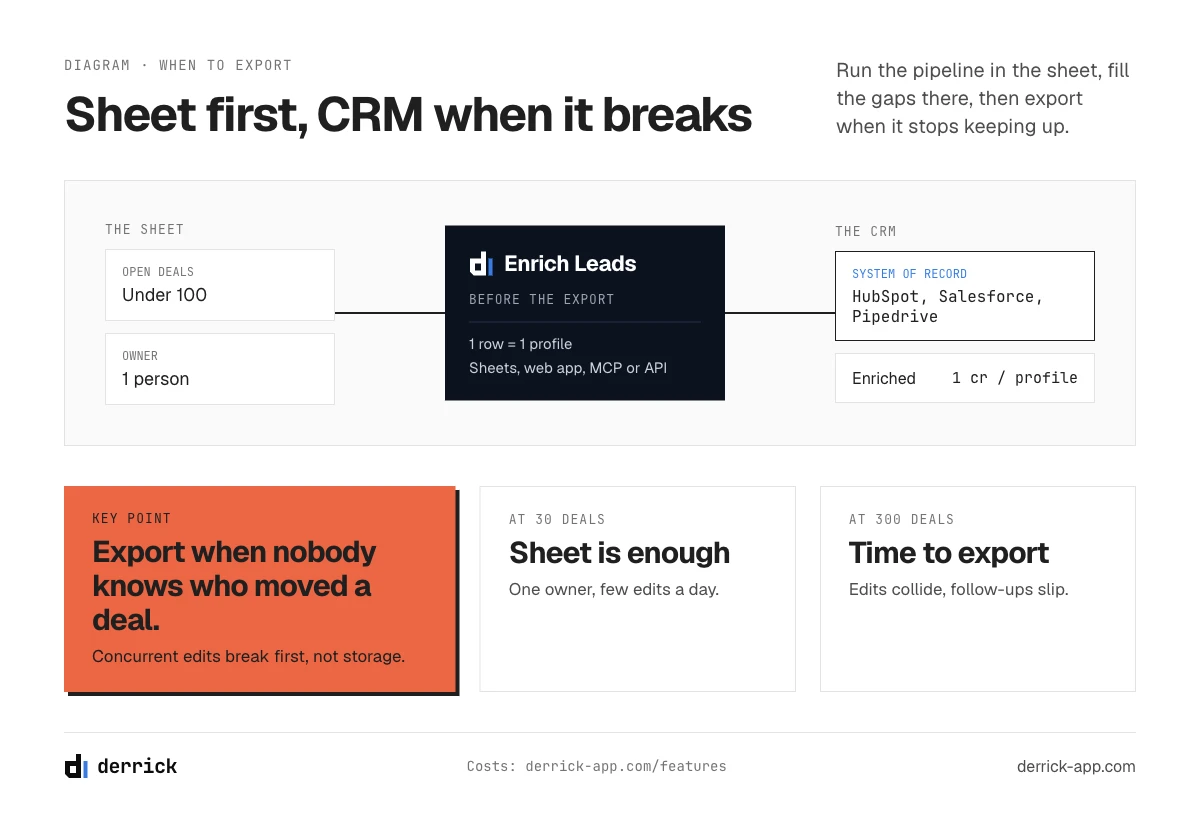
Yes, for a small team. Using Google Sheets as a CRM works for one to five people tracking a few dozen deals. It breaks when several people edit the pipeline at once.
Quick answer: A spreadsheet works as a CRM while three things stay true: one person owns the file, the pipeline holds under about 100 open deals, and nobody needs automated follow-up. Past that, the failure is always the same and it is not storage, it is concurrency. Two people edit the same row, one overwrites the other, and there is no history to tell you which version was right. That is the moment to export to a real CRM, and the export is far easier if the sheet was structured for it from day one, which is what the steps below give you.
Plenty of teams run their first year of sales out of a Google Sheet, and that is a reasonable choice rather than a mistake. A sheet costs nothing, everyone already knows how to use it, and you can restructure a column in ten seconds instead of filing a ticket. The honest question is not whether a spreadsheet can be a CRM, it is when it stops being one.
The three limits that decide it for you
- Concurrency. Google Sheets has version history for the file, not per-row audit. Once two or three people update deals at the same time, you lose the ability to answer "who changed this stage, and when".
- Automation. A sheet cannot chase anyone. No reminder when a deal has been untouched for 14 days, no sequence, no logged email. Every follow-up depends on somebody remembering.
- Reporting over time. A sheet stores the current state, not the history of states. You can see which deals are open today; you cannot see what your conversion rate looked like last quarter unless somebody snapshotted the tab by hand.
None of these bite at 30 deals. All three bite at 300. The practical signal we see most often: the day someone asks "why did this deal move back to stage 2", and nobody can answer, the sheet has already stopped being a CRM.
Google Sheets as a CRM: pros and cons
Pros
- Free with any Google account, nothing to install or train.
- You change the structure in seconds: add a column, rename a stage, split a tab.
- Sharing and comments already work, and everyone on the team knows the tool.
- Formulas, filter views and charts cover a basic pipeline report.
Cons
- No per-row history, so you can't tell who moved a deal or when.
- No built-in reminders or sequences. Follow-up depends on memory.
- Concurrent edits overwrite each other once three or more people work the same tab.
- Reporting over time means snapshotting tabs by hand.
Read the cons as the signal to plan your exit, not as a reason to skip the sheet. The second half of this guide is that exit.
Google Sheets CRM columns: the structure to start with
A Google Sheets CRM lives or dies on its columns. Too few and you can't filter the pipeline. Too many and nobody fills them in. Twelve is a good starting point for a B2B team, with one row per deal and the header in row 1.
| Column | Example | Why it's there |
|---|---|---|
Company | Northwind Logistics | The account. Keep it in its own column, one company often has several contacts. |
First Name / Last Name | Sarah / Lee | Two columns, not one. Your CRM maps them on import without manual work. |
Job Title | Head of Operations | Tells you whether you're talking to the person who signs. |
Email | sarah@northwind.example | The key a CRM uses to match records later. Keep it clean from day one. |
Phone Number | +1 415 555 0134 | International format, so calls and the import both work. |
LinkedIn URL | linkedin.com/in/sarah-lee-example | The fastest way back to the person's profile, and a reliable key for enrichment. |
Source | Webinar | Shows which channel brings deals worth keeping. |
Stage | Qualified | Dropdown only. Free text in this column breaks every filter. |
Deal Value | 12000 | A plain number, no currency sign, so totals add up. |
Owner | Alex | The person responsible for the next move. |
Last Interaction | 2026-10-02 | YYYY-MM-DD, the same format the export needs later. |
Next Action + Next Action Date | Send proposal, 2026-10-09 | The column that replaces a CRM reminder. |
The headers use the names HubSpot, Salesforce and Pipedrive recognize on import (Step 1 below goes into detail). Copy them as they are and the day you export, the mapping screen fills itself.
Add an Activities tab for the history the sheet doesn't keep
The main tab shows where each deal stands today. A second tab, Activities, records how it got there. One row per interaction, never edited after the fact:
- Date of the call, email or meeting
- Company and contact, written exactly as on the main tab
- Channel: call, email, LinkedIn, meeting
- Outcome in one line
- Next step, owner and follow-up date
It takes ten seconds per interaction and answers the question a plain sheet can't: what happened on this deal, and who did it. If you'd rather start from a ready list, our B2B lead list template and cold outreach tracker template follow the same logic.
How to build a CRM in Google Sheets in 5 steps
You can set this up in under an hour. Each step uses a native Google Sheets feature, no add-on needed.
1. Create the columns and freeze the header row
Type the twelve headers in row 1, then go to View → Freeze → 1 row so they stay visible while you scroll. Format Deal Value as a number and the date columns as dates (Format → Number → Date). One row is one deal. Never merge cells.
2. Lock the stage with dropdowns
Select the Stage column and open Data → Data validation → Add rule → Dropdown. Enter your stages, for example New, Contacted, Qualified, Proposal, Won, Lost, and choose to reject invalid input. Do the same for Source and Owner. A pipeline report is only as good as the spelling in these three columns.
3. Color the pipeline with conditional formatting
Open Format → Conditional formatting and add one rule per stage, so a Won row and a Lost row look different at a glance. Then add the rule that matters most: highlight the row when the next action is overdue, with a custom formula such as =AND($N2<>"",$N2<TODAY()) (column N holds the next action date).
4. Give each rep a filter view
A plain filter changes the screen for everyone. A filter view doesn't. Create one per owner from Data → Filter views → Create new filter view, name it after the rep, and sort by next action date. Our guide to collaboration in Google Sheets covers permissions and protected ranges in more depth.
5. Add a dashboard tab
On a new tab, count deals per stage with =COUNTIF(Pipeline!I:I,"Qualified") and sum the pipeline with =SUMIFS(Pipeline!J:J,Pipeline!I:I,"Proposal"). Add a chart and your Monday pipeline review fits on one screen. For more ready-made layouts, see how to build a Google Sheets dashboard for B2B data, and the Google Sheets formulas for B2B data that keep the columns clean.
Automate your Google Sheets CRM before you outgrow it
A sheet can't chase anyone, but a few light automations buy you months before a migration:
- Forms into the sheet. Link a Google Form to the spreadsheet and every inbound request lands as a new row, no copy-paste.
- Change notifications. Tools → Notification settings emails you when someone edits the file, which is enough for a two-person team.
- Zapier, Make or n8n. Post a Slack message when a deal moves to Proposal, or add a row when someone books a call. Our comparison of Zapier, Make and n8n for Google Sheets helps you pick one.
- Apps Script. From Extensions → Apps Script, a short script on a daily time-driven trigger can email each owner the deals whose next action date is today.
Tips that keep a Google Sheets CRM usable
- Never delete a lost deal. Set the stage to Lost, or your win rate becomes fiction.
- Protect the header row and the dropdown lists (Data → Protect sheets and ranges).
- Review the
Next Actioncolumn every Monday. A blank cell is a forgotten deal. - Fill missing emails and job titles as soon as a row is created, not the week you migrate.
Once the sheet runs, the gaps always show up in the same places: missing emails, missing phone numbers, job titles nobody updated. Filling those columns is covered in the enrichment section below. When the sheet hits the three limits above, the export starts here.
Google Sheets CRM integration: what you'll accomplish (and what you need)
By the end of this guide, you'll be able to cleanly import any enriched prospect list from Google Sheets into your CRM - no duplicates, no data loss.
Estimated time: 20 to 45 minutes depending on the method and list size.
What you need:
- A Google Sheets file with prospect data (minimum: email, first name, last name, company)
- Admin or editor access to your CRM
- Import and contact creation permissions in that CRM
CRMs covered in this guide: HubSpot, Salesforce, Pipedrive. The same logic applies to Airtable or Notion.
Through the Derrick API
Push the enriched rows out, without a manual export
A CSV export is where the sheet and the CRM start diverging. Derrick can send the enriched records to a webhook destination, so the rows leave the sheet through your automation rather than through a download folder.
- Feature
- Webhook
- Credit cost
- Free
The first button opens the web app, where your account and key live. API and MCP access starts on the PLUS plan. The second details the surface.
Step 1: Structure your Google Sheet before exporting
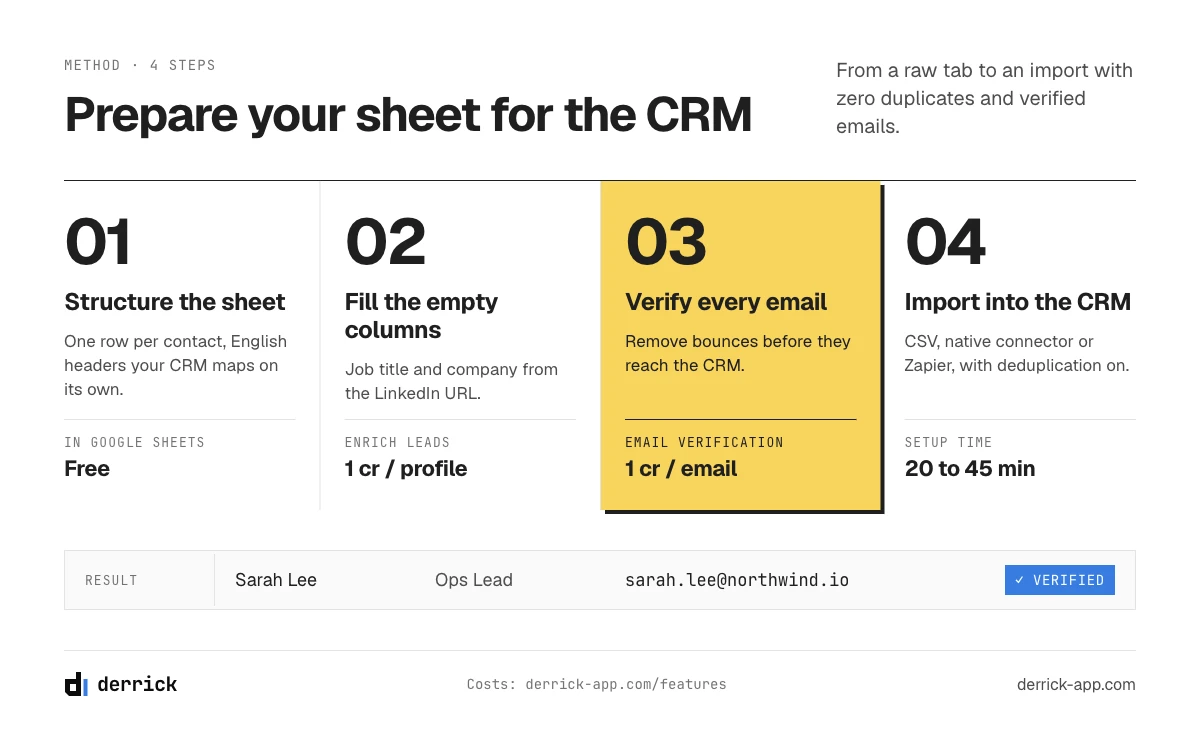
Expected result: A clean sheet where each row = one contact, with column headers your CRM can recognize automatically.
The number one reason imports fail is poor data structure. Your CRM will try to auto-map each column in your sheet to a corresponding CRM field. If your headers are abbreviated, inconsistent, or in the wrong language, the mapping will fail on critical columns - and you'll end up fixing things manually.
Essential columns to have:
| Recommended header | CRM field | Required |
|---|---|---|
Email | Contact email | Yes |
First Name | First name | Yes |
Last Name | Last name | Yes |
Company Name | Company | Yes |
Job Title | Job title | Recommended |
Phone Number | Phone | Recommended |
LinkedIn URL | LinkedIn profile | Optional |
Country | Country | Recommended |
Golden rule: Use these exact English header names. HubSpot, Salesforce, and Pipedrive will automatically map Email, First Name, Last Name, and Company Name with zero manual work. On a 1,000-contact import, that saves you 30+ minutes of tedious field mapping.
Expected result: Row 1 contains your headers, every row below it represents exactly one contact.
Step 2: Clean and normalize your data
Expected result: Zero duplicates, valid emails, consistent formats - your list is ready to import without errors.
This is the step everyone skips. And it's responsible for 80% of post-import headaches.
Remove duplicates
In Google Sheets, go to Data → Data cleanup → Remove duplicates. Select the Email column as your primary deduplication key - it's the unique identifier used by virtually every CRM.
If you're using Derrick, the Remove Duplicates feature handles this directly inside your sheet in seconds, at any volume.
Verify emails before importing
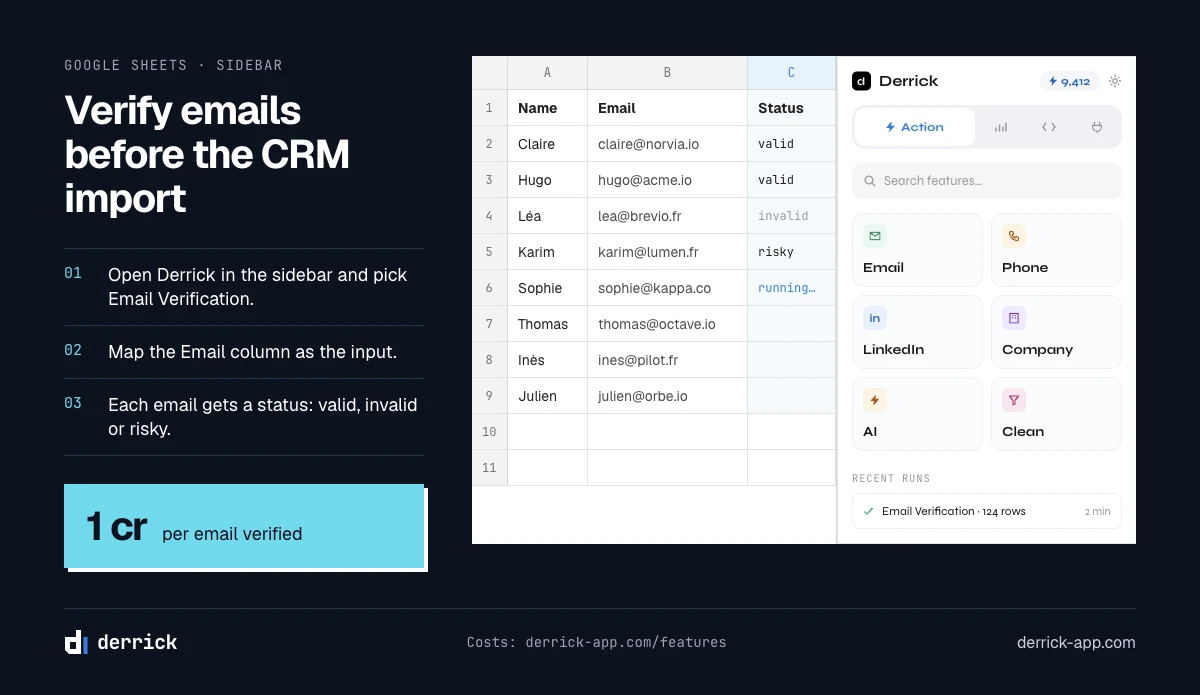
An invalid email imported into your CRM is an unreachable prospect and a deliverability risk. Every hard bounce damages your sending domain's reputation. Before any bulk import, validate your email addresses - syntax, active domain, no catch-all addresses.
Derrick's Email Verifier validates addresses directly in Google Sheets, in real time. You get a clear status for each email - valid, invalid, or risky - before you ever open your CRM. For a deeper look at data quality before enrichment, check out our B2B data enrichment guide.
Normalize key fields
Before exporting to your CRM, check for consistency across:
- Names: Title case (not all caps, not all lowercase)
- Country: Full name format (
United States,Germany, notUSorDE) - Phone numbers: International format with country code (
+14155551234) - Company names: Consistent naming (
GooglenotGoogle LLCin one row andGoogle Inc.in another)
Expected result: No duplicates, verified emails, consistent formats. You're ready to export.
Step 3: Choose your Google Sheets to CRM integration method
Three methods exist for moving Google Sheets data into your CRM. Each has a clear sweet spot.
| Method | Best for | Setup time | Automation |
|---|---|---|---|
| Manual CSV export | One-time import, any CRM | 5 minutes | No |
| Native HubSpot connector | HubSpot users, recurring imports | 15 minutes | Partial |
| Zapier / Make / n8n | Full automation, continuous enrichment | 30-60 minutes | Full |
The CSV method is the most universal and requires zero integration. The native connector is the easiest path for HubSpot users. Automation is the right long-term investment if you enrich and import leads on an ongoing basis.
The app works through your list row by row. 100 free credits every month.
Method A: CSV Export → Manual Import, the Simplest Google Sheets CRM Integration
Duration: 10-20 minutes | Works with: All CRMs
This is the universal method. It works regardless of your CRM and requires no technical integration upfront.
Export your sheet as CSV from Google Sheets
In Google Sheets, click File → Download → Comma-separated values (.csv). The file will download to your computer.
Watch out: Sheets only exports the active tab. If your data spans multiple tabs, export each one separately.
Expected result: A .csv file on your desktop with your properly formatted data.
Import into HubSpot
- From your HubSpot dashboard, go to Contacts → Import
- Select Start an import → File from computer → One file → One object type
- Choose the object type: Contacts (or Companies for account imports)
- Drag and drop your CSV file
- HubSpot auto-maps
Email,First Name,Last Name,Company Name - For unrecognized columns, manually map them to the correct HubSpot properties
- Set the duplicate handling behavior: "Update existing records" is the recommended option
- Launch the import and review the summary
Expected result: HubSpot shows a detailed import report - contacts created, updated, and any row-level errors.
Import into Pipedrive
- From Pipedrive, go to Account menu → Tools and apps → Import data
- Select Import from a spreadsheet
- Upload your CSV file
- Map columns to Pipedrive fields (Email, First Name, Last Name, Organization, Phone)
- Choose whether to create deals alongside contacts
- Launch the import
Expected result: Pipedrive displays the number of people and organizations created. Any detected duplicates are flagged and can be merged directly.
Import into Salesforce
- In Salesforce, go to Setup → Data Management → Data Import Wizard
- Select your target object: Leads or Contacts
- Upload your CSV file
- Map fields (Salesforce auto-maps standard fields like Email, First Name, Last Name)
- Set your deduplication rule on the Email field
- Launch the import and review the processing report
Expected result: Salesforce generates a detailed import report with successes, errors, and identified duplicates.
Method B: The Native HubSpot for Google Sheets Connector
Duration: 15-30 minutes | Works with: HubSpot only
If you're on HubSpot and importing data from Sheets regularly, the official HubSpot for Google Sheets add-on removes the CSV step entirely and makes recurring imports much faster.
Install the add-on
- In Google Sheets, go to Extensions → Add-ons → Get add-ons
- Search for "HubSpot for Sheets" and install it
- Grant the requested permissions to connect your HubSpot account
Configure and run the export
- In your Sheets, go to Extensions → HubSpot for Sheets → Launch
- The HubSpot side panel opens directly inside Sheets
- Click Export to HubSpot
- Name your import (e.g., "LinkedIn Leads Q1 2026")
- Select the range to export: full sheet or a specific cell range
- HubSpot auto-maps standard column names
- For custom columns (e.g., lead score, source), map them manually to the correct HubSpot properties
- Choose the action on duplicates: create or update
- Run the export
Expected result: Your contacts appear in HubSpot within minutes, with all properties correctly populated.
Key advantage: This method preserves the link between your Sheets file and HubSpot. When you enrich new contacts in the same sheet, you can re-run the export in one click - no reconfiguration needed.
Method C: Full Google Sheets CRM integration via Zapier, Make, or n8n
Duration: 30-60 minutes of initial setup | Works with: All CRMs
If you enrich leads on a continuous basis - several times a week or in a live pipeline - automation is your best investment. You configure the workflow once, and every new row added to your Sheets syncs automatically to your CRM.
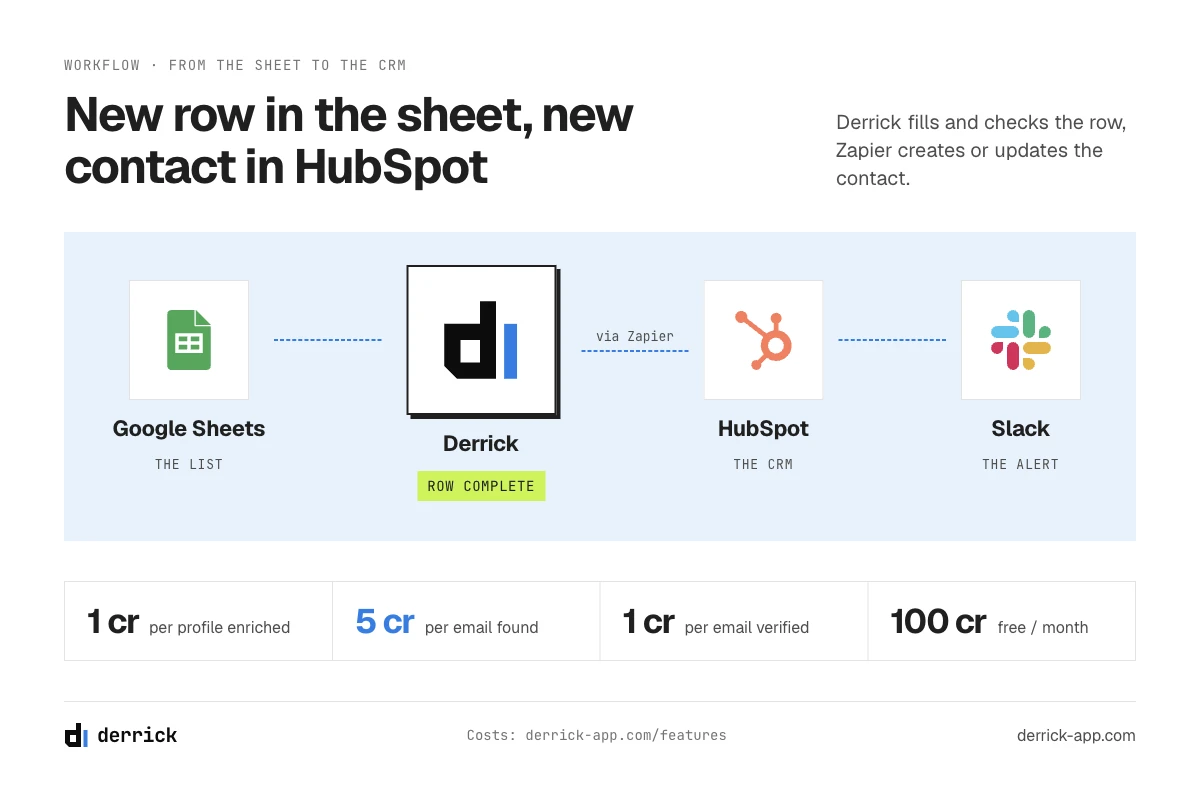
Derrick integrates natively with Zapier, Make, and n8n, connecting your Google Sheets enrichment directly to HubSpot, Salesforce, Pipedrive, and 3,000+ other tools.
Example Zapier workflow: Google Sheets → HubSpot
Trigger setup: Create a new Zap with the trigger "New Row in Google Sheets". Zapier watches your specific sheet and fires whenever a new row is added.
Action setup: Choose the action "Create or Update Contact in HubSpot". Map each Sheets column to its corresponding HubSpot property.
Optional filter: Add a filter to only send rows where the email status is valid (column Email Status = valid). This prevents importing contacts with bad emails.
Expected result: Every new lead added to your sheet - after enrichment with Derrick - is automatically created in HubSpot within 2 minutes, with zero manual effort.
With Make, you can build more complex scenarios: push simultaneously to HubSpot and Slack, auto-tag contacts based on lead score, or trigger an email sequence the moment a contact is imported. For engineering teams, n8n offers the same power as open-source, with full hosting control.
To dive deeper into CRM enrichment workflows, check out our dedicated pages: enrich CRM by company name and enrich CRM by company website.
The 5 most common import errors (and how to fix them)
Problem 1: Duplicate records created in the CRM
Symptom: After importing, you find duplicate contacts in your CRM - an existing contact was created again instead of updated.
Impact: Two reps reach out to the same prospect, data is split across two records, pipeline reports are skewed.
Fix: Always enable the "Update if email already exists" option during import. In HubSpot, that's "Update existing records". In Pipedrive, the tool flags detected duplicates post-import so you can merge them. Never skip this step, even when you're in a hurry.
Problem 2: Mismatched column mapping
Symptom: After importing, contact first names are sitting in the "Company" field, or phone numbers ended up in the description.
Impact: Data is unusable as-is and requires manual contact-by-contact correction.
Fix: Before launching any import, go through the mapping screen column by column. Don't trust auto-mapping for custom columns. Always test with 5-10 contacts first before running your full list.
Problem 3: Broken CSV encoding (special characters)
Symptom: Names with accented characters (é, ü, ñ) show up as garbled symbols in your CRM after import.
Impact: Unreadable data, outreach emails with corrupted characters - not a great first impression.
Fix: Make sure your CSV is saved with UTF-8 encoding. Open it in a text editor (VS Code, Notepad++) and confirm the encoding before importing. Most major CRMs handle UTF-8 cleanly.
Problem 4: Incompatible date formats
Symptom: Date fields (creation date, last contact date) import incorrect values or throw errors during the import.
Impact: Time-based data is useless for CRM filtering and reporting.
Fix: Use the universally accepted YYYY-MM-DD format (e.g., 2026-01-15) in your Sheets. Avoid local formats like 01/15/2026, which can be misread depending on the CRM's regional settings.
Problem 5: File size limit exceeded
Symptom: The import fails with a "File too large" or "Row limit exceeded" error message.
Impact: You can't import everything at once.
Fix: Pipedrive accepts up to 50,000 rows per import (50 MB max). HubSpot recommends staying under 100,000 contacts per file. For larger lists, split into sub-files of 10,000 rows - easier to monitor and recover from if something goes wrong.
Enrich your data before exporting: the step most teams skip
A CRM is only as useful as the data inside it. Importing a list with just names and emails leaves your sales team flying blind - no direct dial, no job title, no company context.
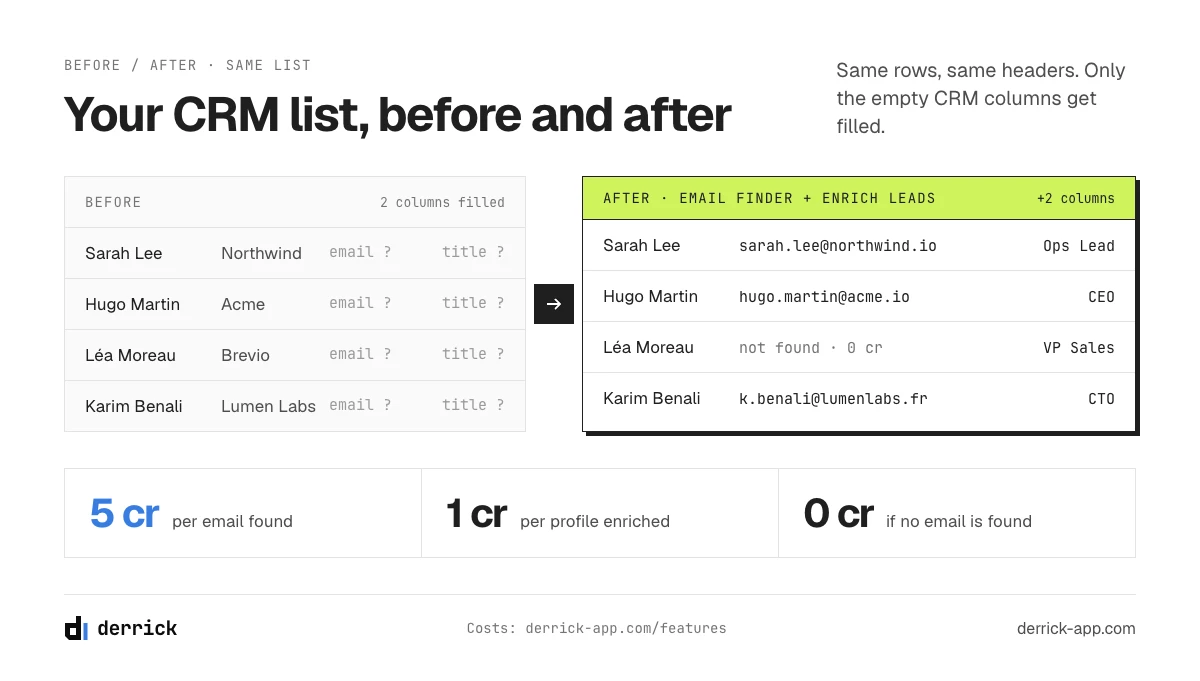
Before exporting to your CRM, enrich each contact with the attributes that actually move deals forward: verified professional email, direct phone number, job title, company size, industry, and tech stack. That's exactly what Derrick does inside Google Sheets - without leaving your spreadsheet, you get 50+ attributes per contact sourced from LinkedIn, and you push a complete, qualified list into your CRM.
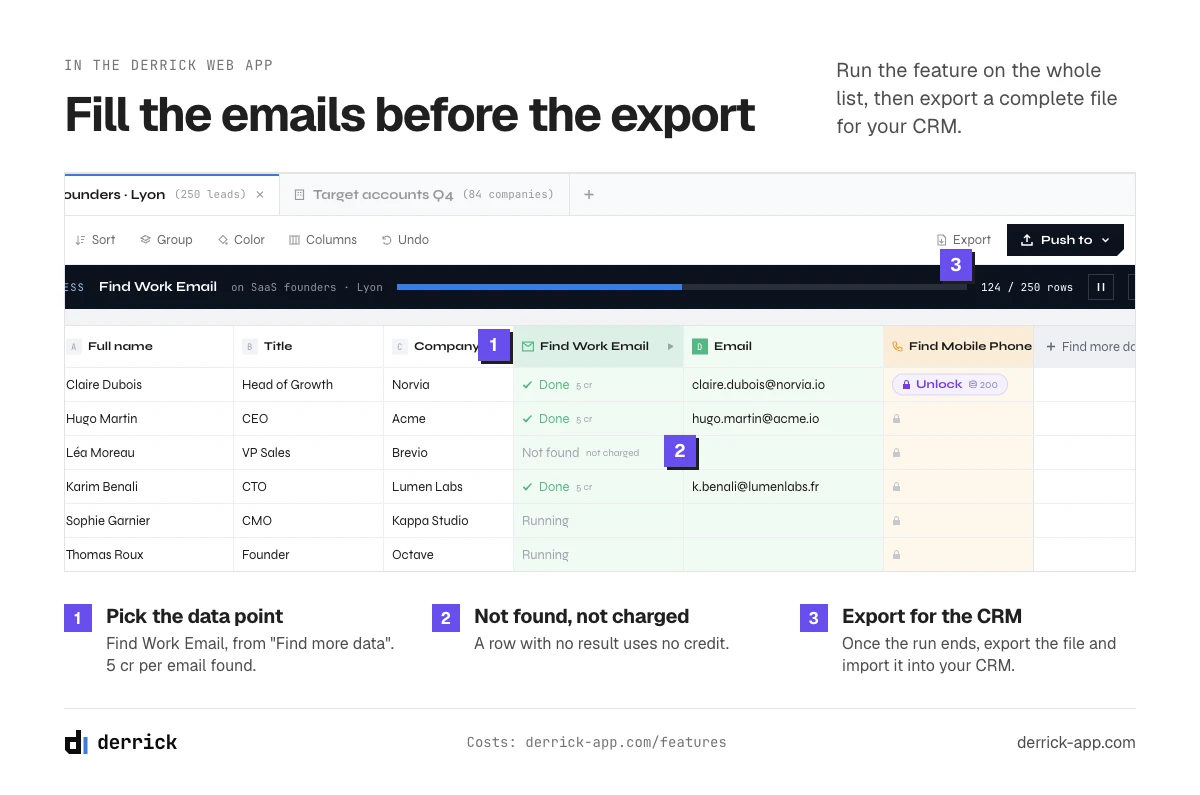
Look back at the Google Sheets CRM columns above. The ones that stay empty are always Email, Phone Number, Job Title and company details. In Derrick you select the column in the Google Sheets sidebar and run a feature on every row, or you do the same in the Derrick web app when the list isn't in a sheet yet. Enrich Leads fills the job title and company from a LinkedIn profile URL at 1 credit per profile (connect your LinkedIn account in Derrick first). Email Finder returns a work email at 5 credits per email found, and Email Verification checks deliverability at 1 credit per email; both are on paid plans.
To understand what CRM enrichment really means in practice, and how a solid CRM integration works end-to-end, check out our glossary.
What to keep from the spreadsheet after you migrate
Moving to a CRM does not mean abandoning the sheet, and the teams that migrate best keep both, with a clear split of jobs. The CRM becomes the system of record: pipeline, ownership, activity history. The sheet stays the staging area: this is where a new list lands, gets deduplicated, gets enriched, and gets checked before anything is pushed. That split survives the migration, because the two tools are good at different things and importing unverified rows straight into a CRM is how a database gets polluted.
This is exactly why the enrichment step belongs before the export, not after. Fill in the missing job titles, company sizes and verified email addresses while the data is still in a sheet, where a bad row costs one edit. Enrich Companies runs on a whole column at 1 credit per company, and the free plan includes 100 credits per month, which is enough to clean a first list end to end before it ever reaches your CRM.
Four places you can run the enrichment
The same data is reachable through four surfaces, and the one to pick depends on where the work happens:
- Web app. The Derrick web app runs the same features in the browser, for the lists and lookups you want to handle without opening a spreadsheet.
- Google Sheets extension. The list is already in a tab and you want the missing fields filled in place, before the export.
- REST API. The sheet is gone and the enrichment now runs inside your own sync, so rows are already complete when they reach the CRM.
- MCP. You work in Claude, Claude Code or another MCP client and want to enrich or check a company inside the conversation, without switching tools.
Key takeaways on Google Sheets CRM integration
- Prep first, export second: 80% of import problems come from poor upstream data preparation - structure your columns, deduplicate, verify emails
- Use English column headers in your Sheets to get automatic field mapping in HubSpot, Salesforce, and Pipedrive
- Pick the right method for your workflow: CSV for one-time imports, native connector for HubSpot regulars, Zapier or Make for ongoing automation
- Always enable deduplication during import to avoid overwriting or duplicating existing records
- Enrich before you import: a contact with verified email + direct phone + job title is worth ten times more than a name and email alone
Conclusion: Google Sheets CRM integration starts in the sheet
Exporting from Google Sheets to your CRM isn't complicated - as long as you set your data up properly before you start. The CSV method works for one-off imports, the HubSpot connector speeds up recurring pushes, and Zapier or Make fully automate the pipeline for teams enriching leads on a continuous basis.
The real performance lever isn't in the transfer itself - it's in the quality of the data you put in. A wrong email in a sheet is one cell to fix. The same email in a CRM is a bounced sequence and a duplicate record someone merges by hand. That problem starts (and ends) in your Google Sheets, well before the export.
If you're not there yet, build the sheet with the twelve columns and the five steps above, add the Activities tab, and keep the Email column clean from day one. The day the sheet stops keeping up, the export takes an afternoon instead of a week. Need Derrick in the sheet first? Here is how to install Derrick in Google Sheets.
Frequently asked questions
How do I export Google Sheets to HubSpot without using a CSV?
Install the official "HubSpot for Google Sheets" add-on from the Google Workspace Marketplace. It lets you push data directly from Sheets to HubSpot without any CSV file in between. Once the add-on is configured, a full export takes under 5 minutes.
Can Google Sheets automatically sync with a CRM?
Yes, using automation tools like Zapier, Make, or n8n. You set up a workflow that watches for new rows in your Sheets and automatically creates or updates contacts in your CRM. Derrick integrates natively with all three platforms to connect enrichment directly to CRM import.
How many contacts can I import into Pipedrive at once?
Pipedrive supports up to 50,000 rows per import with a maximum file size of 50 MB. For larger lists, split into sub-files of 10,000 rows and import sequentially.
Why are my contacts showing up as duplicates after the CRM import?
The deduplication option wasn't enabled during import. Most CRMs offer an option to "update existing records" based on email address. Enable it every time to prevent duplicate contact creation.
What fields are required to import contacts into a CRM?
Email is always the minimum - it's the unique identifier used by HubSpot, Salesforce, and Pipedrive. For commercially useful records, add: first name, last name, company name, job title, and country.
When should you move from Google Sheets to a CRM?
Does Google have a CRM tool?
How do you connect Google Sheets to a CRM?
Keep reading
Continue exploring this cluster


RegexMatch on Google Sheets: Guide 2026
Read →

How to Build a Data Enrichment Dashboard in Google Sheets (Step-by-Step)
Read →

How to Collaborate as a Team on Your B2B Data Enrichment Google Sheet
Read →

How to Automate B2B Data Enrichment with Zapier, Make and n8n
Read →