
How to Export Sales Navigator Leads to Google Sheets
Sales Navigator has no native export. Pull your leads into Google Sheets and enrich them in bulk, at any volume. 3 methods compared, free and paid plans.


LinkedIn Sales Navigator is built to find prospects, not to get them out. There is no native "export to CSV" button: your leads stay locked inside saved searches and lead lists. The moment you want to enrich them, push them into a CRM, or run a sequence, you need a way to pull those leads into a spreadsheet. This guide shows you exactly how to export Sales Navigator leads to Google Sheets, what Sales Navigator does and does not let you do, and how to do it cleanly at any volume.
We will cover the manual route and its limits, the fastest automated path straight into Google Sheets, and the difference between exporting a saved lead list and exporting a live search. By the end you will have a repeatable workflow that turns a Sales Navigator search into an enriched, ready-to-use prospecting sheet.
Why export Sales Navigator leads at all
Inside Sales Navigator, a lead is just a profile you can look at. Outside of it, in a spreadsheet, that same lead becomes something you can act on. Exporting is what turns browsing into a pipeline.
Enrichment. Sales Navigator shows you a name, a title and a company, but not a verified email or a direct phone. Once the leads are in a sheet, you can enrich them with the contact data you actually need to reach out.
Sequencing and CRM. Your outreach tool and your CRM both expect a list, not a Sales Navigator tab. A clean export is the bridge between a search and a campaign, and between a search and a tracked opportunity.
Ownership. A saved search can change or expire, and Sales Navigator caps what you can see. A spreadsheet is yours: you keep the data, dedupe it, segment it and reuse it long after the search is gone.
Speed and repeatability. The real win is doing this fast and the same way every time. A clean export workflow lets you turn a fresh search into a working list in minutes, repeat it for each new segment, and hand the same process to a teammate. That repeatability is what makes Sales Navigator a prospecting engine rather than a place you occasionally browse.
What Sales Navigator lets you do natively (and what it does not)
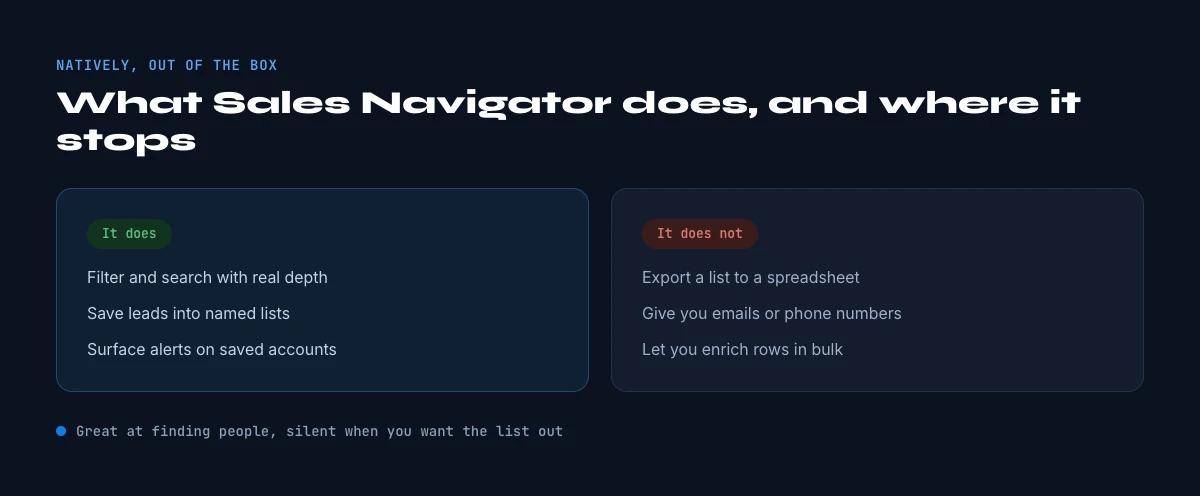
Natively, Sales Navigator lets you build precise searches, save leads to lead lists, and add notes and tags. What it does not let you do is export. There is no button that turns a search or a lead list into a CSV or a Google Sheet, and that is by design: LinkedIn wants the data to stay on the platform.
That leaves you two real options. Copy the data out by hand, which works for a handful of leads, or use a tool that reads your saved search or lead list and writes each lead into a spreadsheet for you. For anything past a few dozen leads, the second option is the only one that scales. And the export limitation is the same whether you pay for a Sales Navigator seat or are testing the free version of Sales Navigator: in both cases the data stays on the platform until you pull it out.
It also helps to know what you are actually exporting. Sales Navigator reliably gives you the structured basics for each lead: full name, current title, current company and the profile URL. It does not give you a verified work email or a direct phone, and it does not hand you a clean company record. So an export is best understood as a high-quality starting list of who to reach, which you then enrich into a list of how to reach them.
Method 1: Copy leads out manually
For five or ten leads, you can open each profile, copy the name, title and company, and paste them into a sheet. It is free and it works, and it is a reasonable choice when you only need a tiny list or want to double-check an automated export.
Manual copying breaks down fast. Sales Navigator paginates results, hides some fields until you open the profile, and rate-limits heavy browsing. Copying a few hundred leads by hand takes hours, introduces typos, and gives you no clean structure to enrich afterwards. There is also the hidden cost of attention: every minute spent copying rows is a minute not spent writing the message that actually wins the reply. It is fine for a spot check, not for building a list.
In Google Sheets
The export Sales Navigator does not offer
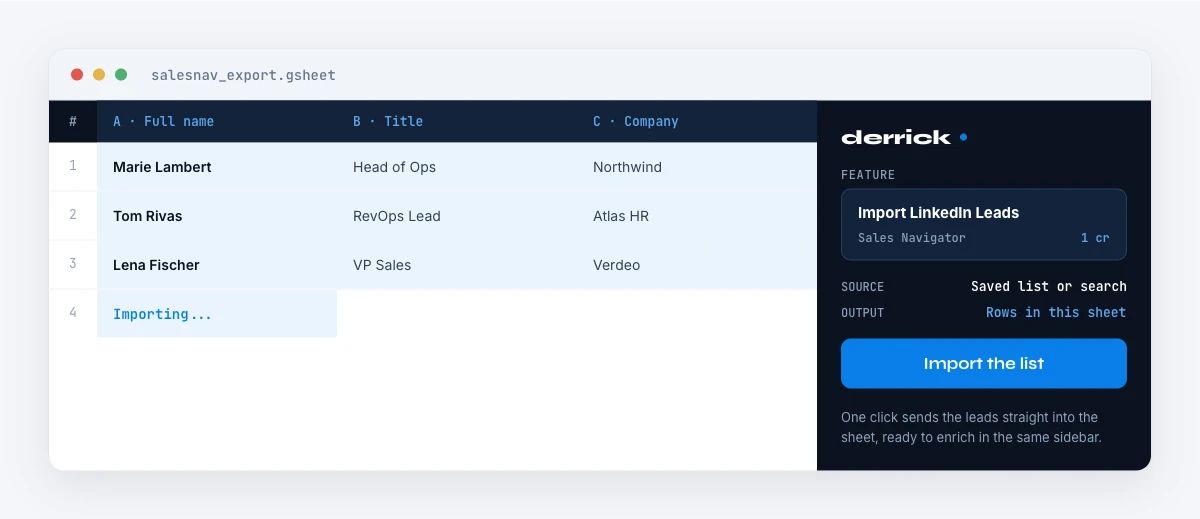
This is the exact task the article is about. Paste the search URL into the Derrick sidebar and the leads are written into the sheet as rows, then enriched in the same file without a second tool.
- Feature
- Import LinkedIn Leads (regular & Sales Navigator)
- Credit cost
- 1 credit per lead imported
The first button opens Derrick, 100 free credits every month. Import LinkedIn Leads (regular & Sales Navigator): 1 credit per lead imported. The second details the feature.
Method 2: Export to Google Sheets with Derrick
The fastest path is to pull the whole list straight into Google Sheets. Derrick runs in its web app, and also as a Google Sheets sidebar: you pick the Import LinkedIn Leads (Sales Navigator) feature, point it at your Sales Navigator search or lead list, and it writes each lead into your sheet, one row per lead, with name, title, company and the profile URL ready to enrich.
Because Sales Navigator needs your logged-in session to read your leads, Derrick uses its Chrome extension, Derrick Helper, to securely pass your LinkedIn session (the li_at token) to the sheet. You install Derrick Helper once, and from then on the import runs from inside Google Sheets. Import LinkedIn Leads costs 1 credit per lead imported and is available from the free plan, which includes 100 credits per month, so your first list of up to 100 leads costs nothing to export.
Volume is not a wall here. Derrick handles a list of 50 leads as easily as a list of 10,000, in bulk from the sheet or via its API and MCP, so the same workflow that exports a quick test search also exports a full territory.
Keeping the export inside Google Sheets is what makes this approach hold up. A standalone scraper hands you a CSV that you then have to import, clean and re-export every time you want to do something with it. Here, the leads land in the same sheet where you will enrich them, score them and hand them to your CRM, so there is no round trip between tools and no stale CSV sitting in a downloads folder. The export and everything you do after it live in one place.
The app works through your list row by row. 100 free credits every month.
Exporting a saved lead list vs a live search
There are two things you can export, and they behave differently. A saved lead list is a fixed set of leads you curated, so the export is stable and repeatable: you get exactly the leads you saved. A live search is dynamic, so the results can shift as profiles change or as LinkedIn re-ranks them.
The clean habit is to save your search results to a lead list first, then export the list. You get a snapshot you control, you can re-export it later to catch updates, and you avoid the surprise of a search that returns slightly different leads each time. If you are still refining your filters, our guide on boolean search in Sales Navigator helps you tighten the search before you save and export it.

Step by step: from search to enriched sheet
Here is the full workflow once Derrick Helper is installed. A few hundred leads complete in minutes.
1. Build and save your search. Use Sales Navigator filters to target the right leads, then save the results to a lead list so you export a stable snapshot.
2. Open Derrick in the web app or in Google Sheets. Launch the sidebar, pick Import LinkedIn Leads (Sales Navigator), and select your saved lead list as the source.
3. Import row by row. Derrick writes each lead into the sheet: name, title, company and profile URL. You watch the list fill in, one row per lead.
4. Enrich the export. Run an enrichment pass to add the verified emails, phones and other fields Sales Navigator never gave you, so the list is actually actionable.
5. Dedupe and route. Remove duplicates, group by account, and push each segment to your sequence or CRM.

After the export: enrich, dedupe, sequence
An export is the start, not the finish. The raw Sales Navigator fields (name, title, company) get you a list, but not a way to contact anyone. The value comes from what you add next: verified emails and phone numbers for outreach, firmographics for scoring, and clean account grouping so you can see your coverage. Doing all of this in the same Google Sheet means you never juggle exports between tools.
If you also need company-level lists rather than individual leads, the same approach works from a Sales Navigator account search. Our company search guide covers how to target accounts, and the Import LinkedIn Companies feature pulls them into the sheet the same way.
A quick word on staying within LinkedIn's limits. Sales Navigator caps how much you can view and act on in a day, so a sensible export respects those limits rather than trying to pull an entire database in one sitting. Exporting in reasonable batches, keeping your saved lists tidy, and re-exporting on a cadence keeps your data fresh without putting your account at risk. It is the same discipline you would apply to any prospecting motion: steady and repeatable beats one giant scrape.
Common mistakes to avoid
Exporting a live search instead of a saved list. You end up with a moving target. Save to a lead list first, then export the snapshot.
Skipping Derrick Helper. Sales Navigator features need your logged-in session. Without the Derrick Helper extension passing your li_at token, the import has no way to read your leads.
Treating the export as the deliverable. A list of names and titles is not a campaign. Enrich it before you send anything.
Assuming it will not scale. The same import handles 50 or 10,000 leads. Do not split a territory across tools because you think a spreadsheet workflow caps out: it does not.
Putting it together
Exporting Sales Navigator leads to Google Sheets is the step that turns a search into a usable pipeline. Build and save your search, import the lead list into a sheet with one click, enrich it with the contact data Sales Navigator withholds, then dedupe and route. Keep the whole thing in Google Sheets and you have a repeatable motion you can run on a small test list or a full book of business, without leaving the spreadsheet your team already lives in.
If you are setting this up for the first time, start small: export a single saved list of twenty or thirty leads, enrich it, and run it end to end into your sequence. Once that round trip feels smooth, scale it to your real territories. The workflow does not change as the numbers grow, which is exactly why it is worth getting right once. From there, Sales Navigator stops being a place you look things up and becomes the front of a pipeline that feeds your sheet every week.
Frequently asked questions
Can you export from Sales Navigator natively?
How do I export Sales Navigator leads to Google Sheets?
Why does the export need a Chrome extension?
Should I export a saved list or a live search?
Does this work for large lead lists?
Keep reading
Continue exploring this cluster


How to Use LinkedIn Sales Navigator for B2B Prospecting
Read →

How to Get Sales Navigator for Free on LinkedIn?
Read →

How to do a Boolean Search on LinkedIn Sales Navigator: Tutorial, Tips, Tricks
Read →

How to Search for Companies on LinkedIn: Complete 2026 Guide
Read →![Smart Links in Sales Navigator: Features & Tips [Tutorial 2026] — guide Derrick, Sales Navigator](/thumbs/sn/smart-links.webp)