
Company Team Lookup: How to Find Everyone at a Company
Do a company team lookup: build the full roster of people at any account with 5 methods, then enrich them into a contact list. Try Derrick free.


What a company team lookup actually is
A company team lookup is the process of building the list of real people who work at a target company: their names, job titles, seniority and department, not just the headcount. It answers a different question from company size. Company size tells you the band a business falls into. A team lookup gives you the roster you can actually reach out to, qualify and route.
The distinction matters because most B2B deals are not sold to a company. They are sold to a handful of named people inside it: the person who feels the pain, the person who signs, and the two or three who quietly veto. If you only know that an account has "201-500 employees", you know nothing about who to email on Monday. The roster is what turns an account into a working prospect list.
This guide walks through five ways to pull that roster, from the free manual routes to running the whole lookup across a list of accounts in one pass. Each method trades speed for coverage, so the right one depends on whether you are researching one logo or two hundred.
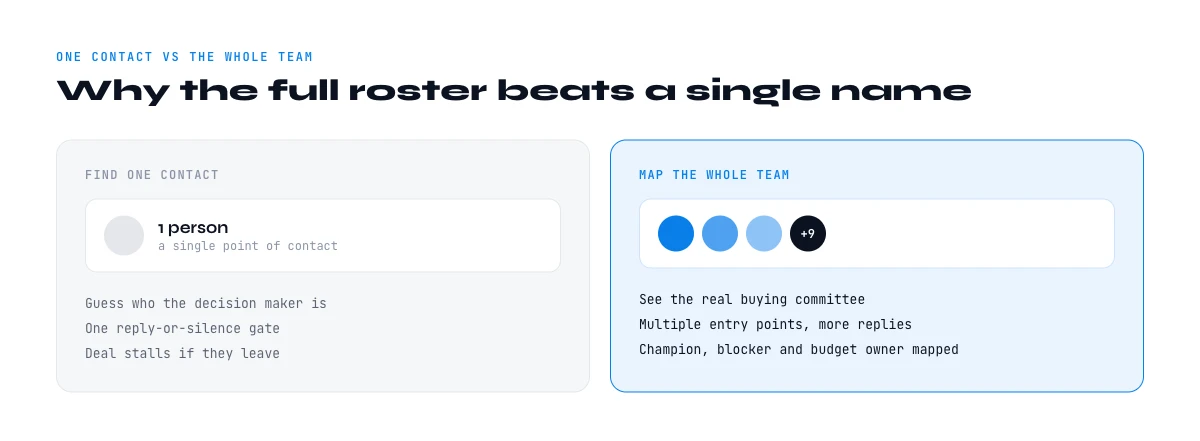
Why mapping the whole team beats finding one contact
Single-threaded deals are fragile. When your only relationship is one champion and that person changes roles, goes quiet or gets overruled, the deal stalls with no way back in. Mapping the full team lets you multithread: reach the economic buyer, the technical evaluator and the end user in parallel, so the opportunity survives any one of them leaving.
A complete roster also sharpens targeting. Once you can see every relevant title at an account, you can tell a flat five-person startup from a company with a real revenue-operations function, and you can pitch the person whose problem you actually solve instead of guessing at a generic contact form. It is the difference between "someone at Acme" and "the Head of Sales Ops at Acme, plus the two SDR managers who report to her".
There is a compounding effect too. A team you mapped once is an asset you keep: when a champion leaves for a new company, you already know the org they came from, and when a new role opens on the buying side you can spot it against the roster you saved. Treating the lookup as a one-off search wastes that. Treating it as a living map of the account pays back on every follow-up.
Finally, the roster feeds every downstream step. The moment you have the people, you can pull their work emails, score them against your ICP and hand a ready segment to your sequencer. Skipping the team lookup is why so many lists arrive as domains with nobody attached.
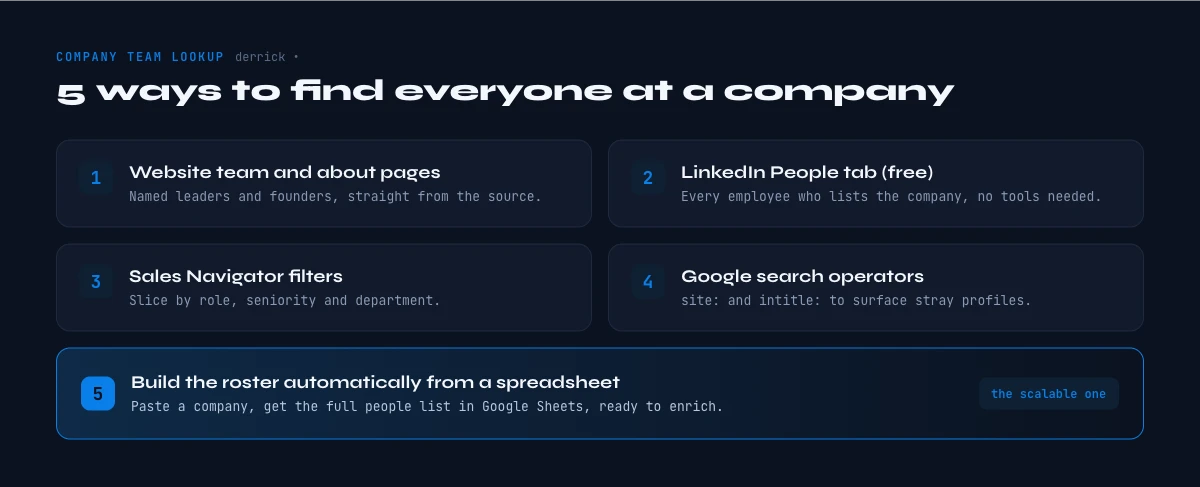
Method 1: The company website team and about pages
The fastest free route for small companies is the company's own site. Look for pages labelled About, Team, Leadership or People. Agencies, consultancies and early-stage startups often list their whole crew there with names, titles and photos, which is exactly the roster you want.
The catch is coverage. Past roughly fifty employees, team pages usually shrink to a leadership grid: the founders and a few VPs, with everyone below the C-suite invisible. So this method is excellent for a ten-person agency and close to useless for a five-thousand-person enterprise. Use it as a quick first pass, then switch to a source that covers the full org when the account is bigger.
One habit worth keeping: when a site does list a leadership team, capture it before you leave. Founders and department heads are the exact people you will want to route the account to, and the About page is often the only place the org structure is stated plainly.
In the web app or Google Sheets
The people at the account, as rows
Finding everyone at a company by hand is the task this article describes. Derrick imports the company's people into your list, one per row, so you can filter on the roles you sell to instead of scrolling a page.
- Feature
- Import a company's people
- Credit cost
- 1 credit per person imported
The first button opens the web app (nothing to install): 1 credit per person imported, available from the STANDARD plan. The second details the feature and its cost per plan.
Method 2: The LinkedIn People tab (free)
LinkedIn is the closest thing to a public directory of who works where. Open the company's page, click the People tab, and you get a browsable list of self-reported employees. The built-in filters let you narrow by location, current job title, school and keyword, so you can jump from "everyone" to "everyone in Sales in the US" in two clicks.
To go from the company name to the right LinkedIn page first, see our guide on finding a company's LinkedIn URL. From there the People tab is your roster. It is free, it is broad, and it reflects reality better than most databases because employees maintain their own profiles.
A practical tip: sort the People tab by the filters that map to your buying committee before you start capturing. Filtering to a single function, say Sales or IT, then reading top-down by seniority, gets you a usable shortlist far faster than scrolling the raw list. You are looking for the shape of the org, not every intern, so let the filters do the triage.
Two limits to plan around. First, the free People tab caps how deep you can scroll, so on large companies you only see a slice. Second, it shows profiles, not contact details, so you still need a separate step to turn a name into a reachable email. It is the best free starting point, not the finish line.
Method 3: Sales Navigator filters for role, seniority and department
When you need to slice a large org precisely, LinkedIn Sales Navigator is the tool built for it. Its account and lead filters let you isolate people by seniority level, function, current title, years in role and geography, all within a single company or a saved list of accounts. That turns a five-thousand-person company into "the twelve people in Procurement at director level or above".
This is the right method when the buying committee is specific and the company is big enough that scrolling the free People tab would take an afternoon. The trade-off is that the precise slice still lands as a list of profiles, so you are one enrichment step away from a workable outreach list. Sales Navigator finds the right people faster; it does not hand you their emails.
Method 4: Google search operators
For a quick, no-login roster you can query LinkedIn through Google. A search such as site:linkedin.com/in "Company Name" "Head of Marketing" surfaces profiles that match a title at a named company, and swapping the title lets you sweep a whole function. It is handy for spot checks and for finding a specific role without opening Sales Navigator.
Treat it as a scalpel, not a scanner. Google shows you what it has indexed, titles drift and go stale, and you have to run one query per role. It is genuinely useful for confirming that a given title exists at an account, and genuinely painful as a way to build a complete list. For anything past a handful of names, the next method is faster.
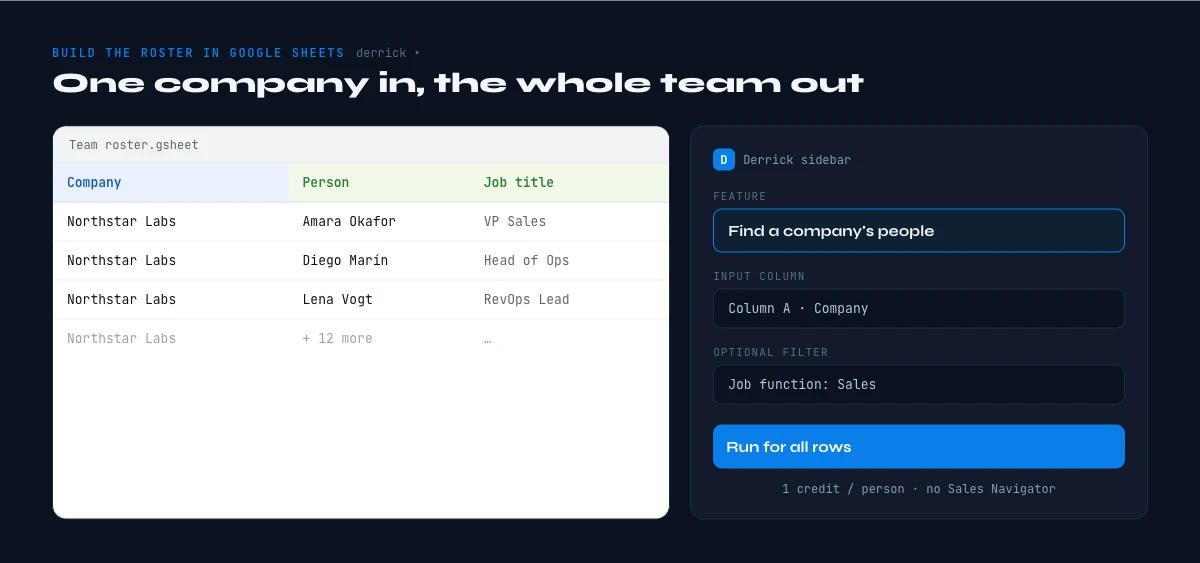
Method 5: Build the roster automatically from a spreadsheet
All four methods above share one problem: they are manual and they are one company at a time. If you are working a list of accounts, you do not want to open two hundred LinkedIn pages by hand. This is where a data tool that works on the whole list at once changes the workflow.
Derrick runs in its web app, and also as a Google Sheets sidebar, so the roster is built next to the account list you already have, with no export, upload or separate app. You start from a column of companies and let it fetch the people:
- Find the company page. Resolve each account to its verified LinkedIn company page and firmographics with Enrich Companies (1 credit per company, available on the free plan, which includes 100 credits per month).
- Pull the team. Use Search Leads to return the people at each company that match the roles you care about. Search Leads runs on any paid plan at 1 credit per profile returned, so you only pay for the people you actually pull.
- Enrich each person. Turn each profile into a full record with Enrich Leads (1 credit per profile, on the free plan too), adding title, seniority and the fields your ICP scoring needs.
The result is a roster for a whole list of accounts, built in one pass in the web app or the sheet, with every person tied back to their company. Because it is an app and a sidebar, not a set of formulas, the data lands as plain values you can filter, score and hand to your sequencer without wrangling syntax. It scales the same way whether you are mapping five accounts or five hundred.
The five methods side by side
| Method | Best for | Coverage | Gives you emails? | Scales to a list? |
|---|---|---|---|---|
| Company website | Small companies, leadership | Low past 50 staff | Rarely | No |
| LinkedIn People tab | Free first pass | Broad, capped depth | No | No |
| Sales Navigator | Precise slices of big orgs | High | No | Partly |
| Google operators | Confirming one role | Patchy | No | No |
| Spreadsheet sidebar | Whole account lists | High | Yes, with enrichment | Yes |
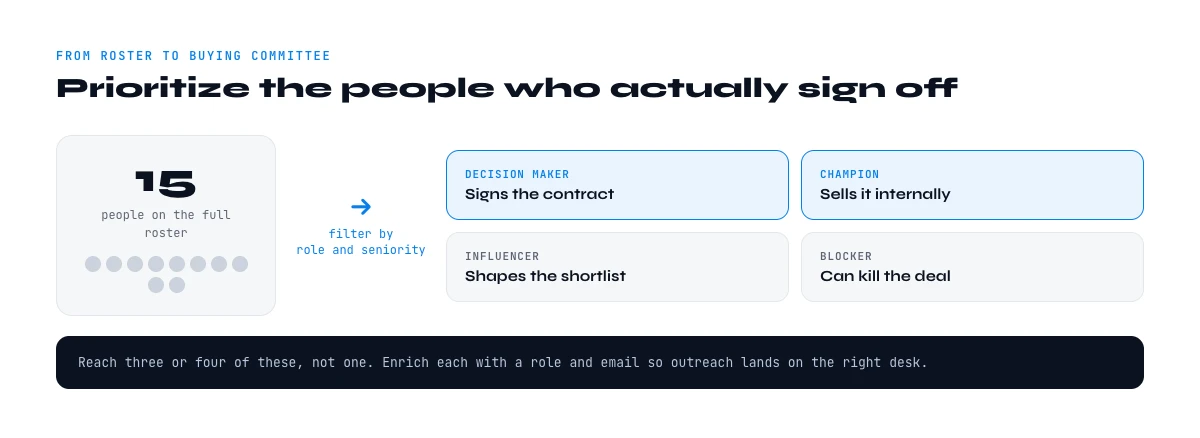
From roster to buying committee: prioritize the people who matter
A raw roster is a means, not an end. Once you can see everyone, the job is to rank them by their role in the deal. Group the list into three buckets: the economic buyer who owns the budget, the evaluator who judges the fit, and the end user who lives with the choice. Most B2B purchases involve several people across those buckets, and your outreach should reflect that instead of pinning everything on one name.
Seniority and department are your fastest sorting signals. Combine the roster with each account's company size and industry to read the org: a title means something different at a fifty-person startup than at a public enterprise. A "Head of Growth" may own the budget at the former and be a mid-level individual contributor at the latter, so never route on title alone without the size and industry context to calibrate it. When you want more accounts shaped like your best ones, feed the winning profile into Find Similar Companies and repeat the lookup on the lookalikes, so a proven buying committee becomes a repeatable target pattern rather than a one-off win.
How deep should the roster go?
Not every account needs a full org chart. Right-size the lookup to the deal. For a small business or a fast, single-owner purchase, the leadership team is often the whole buying committee, so the About page or a quick People-tab scan is enough. For an enterprise deal with a formal procurement process, you want depth: the champion, their manager, the budget holder, the technical evaluators and anyone in security or legal who can slow a signature.
A useful rule of thumb is to map one level above and one level below your natural champion. The level above tends to hold the budget; the level below tends to be the daily user whose buy-in makes a rollout stick. Going wider than that on a small deal wastes credits and research time; going narrower on a large deal is how single-threaded deals die. Match the roster depth to the size of the prize, and re-check it as the opportunity grows and new stakeholders appear.
Common company team lookup mistakes
Stopping at one contact. The most expensive mistake is finding a single name and calling the account "covered". One relationship is one point of failure. Build the roster, then multithread.
Trusting stale titles. People change jobs constantly, and a title you found six months ago may be wrong today. Re-pull the roster before a push, and verify seniority against a current source rather than an old export.
Confusing the count with the roster. Knowing a company has 300 employees is not the same as knowing who they are. If you need people to contact, a headcount figure is the wrong deliverable. See our employee count guide when you genuinely want the number, and a team lookup when you want the names.
Building the list by hand at scale. Manually opening LinkedIn for every account burns hours and produces inconsistent data. Past a handful of companies, automate the roster in the web app or the spreadsheet so every account is worked the same way.
Frequently asked questions
What is a company team lookup?
How do I find all the employees of a company for free?
How is a team lookup different from finding employee count?
How do I find the decision makers specifically?
Can I build a team list for many companies at once?
Does LinkedIn show me employee emails directly?
Keep reading
Continue exploring this cluster


The State of LinkedIn Company Data 2026: How Reliable Is the Firmographic Layer?
Read →

LinkedIn Company Followers: How to Identify and Leverage Them for B2B Prospecting
Read →

LinkedIn Company Hashtags: The Complete Guide to Maximizing Your B2B Visibility
Read →

LinkedIn Company Tagline: Definition, Creation, and B2B Prospecting Use Cases
Read →