
How to Find Similar Companies to Your Best Customers (2026)
Find similar companies to your best customers in two ways: Sales Navigator or a Sheets workflow. Signals, multi-seed scoring, and how to enrich the list.


To find similar companies to the ones already buying from you is the fastest way to build a target list that converts. Targeting companies similar to your customers means building a lookalike list of accounts that share the traits of your best clients, so they are far more likely to convert. The fastest path in 2026 is two steps: surface comparable accounts (manually with the LinkedIn Sales Navigator "View Similar" option, or in one click with Derrick's Find Similar Companies feature), then enrich and export the list to a Google Sheet to feed your prospecting. This guide walks both methods, the signals that define a real lookalike, and how to turn the list into a ready-to-send file.
What "similar companies" means on LinkedIn
A similar audience, often called a lookalike, is a set of company profiles that resemble businesses you already work well with. The logic is simple: accounts that look like your happiest customers tend to have the same needs, the same buying triggers, and the same budget, so they convert at a higher rate than a cold, generic list.
Like the lookalike system popularized by social platforms, LinkedIn surfaces comparable accounts based on the structured firmographic data on each company page: industry, headcount, location, and how the company describes itself. That structured layer is what makes lookalike targeting work, and it is also why the quality of your seed list (the customers you start from) decides the quality of everything downstream.
Why a lookalike list beats cold guessing
In a business development and lead generation strategy, starting from your existing customers gives you three concrete advantages over building a target list from scratch:
- Higher conversion potential: you reach companies that share the profile of accounts that already value your offer, so the message lands warmer.
- More efficient campaigns: a tighter, better-matched list means fewer wasted touches and a higher reply rate per prospect contacted.
- Discovery of accounts you would have missed: a lookalike pass routinely surfaces companies in adjacent segments you had not thought to target.
The catch is that "similar" is only useful if it is defined by the right signals. A list that matches on company name keywords is noise. A list that matches on industry, size, and positioning is a real ideal customer profile.
The signals that let you find similar companies reliably
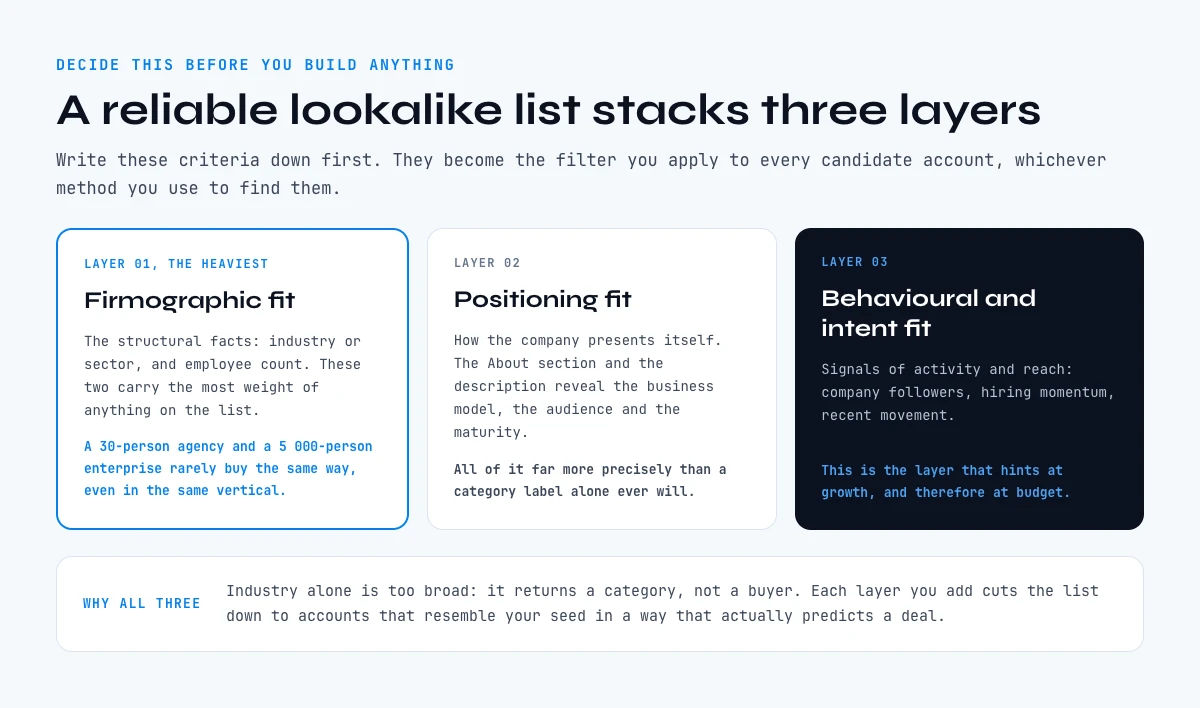
Before you build anything, decide which attributes define a good match for your offer. The most reliable lookalike lists combine three layers:
- Firmographic fit: the structural facts. The company's industry or sector and its employee count are the two heaviest signals. A 30-person agency and a 5,000-person enterprise rarely buy the same way, even in the same vertical.
- Positioning fit: how the company presents itself. The About section and description reveal the business model, the audience, and the maturity of a company far better than a category label alone.
- Behavioral and intent fit: signals of activity and reach, such as company followers and hiring momentum, which hint at growth and budget.
Write these criteria down first. They become the filter you apply to every candidate account, whichever method you use to find them.
Method 1: find similar companies in LinkedIn Sales Navigator
If you have a Sales Navigator seat, the native "View Similar" option is the manual way to surface comparable accounts:
- Open the Account filters and enter the characteristics of companies you already work with (industry, headcount, geography).
- When the results appear, click the three dots to the right of an account and choose View Similar.
- On the page that opens, scroll to the "also see" section. These are the accounts LinkedIn considers comparable to the one you selected.
- Save the relevant accounts to a list so you can find them again from the Sales Navigator menu.
This works, but it is one account at a time, the matching logic is a black box, and you still cannot get the data out of LinkedIn in a usable format. For a handful of accounts it is fine. For a real ICP list of dozens or hundreds, it becomes a manual bottleneck.
In the web app or Google Sheets
Start from your customers, get the lookalikes
The best definition of your target is the list of accounts you already closed. Paste them into a list and Derrick returns similar companies, one per row, with their LinkedIn page, ready to be qualified.
- Feature
- Find Similar Companies
- Credit cost
- 1 credit per company found
The first button opens the web app (nothing to install): 1 credit per company found, 100 free credits every month. The second details the feature and its cost per plan.
Method 2: find similar companies in seconds with Derrick
Derrick is a B2B enrichment tool that runs in its web app, and also as a Google Sheets sidebar, so the lookalike list lands in a spreadsheet you can actually work with. With the Find Similar Companies feature, you paste one company (a LinkedIn company URL or name) and Derrick returns a list of comparable companies, each scored and annotated with its industry and country, directly in the web app or in your sheet. Find Similar Companies is available on the free plan and costs 1 credit per company, and every Derrick account starts with 100 free credits per month at no cost and no card.
The difference from the manual route is that you start from a structured, exportable list instead of a black box. You can sort by match score, filter by the firmographic criteria you defined earlier, and drop the rows that do not fit, all in the spreadsheet. Because Derrick works from its web app or the Sheets sidebar rather than as a set of formulas to copy around, the same workflow scales from ten companies to several thousand without changing anything.
Manual vs Derrick: which method fits your volume
| Criterion | Sales Navigator "View Similar" | Derrick Find Similar Companies |
|---|---|---|
| Output format | Saved list inside LinkedIn | Rows in a Google Sheet, exportable |
| Match transparency | Opaque "also see" list | Score + industry + country per row |
| Volume | One account at a time | Bulk, from one seed to a full list |
| Next step | Manual copy-paste | Enrich and export in the same sheet |
| Cost to start | Sales Navigator subscription | 100 free credits per month, no card |
The two are not mutually exclusive. Many teams use Sales Navigator to explore and Derrick to turn the exploration into a working, enriched list.
From list to a ready-to-send prospecting file
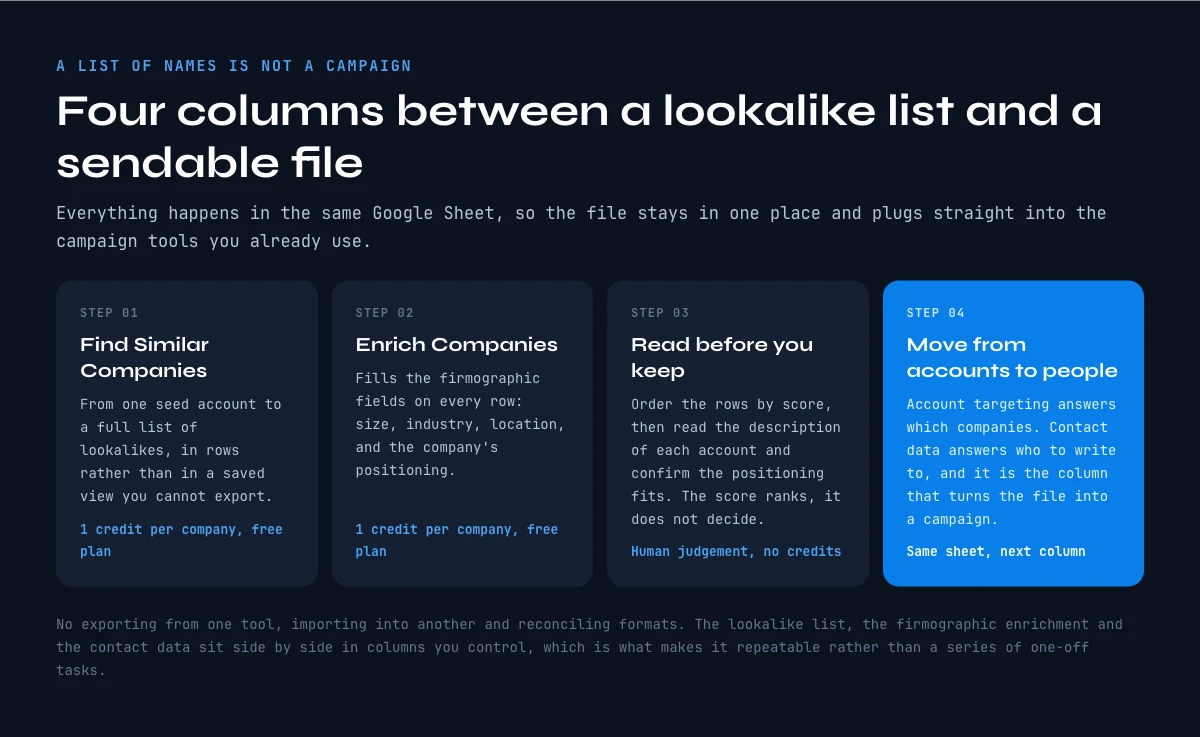
A list of company names is not a campaign. Once you have your lookalike accounts in a sheet, the next step is to enrich them so they are ready for outreach. With Enrich Companies (1 credit per company, available on the free plan), Derrick fills in the firmographic fields for every row: size, industry, location, and the company's positioning.
From there, you move from account targeting to people. Use the cocon's guide on how to find a contact email from a company to reach the right person at each account. Whether you work in the web app or in Google Sheets, your prospecting file stays in one place and plugs straight into the campaign automation tools you already use.
The app works through your list row by row: 1 credit per company found, nothing is billed without a result.
Common mistakes when you find similar companies at scale
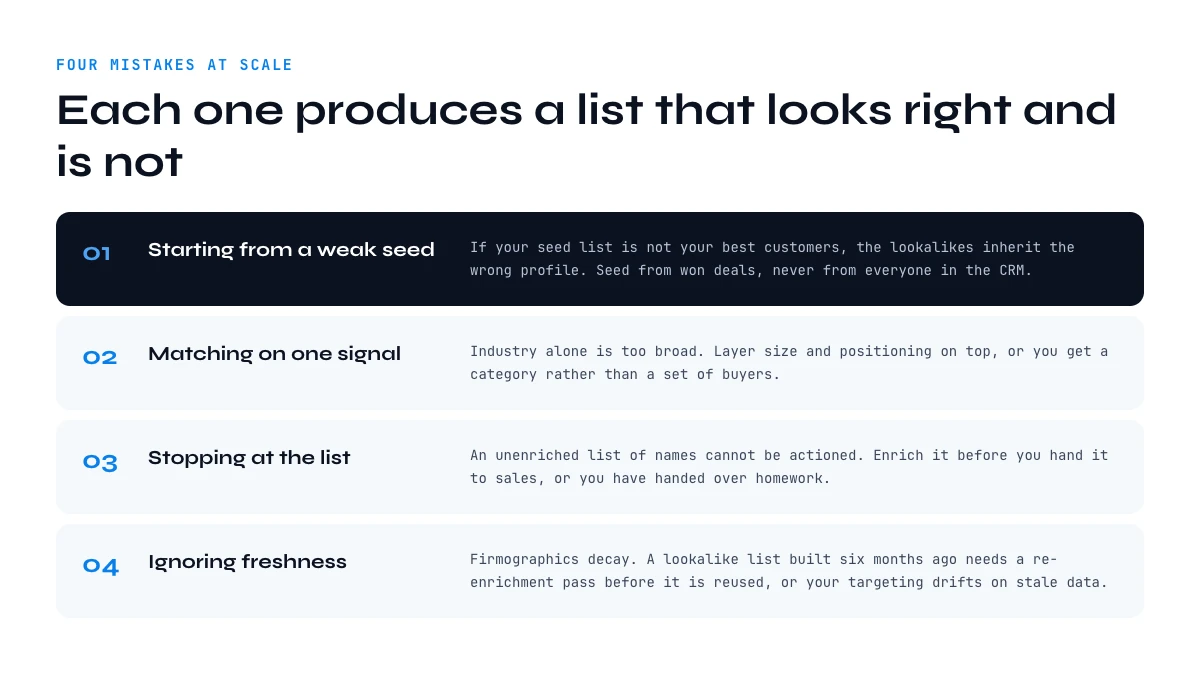
- Starting from a weak seed: if your seed list is not your best customers, the lookalikes inherit the wrong profile. Seed from won deals, not from everyone.
- Matching on one signal: industry alone is too broad. Layer size and positioning on top.
- Stopping at the list: an unenriched list of names cannot be actioned. Enrich before you hand it to sales.
- Ignoring freshness: firmographics decay. A lookalike list built six months ago needs a re-enrichment pass before reuse.
How to find similar companies across several seed customers
One seed customer gives you a list. Five seed customers give you a ranking. Run the lookalike pass on each of your best accounts separately, then stack the results and count how many times each company comes back. Frequency is the cheapest scoring signal you will ever get.
- Pick 5 to 10 seeds, not one. Use accounts that renewed, expanded, or closed fast. A single seed encodes its own quirks into the whole list.
- Run each seed on its own row block so you keep the link between a candidate and the customer it resembles.
- Add a "seed hits" column. A company returned by four different seeds is a far stronger candidate than one returned by a single seed with a high score.
- Sort by seed hits first, match score second. Scores are not comparable across different seeds; frequency is.
- Keep the reason. Note which seed each candidate resembles and why. That sentence is your opening line later.
This is also where a spreadsheet beats a dashboard: stacking five result sets and pivoting on a count is a two-minute job in Google Sheets and an export-import loop anywhere else. Derrick's Find Similar Companies runs at 1 credit per company, so a 5-seed pass on 40 candidates each costs 200 credits, and every result lands in the same tab you are pivoting on.
One caveat worth stating plainly: similarity is not intent. A company that looks exactly like your best customer may have bought a competing product last quarter. Lookalike scoring tells you who to research, not who is ready to buy. Layer a real signal on top before you treat the list as a pipeline.
A worked example: from one customer to a qualified list
Say your best account is a 120-person fintech in Germany that you reached through a product-led trial. Here is how the lookalike pass plays out in practice.
First, you define the match criteria from that account: industry is financial technology or adjacent software, headcount sits between 50 and 300, the geography is the DACH region, and the positioning suggests a self-serve or product-led model rather than heavy enterprise sales. These four criteria are your filter.
Next, you seed the search. In Sales Navigator you would open "View Similar" on that fintech and skim the "also see" list. With Derrick you paste the company into the web app or a sheet and run Find Similar Companies, which returns a scored list of comparable accounts with their industry and country already attached. Either way, you now have candidates.
Then you apply your filter. In the spreadsheet you sort by match score, drop the 800-person enterprises and the 5-person studios that slipped in, remove the accounts outside DACH, and keep the rows where the positioning matches. What is left is a tight list of accounts that genuinely resemble the customer you started from, not a loose category dump.
Finally, you enrich and hand it off. A single seed customer has become a qualified, ready-to-work list, and the whole pass took minutes rather than an afternoon of manual copying.
How to read and trust the match score
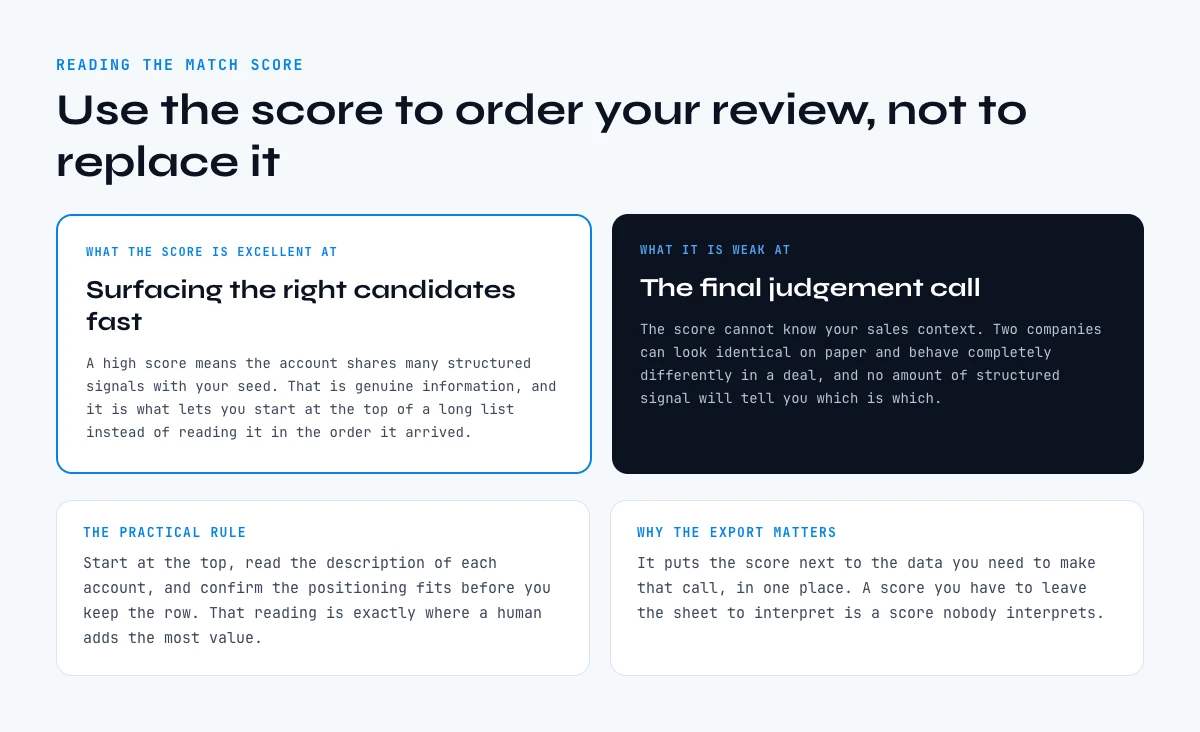
When a tool returns comparable companies with a score, treat the score as a ranking aid, not as gospel. A high score means the account shares many structured signals with your seed, but it cannot know your sales context. Two companies can look identical on paper and behave completely differently in a deal.
The practical rule is to use the score to order your review, not to replace it. Start at the top, read the description of each account, and confirm the positioning fits before you keep the row. Scores are excellent at surfacing the right candidates fast and weak at the final judgment call, which is exactly where a human reading the About section adds the most value. This is why the export-to-sheet workflow matters: it puts the score next to the data you need to make that call, in one place.
Turn the list into an ICP you can reuse
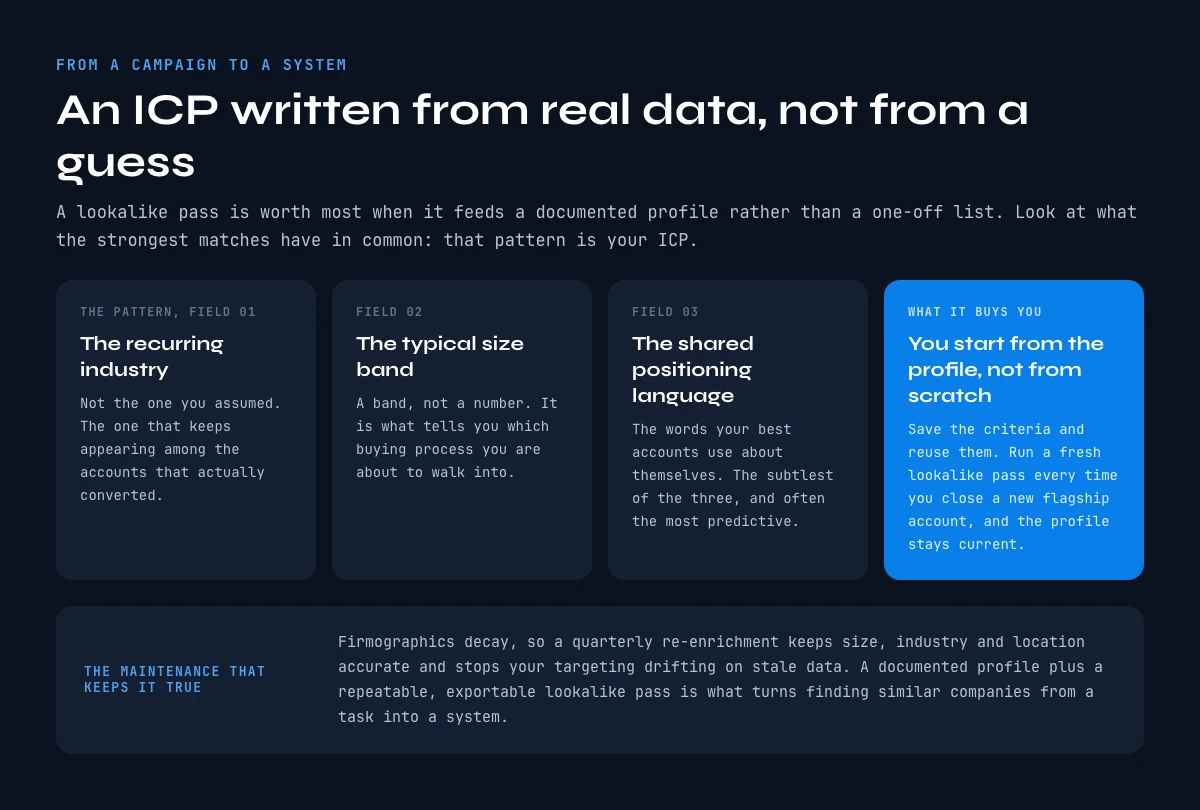
A lookalike pass is most valuable when it feeds a documented ideal customer profile rather than a one-off campaign. Once you have a clean, enriched list, look at what the strongest matches have in common. The recurring industry, the typical size band, the shared positioning language: that pattern is your ICP, written from real data instead of a guess.
Save those criteria and reuse them. The next time you need a target list, you start from the profile instead of from scratch, and you can run a fresh lookalike pass whenever you close a new flagship account to keep the profile current. Because firmographics decay, a quarterly re-enrichment of the list keeps size, industry, and location accurate, so your targeting does not drift on stale data. The combination of a documented ICP and a repeatable, exportable lookalike workflow is what turns "find similar companies" from a task into a system.
Beyond prospecting: other reasons to find similar companies
Lookalike search is usually framed as a sales tactic, but the same list answers three other questions that show up regularly in B2B teams.
| Use case | What you are really asking | What changes in the method |
|---|---|---|
| Competitive mapping | Who else sells into my space? | Seed with competitors instead of customers, and weight positioning language over headcount. |
| Partnership and integration scouting | Who serves my customers without competing with me? | Seed with customers, then filter out anything whose description overlaps your own category. |
| Market sizing | How many companies actually match my ICP? | Run several seeds, deduplicate, and count. The union across seeds is a defensible bottom-up estimate. |
| Territory or segment planning | Where is the density? | Keep country and headcount band on every row, then group. Density decides where a rep is worth hiring. |
The mechanics are identical in all four cases. What changes is the seed you start from and the column you sort on, which is why it pays to keep the raw list rather than only the filtered output.
Where similar-company data fits in your prospecting stack
Finding similar companies is one move in a larger company-data workflow, and it pays to see how it connects to the rest. A lookalike list answers the question "which accounts should I target." The attributes you pull next answer "what do I need to know to reach them well."
In practice the sequence looks like this. You start from a lookalike list, then you confirm the firmographics that matter for your segmentation, the headcount and the industry, so the list is cleanly sliced. You read each account's description to tailor the angle of your outreach. You check company followers and recent activity for a sense of momentum. Then you move to people and pull a contact email for the right person at each account.
The reason this matters is that every step lives in the same Google Sheet. You are not exporting from one tool, importing into another, and reconciling formats. The lookalike list, the firmographic enrichment, and the contact data sit side by side in columns you control, which is what makes the whole thing repeatable rather than a series of one-off tasks. That is the practical payoff of running company research in one place, the Derrick web app or its Sheets sidebar, instead of stitching point tools together. It also means the list you built today is not a dead end: the same columns can be refreshed, re-scored, and re-segmented next quarter, so one lookalike pass keeps paying off long after the first campaign ships, with no rebuild required.
Build your lookalike list today. Paste one of your best customers, get a scored list of comparable accounts in the web app or in Google Sheets, then enrich and export it. Try Derrick free in the web app with 100 credits per month, no card required.
Frequently asked questions
What is a similar or lookalike audience on LinkedIn?
How do I find similar companies in LinkedIn Sales Navigator?
Why target companies similar to my existing customers?
Can I refine a similar-company search further?
How do I export my list of similar companies?
How many seed customers should I use to find similar companies?
Does a high similarity score mean the company is ready to buy?
Keep reading
Continue exploring this cluster


LinkedIn Company Followers: How to Identify and Leverage Them for B2B Prospecting
Read →

LinkedIn Company Hashtags: The Complete Guide to Maximizing Your B2B Visibility
Read →

LinkedIn Company Tagline: Definition, Creation, and B2B Prospecting Use Cases
Read →

LinkedIn Company ID: How to Find and Use It for B2B Prospecting
Read →