
How to Find a LinkedIn URL: Complete Guide for Professionals and Prospectors
How to find a LinkedIn URL: copy your own profile link or locate anyone's for prospecting. Step-by-step methods, common fixes, plus automation tips inside.


Finding a LinkedIn profile URL might seem simple, but it's one of those tasks that trips up both job seekers and sales professionals daily. Whether you need your own LinkedIn link for your resume or you're hunting down prospect URLs for B2B outreach, having the right URL at your fingertips can make or break your professional opportunities.
According to HubSpot, 80% of B2B leads come from LinkedIn, making it the most valuable platform for professional networking and sales prospecting. Yet many professionals waste hours manually searching for profile links when they could be closing deals or building relationships.
This comprehensive guide covers everything you need to know about finding LinkedIn URLs-from locating your own profile link in seconds to discovering prospect URLs at scale for prospecting campaigns.
How do you find a LinkedIn URL? To get your own, open your LinkedIn profile and copy the address in your browser's bar, or set a custom one under Edit public profile & URL. To find someone else's, copy the bar on their profile, run a Google search site:linkedin.com/in "Full Name", or use an automated finder to pull LinkedIn URLs from names at scale.
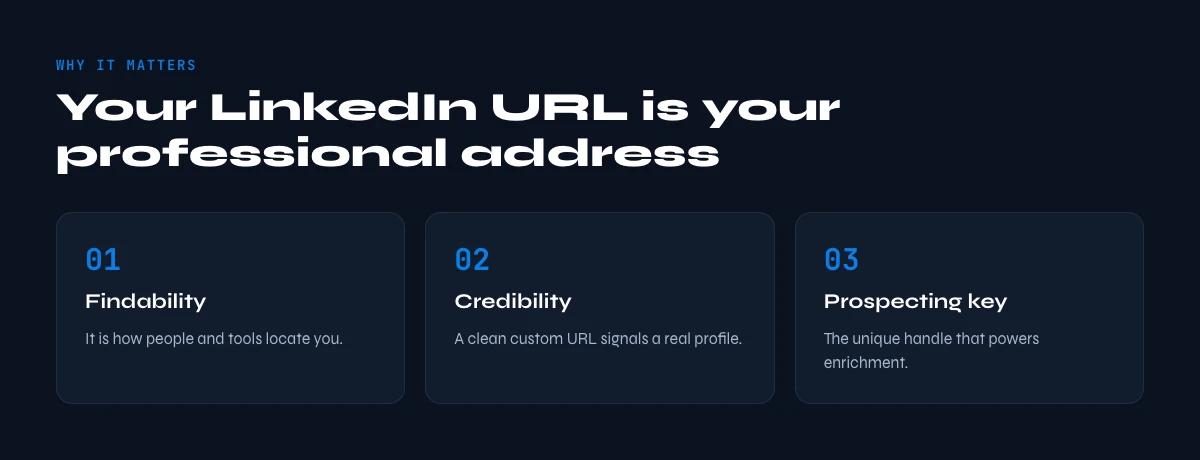
Why Your LinkedIn URL Matters (More Than You Think)
Your LinkedIn profile URL isn't just a web address-it's your professional digital fingerprint. Here's what makes it essential:
For job seekers and professionals:
- Makes your resume instantly verifiable (recruiters check LinkedIn profiles 87% of the time, according to Jobvite)
- Provides a clean, memorable link for business cards and email signatures
- Boosts your Google search visibility when properly customized
- Enables direct profile sharing without connection requests
For B2B sales and recruiters:
- Unlocks contact information and professional history for outreach
- Enables profile enrichment and lead qualification
- Powers automated prospecting workflows
- Facilitates multi-channel outreach strategies
A properly formatted LinkedIn URL follows this structure: https://www.linkedin.com/in/username for individual profiles or https://www.linkedin.com/company/companyname for company pages.
How to Find Your Own LinkedIn Profile URL
Finding your personal LinkedIn URL is straightforward once you know where to look. The process differs slightly between desktop and mobile, but both take less than 30 seconds.
Method 1: Desktop (Fastest Method)
Step 1: Navigate to Your Profile
Log in to LinkedIn and click your profile photo in the top navigation bar, then select "View Profile."
Result: You'll land on your profile page showing your headline, experience, and full professional information.
Step 2: Copy the URL from Your Browser
Look at your browser's address bar at the top of the screen. You'll see a URL that looks like: https://www.linkedin.com/in/john-smith-abc123/
Result: This is your public profile URL. Highlight the entire link, right-click, and select "Copy" (or use Ctrl+C on Windows, Cmd+C on Mac).
Step 3: Verify the Link Works
Paste your copied URL into a new browser window or incognito mode to confirm it displays your public profile correctly.
Result: Your profile should load showing public information even when not logged in to LinkedIn.
Method 2: Mobile App
Step 1: Open Your Profile
Launch the LinkedIn mobile app and tap your profile photo in the top left corner, then tap "View Profile."
Step 2: Access Contact Information
Scroll down to the "Contact" section or tap the three dots menu (More) next to "Add section," then select "Contact info."
Result: A popup appears showing your contact details including your public profile URL.
Step 3: Copy and Share
Tap the "Share profile via…" option or long-press the URL to copy it to your clipboard.
Result: Your LinkedIn URL is now ready to paste into emails, resumes, or text messages.
Method 3: Through Settings (For Customization)
Step 1: Access Public Profile Settings
On desktop, click "Edit public profile & URL" from the right sidebar of your profile page.
Result: LinkedIn redirects you to a dedicated page showing your public profile preview and customization options.
Step 2: View Your Current URL
Under "Edit your custom URL" on the right panel, you'll see your assigned URL. This might include random numbers if you haven't customized it yet.
Result: You can now copy this URL or proceed to customize it for better branding.
Step 3: Customize Your URL (Recommended)
Click the edit pencil icon next to your URL. Enter your preferred username (3-100 characters, no spaces or special characters). LinkedIn recommends using your actual name for professionalism.
Result: Your new custom URL is immediately active. Both the old and new URLs will work, but LinkedIn recommends using the customized version going forward.
Now that you know how to find your own LinkedIn URL, let's explore the more complex scenario: finding someone else's profile link for prospecting or networking purposes.
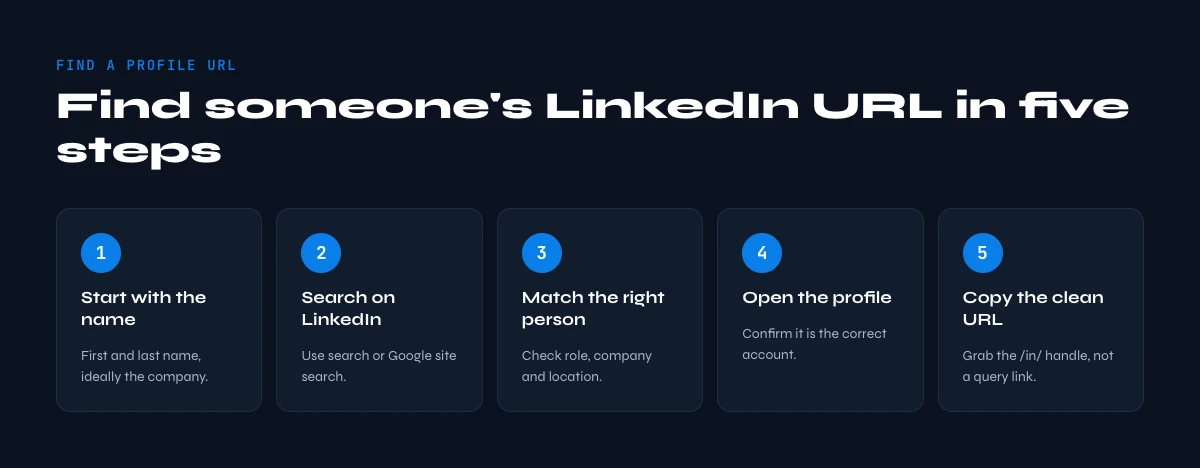
How to Find Someone's LinkedIn Profile URL
Finding another person's LinkedIn URL is essential for B2B sales, recruiting, and professional research. The challenge? LinkedIn doesn't make this easy, especially at scale. Here are proven methods ranked by efficiency.
Method 1: Direct LinkedIn Search (Manual)
Step 1: Use LinkedIn's Search Bar
Click the search bar at the top of LinkedIn's homepage. Enter the person's full name. If you know their company, add it: "John Smith Microsoft."
Result: LinkedIn displays a list of profiles matching your search terms. Look for profile pictures, headlines, and locations to identify the right person.
Step 2: Filter Your Results
Use the "People" filter on the left sidebar to narrow results. Add additional filters like location, current company, or past company if needed.
Result: Your search narrows to show only the most relevant profiles, reducing time spent scanning unrelated results.
Step 3: Open the Profile and Copy URL
Click on the correct profile. Once their profile page loads, copy the entire URL from your browser's address bar.
Result: You now have their LinkedIn profile URL: https://www.linkedin.com/in/[their-username]
Limitations: This method works for finding 1-5 URLs but becomes tedious for prospecting campaigns requiring 50+ URLs. Sales professionals report spending 3-5 minutes per profile using manual search.
Method 2: Google Search (When LinkedIn Search Fails)
Step 1: Craft Your Search Query
Open Google and use this format: site:linkedin.com/in/ "Full Name" "Company Name"
Example: site:linkedin.com/in/ "Sarah Chen" "Adobe"
Result: Google displays LinkedIn profiles matching your criteria, often surfacing results that LinkedIn's internal search misses.
Step 2: Refine with Additional Keywords
Add job titles, locations, or specialties to narrow results: site:linkedin.com/in/ "Michael Rodriguez" "VP Sales" SaaS
Result: More precise targeting reduces false positives and speeds up identification.
Step 3: Click Through and Verify
Open the most promising result from Google search results. Confirm it's the correct person by checking their experience, location, and profile photo.
Result: Copy the verified URL from the browser address bar.
Advantages: Works even without a LinkedIn account (shows public profile). Often finds profiles that don't appear in LinkedIn's search due to privacy settings.
Limitations: Still manual and time-consuming for bulk prospecting.
Method 3: LinkedIn Profile Finder Tools (Automated)
For sales teams, recruiters, and marketers who need to find dozens or hundreds of LinkedIn URLs, automated tools like Derrick transform hours of manual work into minutes of automated enrichment.
Step 1: Prepare Your Lead List
Create a Google Sheet with columns for:
- First Name
- Last Name
- Company Name (optional but increases accuracy)
Result: Your structured data is ready for automated enrichment.
Step 2: Use LinkedIn Profile Finder
With Derrick's LinkedIn Profile Finder feature, you select your name columns in the web app or in Google Sheets and click "Find LinkedIn Profiles."
Result: Derrick automatically searches LinkedIn and returns the profile URLs for each person in your list, typically finding 85-90% of valid URLs within minutes.
Step 3: Review and Verify Results
Derrick adds a new column with the LinkedIn profile URLs. Click through a few to verify accuracy before using them in outreach campaigns.
Result: You now have a clean list of LinkedIn URLs ready for enrichment, outreach, or CRM import-without spending hours on manual searches.
Why this matters: According to Salesforce, sales reps spend 21% of their time searching for contact information. Automation tools like Derrick reclaim that time for actual selling.
Method 4: Boolean Search in Sales Navigator (Advanced)
Step 1: Access Sales Navigator Search
If you have a Sales Navigator subscription ($99/month), use the advanced search with Boolean operators: firstname:John AND lastname:Smith AND company:Microsoft
Result: Highly targeted search results based on exact criteria.
Step 2: Apply Advanced Filters
Layer on filters like:
- Seniority level (Director, VP, C-level)
- Function (Sales, Marketing, Engineering)
- Geography (specific cities or regions)
- Company size and industry
Result: A refined list of prospects matching your ICP (Ideal Customer Profile).
Step 3: Export Profile URLs
Click each profile to view it, then copy the URL from the address bar. Note that Sales Navigator limits you to 2,500 search results per month.
Result: You have prospect URLs from your target criteria, though the export process remains manual unless you use integration tools.
Cost consideration: Sales Navigator costs $99-$149/month per user. If you're only looking for LinkedIn URLs occasionally, free alternatives may suffice.
In the web app or Google Sheets
From a name and a company to the profile
Searching a person by hand is fine once and impossible at list scale. Derrick takes the name and the company from your list and returns the matching LinkedIn profile URL on the row, which unlocks every other enrichment here.
- Feature
- Lead LinkedIn Finder
- Credit cost
- 1 credit per lead found
The first button opens the web app (nothing to install): 1 credit per lead found, available from the STANDARD plan. The second details the feature and its cost per plan.
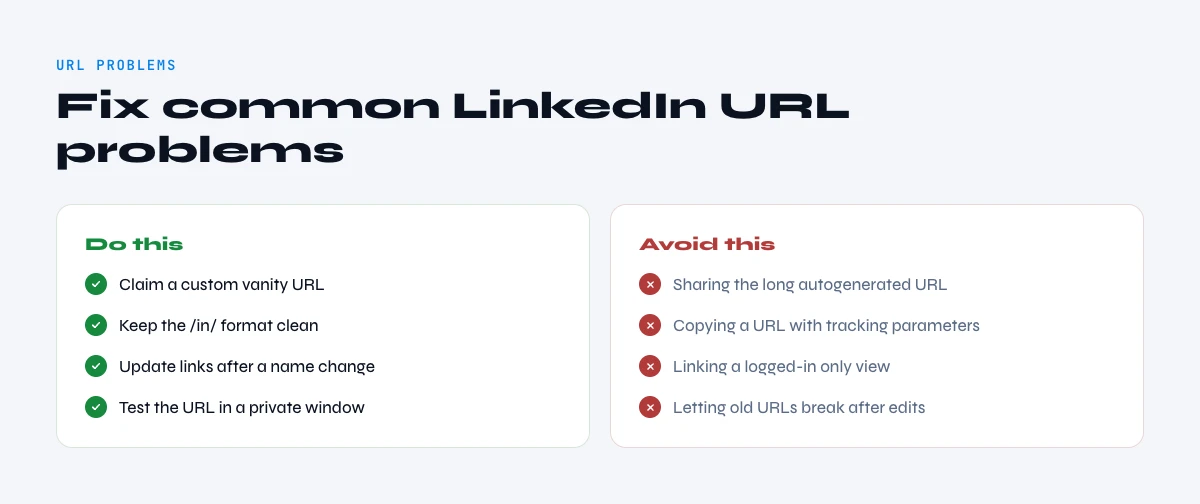
Common LinkedIn URL Problems (And How to Fix Them)
Even experienced professionals encounter these issues. Here's how to troubleshoot them quickly.
Problem 1: My LinkedIn URL Has Random Numbers
Symptom: Your LinkedIn URL looks like linkedin.com/in/john-smith-123abc456 instead of linkedin.com/in/john-smith
Impact: The link is harder to remember, less professional on business cards, and doesn't help your personal brand SEO.
Solution:
- Go to your profile and click "Edit public profile & URL"
- Click the edit pencil icon under "Edit your custom URL"
- Enter your preferred username (typically your name with hyphens: firstname-lastname)
- Click "Save"
Your new clean URL is immediately active, while the old URL still works.
Problem 2: The Person's Profile Doesn't Appear in Search
Symptom: You search for someone's name on LinkedIn but their profile doesn't show up in results.
Impact: You can't find their profile URL to use for outreach or research.
Solution:
- Try Google search method: Use
site:linkedin.com/in/ "Full Name"in Google - Check spelling variations: Try different name formats (Bob vs Robert, Katie vs Katherine)
- Add company context: Include their current or past company in the search
- Look for mutual connections: Check "People also viewed" on similar profiles
- Use automation: Tools like Derrick's LinkedIn Profile Finder have higher success rates than manual search
Profile visibility depends on the person's privacy settings. If they've set their profile to private or limited visibility, finding them manually becomes nearly impossible-another reason automated tools perform better.
Problem 3: I Can't Access Someone's LinkedIn Without Connecting
Symptom: When you click a LinkedIn URL, you're prompted to send a connection request or sign up for Premium to view the full profile.
Impact: You can't access the person's full work history, skills, or contact information without connecting first.
Solution:
- View in incognito mode: This shows you the public-facing version of their profile
- Use Google cache: Search
cache:linkedin.com/in/their-profileto see a cached version - Check other platforms: Many professionals link their LinkedIn on Twitter, personal websites, or company bio pages
- Use enrichment tools: Derrick's LinkedIn Profile Scraper can extract 50+ data points from a LinkedIn URL including email, phone, and company information-without requiring a connection
LinkedIn limits free accounts to approximately 1,000 search results per month. Sales Navigator increases this to 2,500, but serious prospectors often need more capacity.
Problem 4: LinkedIn Says My Custom URL Is Unavailable
Symptom: When trying to customize your LinkedIn URL, you get an error saying your preferred username is taken.
Impact: You can't create the professional, memorable URL you wanted.
Solution:
- Add middle initial: Try firstname-middleinitial-lastname
- Include credential: firstname-lastname-cpa or firstname-lastname-phd
- Add location: firstname-lastname-nyc
- Try variations: firstname-m-lastname or firstinitiallastname
- Use numbers sparingly: firstname-lastname-1 (only if nothing else works)
Avoid using special characters (@, #, &) as LinkedIn prohibits them in custom URLs.
Problem 5: The LinkedIn URL I Found Leads to the Wrong Person
Symptom: You click a LinkedIn URL and land on a profile for someone with a similar name but different company or location.
Impact: You waste time researching the wrong prospect or accidentally reach out to the wrong person.
Solution:
- Always verify before outreach: Check profile photo, current company, location, and headline
- Use multiple data points: Cross-reference with email, phone, or other platforms
- Add company name when searching: This drastically reduces false positives
- Use automated verification: Tools like Derrick validate LinkedIn URLs against company data to reduce errors
According to HubSpot, 22% of sales emails bounce due to incorrect contact data. Verifying LinkedIn URLs before using them saves embarrassment and protects your sender reputation.
The app works through your list row by row: 1 credit per lead found, nothing is billed without a result.
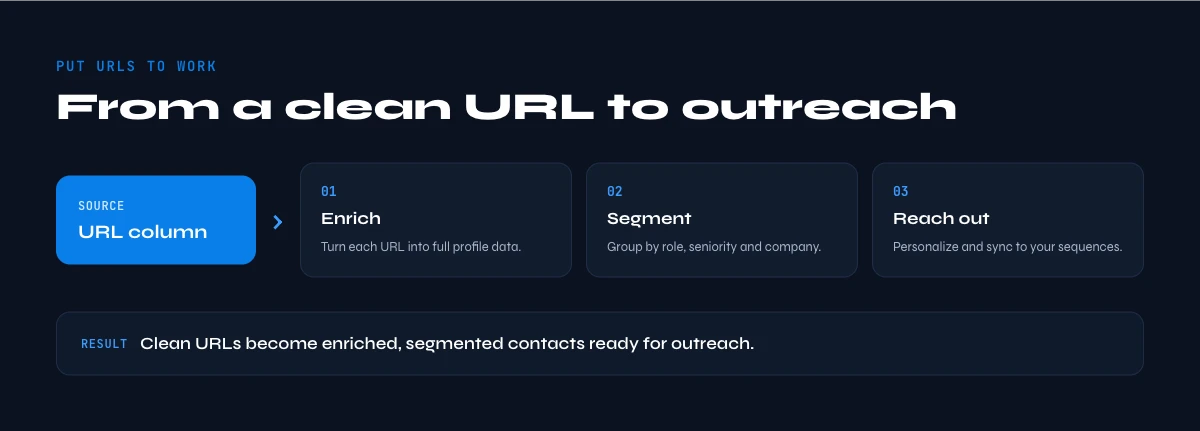
Best Practices for Using LinkedIn URLs Professionally
Now that you know how to find LinkedIn URLs, here's how to use them effectively for maximum impact.
1. Always Use the Full URL Format
Wrong: linkedin.com/in/john-smith Right: https://www.linkedin.com/in/john-smith
Including the full protocol (https) ensures the link is clickable in emails, documents, and most platforms. Some email clients won't automatically hyperlink URLs missing the protocol.
2. Customize Your URL for Personal Branding
A custom LinkedIn URL improves your professional image and SEO. According to LinkedIn, profiles with custom URLs receive up to 30% more profile views.
Default URL: linkedin.com/in/john-smith-abc123 Customized URL: linkedin.com/in/john-smith
Include your custom URL on:
- Resume and CV (header section)
- Email signature
- Business cards
- Personal website or portfolio
- Social media bios (Twitter, Instagram, GitHub)
- Conference speaker bios
- Published articles or guest posts
3. Respect Privacy and LinkedIn's Terms of Service
When finding others' LinkedIn URLs for prospecting:
- Don't scrape data using unauthorized bots or scripts (violates LinkedIn ToS)
- Use approved tools like Derrick that comply with LinkedIn's policies
- Always add value in your outreach, don't spam prospects
- Honor opt-outs if someone asks not to be contacted
LinkedIn actively blocks accounts that violate their terms. Sales Navigator alone isn't protection-the method of data collection matters.
4. Combine LinkedIn URLs with Other Data Points
A LinkedIn URL alone doesn't guarantee successful outreach. Build complete prospect profiles by combining:
- LinkedIn profile URL (professional background)
- Email address (primary outreach channel)
- Phone number, pull a direct phone from that URL (for high-value prospects)
- Company information (firmographics)
- Recent activity (engagement signals)
Tools like Derrick's LinkedIn Profile Scraper automatically enrich URLs with 50+ additional data points including verified emails and phone numbers.
A URL on its own is just a pointer. The value shows up once you add context around it. A strong LinkedIn headline tells you how a prospect frames themselves. Pull the current company and the exact job title from each profile and you can segment and personalize properly. Need finer targeting? Extract the listed skills too. The full LinkedIn profile data guide covers every field worth collecting.
With Derrick's Enrich Leads feature you turn a raw URL into a complete record at 1 credit per profile, in the web app or in Google Sheets. The first 100 credits every month are free, so you can test it on a real list before scaling.
5. Keep Your LinkedIn URL Database Updated
Professional information changes constantly-people switch jobs, companies rebrand, profiles get deleted. Maintain data hygiene by:
- Re-validating quarterly: Check that URLs still work and point to the right person
- Monitoring job changes: Set up alerts for prospects who change roles
- Removing dead profiles: Clean out URLs that return 404 errors or deleted profiles
- Updating enrichment data: Refresh emails, phone numbers, and company info regularly
According to Validity, B2B databases decay at approximately 22.5% per year. Regular validation prevents wasted outreach on outdated data.
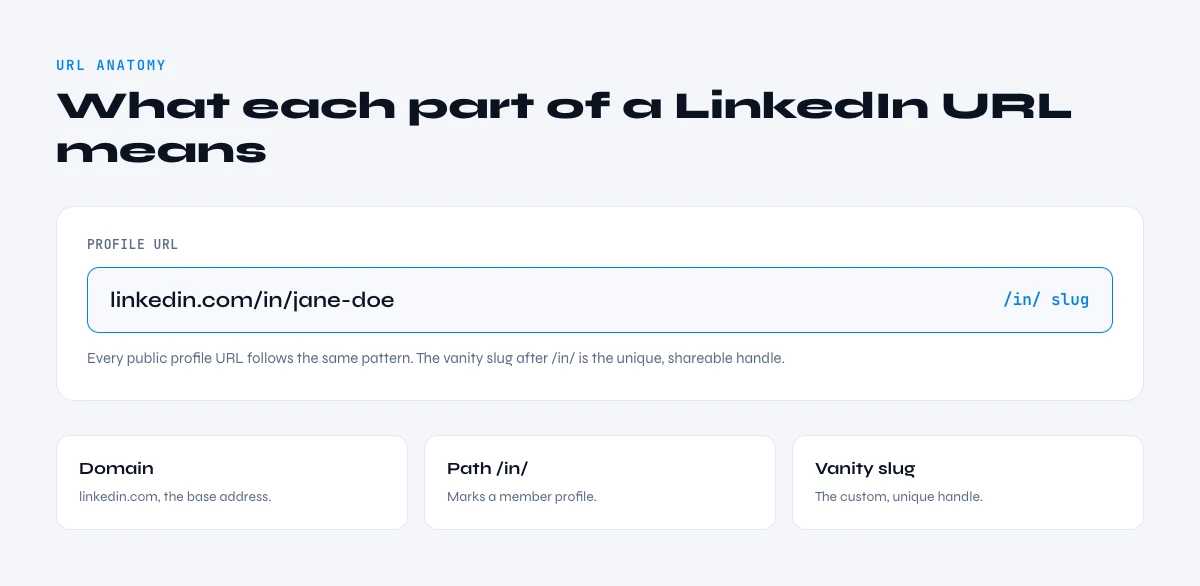
LinkedIn URL Formats: What Each Part Means
Understanding LinkedIn URL structure helps you troubleshoot problems and verify authenticity.
Individual Profile URL Structure: https://www.linkedin.com/in/username
- Protocol:
https://(secure connection) - Domain:
www.linkedin.com(main LinkedIn site) - Path:
/in/(indicates individual profile) - Username:
username(unique identifier, 3-100 characters)
Company Page URL Structure: https://www.linkedin.com/company/companyname
- Path:
/company/(indicates organization page) - Company identifier:
companyname(company's chosen handle)
Sales Navigator Profile URL: https://www.linkedin.com/sales/lead/ACwAAA...
- Path:
/sales/lead/(Sales Navigator profile view) - Lead ID: Alphanumeric string identifying the lead in Sales Navigator
When collecting LinkedIn URLs for prospecting, always capture the standard /in/ format rather than Sales Navigator URLs, as /in/ links are accessible to everyone regardless of subscription.
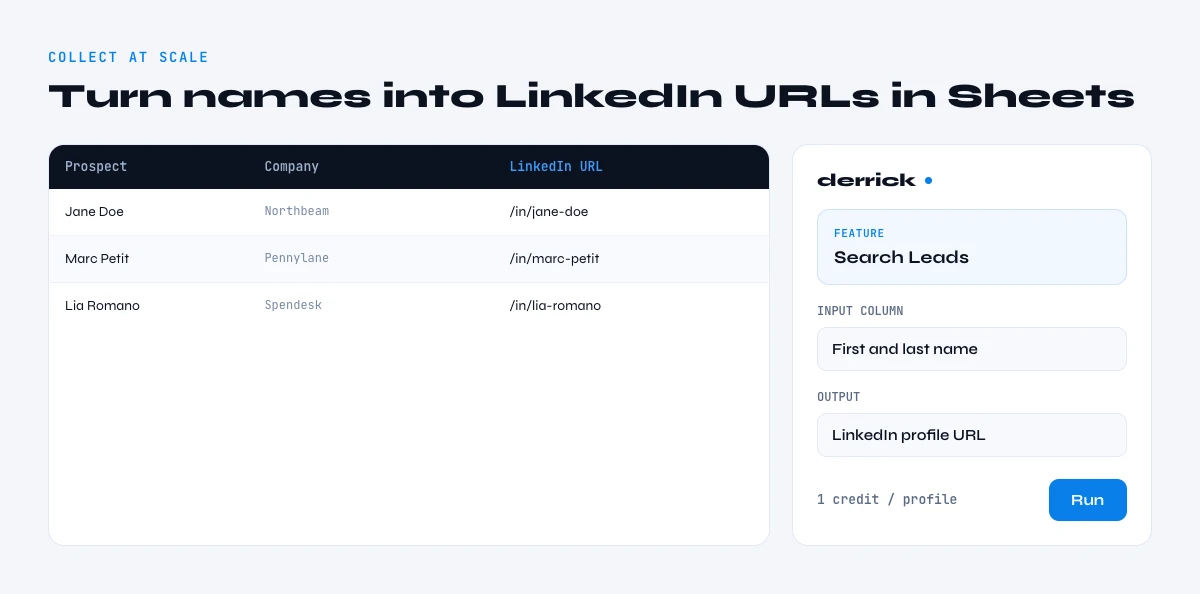
Automating LinkedIn URL Collection at Scale
For sales teams, recruiters, and marketers managing hundreds or thousands of prospects, manual URL collection isn't viable. Here's how to automate responsibly.
When to Automate LinkedIn URL Finding
Consider automation when you:
- Prospect to 50+ new leads per week
- Build targeted lists from industry conferences or events
- Research competitors' employees for recruiting
- Create account-based marketing (ABM) campaigns
- Enrich existing CRM data with LinkedIn profiles
Manual search makes sense for 5-10 URLs. Automation becomes essential at scale.
How Derrick Automates LinkedIn Profile Finding
Derrick's LinkedIn Profile Finder works in the web app or directly in Google Sheets:
- Create your lead list: Add names and optional company information to columns
- Select your columns: Tell Derrick which columns contain first name, last name, and company
- Run the enrichment: Derrick searches LinkedIn and returns profile URLs in seconds
- Export or enrich further: Use the URLs to scrape additional data or export to your CRM
Key advantages:
- No Sales Navigator subscription required (saves $1,200/year)
- Works directly in Google Sheets (no complex setup or APIs)
- Finds 85-90% of valid LinkedIn profiles automatically
- Includes email and phone finding for complete prospect profiles
- Rollover credits (unused credits carry forward each month)
According to Derrick users, the tool reduces LinkedIn URL research time by 95%, allowing sales teams to focus on actual outreach instead of data gathering.
Building Automated Prospecting Workflows
Integrate LinkedIn URL finding into larger automation workflows:
Example workflow:
- Source leads from conferences, webinars, or purchased lists (names + companies)
- Find LinkedIn URLs using Derrick Profile Finder
- Enrich profiles with Derrick Profile Scraper (50+ attributes)
- Verify emails with Derrick Email Verifier
- Find phone numbers with Derrick Phone Finder
- Score leads with Derrick's Ask AI (Claude or GPT), in the web app or in Google Sheets
- Export to CRM via Zapier, Make, or CSV
- Launch outreach in your email/calling tool
This end-to-end workflow transforms raw names into qualified, enriched prospects ready for personalized outreach, all in one list, in the web app or in Google Sheets.
LinkedIn URL Security and Privacy Considerations
As you collect and use LinkedIn URLs, keep these privacy and security guidelines in mind.
What's Public vs. Private on LinkedIn Profiles
Public by default:
- Name and professional headline
- Current company and job title
- Location (city and region)
- Profile photo
- Customized URL
Depends on user's privacy settings:
- Full work experience and education
- Skills and endorsements
- Activity and posts
- Connections list
- Contact information (email, phone)
When you access someone's LinkedIn profile URL while logged out or in incognito mode, you'll only see their public-facing information. This is what recruiters and prospects see when they first find your profile.
Using LinkedIn URLs Ethically
Do:
- Find public profile URLs using approved methods
- Use LinkedIn data for legitimate business purposes (recruiting, sales, partnerships)
- Personalize outreach based on profile information
- Respect "do not contact" requests
Don't:
- Scrape LinkedIn using unauthorized tools or scripts
- Send unsolicited mass messages to hundreds of prospects
- Share or sell LinkedIn URLs without consent
- Misrepresent your purpose when connecting or messaging
LinkedIn has sophisticated detection systems for suspicious activity. Accounts that violate terms get restricted, suspended, or permanently banned.
Data Protection and GDPR Compliance
If you operate in Europe or collect data on European prospects, GDPR applies to LinkedIn URLs:
- LinkedIn URLs are personal data under GDPR (identifier linked to an individual)
- You need a lawful basis to process this data (legitimate interest for B2B prospecting)
- Prospects have rights to request their data, ask for deletion, or opt out
- Keep records of where you sourced URLs and your outreach consent
Derrick is GDPR-compliant and includes features to help you maintain compliant prospecting practices, including automated consent tracking and easy data export for subject access requests.
To Recap: Finding LinkedIn URLs Efficiently
Finding LinkedIn profile URLs is a fundamental skill for modern professionals. Whether you need your own URL for career purposes or prospect URLs for business development, the right approach saves time and delivers better results.
For finding your own LinkedIn URL:
- Use the browser address bar method (fastest)
- Customize your URL for better branding and SEO
- Include the full URL (with https://) on all professional materials
For finding prospects' LinkedIn URLs:
- Manual search works for 1-5 URLs
- Google search helps when LinkedIn search fails
- Automation is essential for 50+ URLs per week
- Always verify URLs before outreach to avoid errors
Tools like Derrick transform LinkedIn URL research from a time-consuming bottleneck into an automated workflow, freeing sales teams to focus on building relationships instead of gathering data.
Ready to scale your LinkedIn prospecting? Start with a clean list of URLs, then enrich those profiles with verified emails, phone numbers, and company data, all in one list, in the web app or in Google Sheets.
Frequently asked questions
How do I find my own LinkedIn URL?
Can I find someone's LinkedIn URL without connecting?
How do I customize my LinkedIn URL?
What's the difference between /in/ and /sales/ LinkedIn URLs?
How can I find LinkedIn URLs for 100+ prospects quickly?
Are LinkedIn scraping tools legal?
Keep reading
Continue exploring this cluster


LinkedIn Headline 2026: Character Limit + Examples That Work
Read →

How to Find Country from LinkedIn Profile URL: 3 Proven Methods
Read →

How to Find City from LinkedIn Profile URL: Complete 2026 Guide
Read →

How to Find Someone's LinkedIn Skills: Complete Guide 2026
Read →