
How to Find a LinkedIn Profile by Email Address
Find the LinkedIn profile behind any email address. 5 tested methods, from a free Google X-ray search to a bulk Google Sheets workflow, with match rates.


Last updated: 2026-06-17 · Tested by Derrick on a mixed sample of work and personal email addresses.
You have an email address and you want the person behind it on LinkedIn: their title, their company, a way to engage them. The catch is that LinkedIn has no public "search by email" box, so every working method turns the email into a name first, then matches that name to a profile. This guide walks through five methods, from a free manual trick to a bulk workflow that runs from a spreadsheet, with realistic match rates for each.
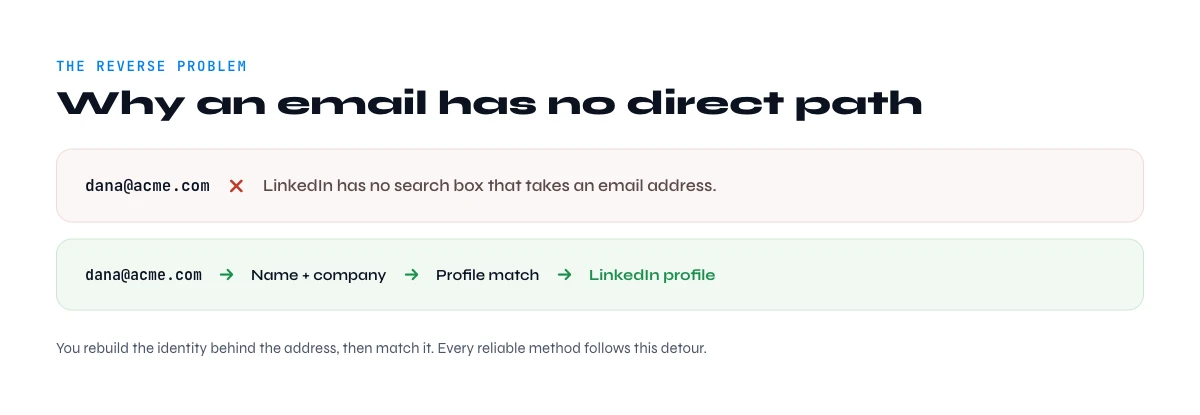
Why you cannot search LinkedIn by an email address directly
LinkedIn used to let you upload a contact list and match addresses to profiles. That path is gone for cold lookups: the platform now treats the email field as private, so pasting an address into the search bar returns nothing useful. The reason is privacy and anti-scraping policy, and it applies to everyone, free or premium.
So the real question is never "how do I paste an email into LinkedIn". It is "how do I turn this email into a first name, last name and company, then find the matching profile". Once you frame it that way, the methods below fall into place. Two of them are free and manual, one uses Google, one uses paid lookup tools, and one runs the whole chain in bulk from the Derrick web app or Google Sheets.
Method 1: Read the name straight out of the email (free, manual)
Most B2B work emails encode the person's name. The part before the @ follows a small set of patterns, and the part after the @ is almost always the company domain. Map the pattern and you already have a name and an employer to search.
| Email pattern | Likely name | Confidence |
|---|---|---|
| jane.doe@acme.com | Jane Doe | High |
| jdoe@acme.com | J. Doe (first initial) | Medium |
| jane@acme.com | Jane (first name only) | Medium |
| doej@acme.com | Doe, J. (last name first) | Medium |
| jane_doe@acme.com | Jane Doe | High |
Take the domain (acme.com), open it in a browser to confirm the company, then search the deduced name plus the company on LinkedIn. This costs nothing and works well for clear patterns. It breaks down on ambiguous handles like jsmith@ (thousands of J. Smiths) and on personal webmail, where gmail.com or outlook.com tells you nothing about the employer.
Two habits make this method far more reliable. First, verify the pattern against a colleague: if you can find one confirmed name and email at the same company, you know the format the whole organisation uses, which removes the guesswork from every other address on that domain. Second, when the handle is a first initial plus last name, treat the first name as unknown and search the last name plus the company plus a likely title rather than inventing a first name that may be wrong. For personal webmail with no employer signal, your only honest path is the cross-checking methods below, because the address alone cannot tell you where the person works.
This is also the step you can stop doing by hand. Find Names & Domains by Email Addresses is a free, unlimited Derrick function that takes a whole column of emails and returns the first name, last name and company domain for each one, so the deduction above runs on your entire list in a single pass instead of address by address.
Method 2: Google X-ray search (free)
When you have a name and a company but the address itself is ambiguous, let Google do the matching. A site-scoped Boolean query points straight at public LinkedIn profiles:
site:linkedin.com/in "Jane Doe" "Acme"
Add the job title if you know it, or the city to break ties between namesakes. Google indexes the public version of most profiles, so this surfaces the right person in one or two clicks. A few operators sharpen the query: wrap exact phrases in quotes so "Jane Doe" is not split into separate words, use OR to cover title variants like ("Head of Sales" OR "VP Sales"), and add a minus sign to exclude a wrong company when two namesakes keep colliding. If Google returns nothing, run the same query on Bing, which sometimes indexes profiles Google has dropped.
The limit is volume: it is a one-at-a-time method, and it depends on the profile being public and on the name being reasonably distinctive. For a single high-value prospect it is unbeatable for speed and cost. For a list of hundreds, the clicking adds up fast, which is where the bulk method later in this guide takes over.
If you would rather not run a query per prospect, Search Leads does the same name-to-profile match in bulk from the web app or a spreadsheet: feed it the first and last name plus the company and it returns the LinkedIn profile, the automated version of the X-ray search you would otherwise do one row at a time.
In the web app or Google Sheets
From an address to the profile behind it
An email alone tells you very little about who you are writing to. Split it into a name and a domain, then let Derrick find the matching LinkedIn profile in your list, which is what gives you the role and the seniority.
- Feature
- Lead LinkedIn Finder
- Credit cost
- 1 credit per lead found
The first button opens the web app (nothing to install): 1 credit per lead found, 100 free credits every month. The second details the feature and its cost per plan.
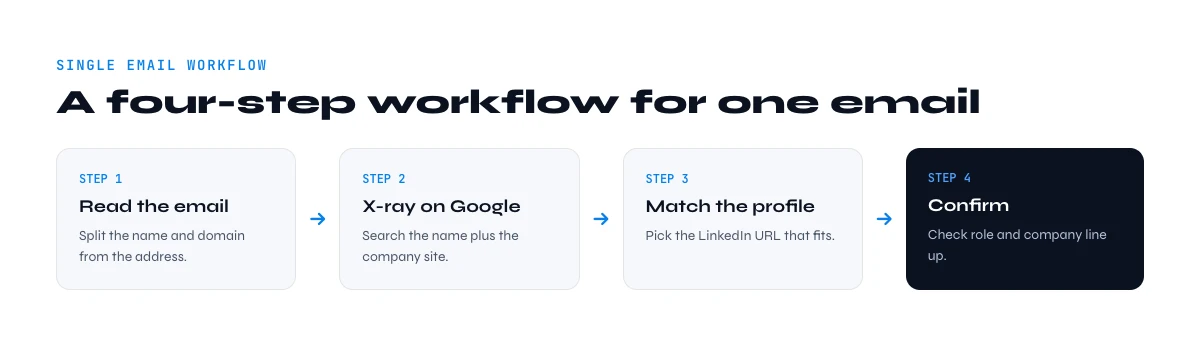
A four-step workflow for a single email
When you have one address and want one profile, this sequence resolves the large majority of work emails in under two minutes:
- Split the address. Separate the local part (before the @) from the domain (after the @). The local part hints at the name, the domain names the employer.
- Deduce the name. Map the local part to the most likely first and last name using the pattern table above, and note your confidence level.
- Confirm the company. Open the domain in a browser to confirm the employer and, if there is a team page, to lift the exact spelling of the name.
- Match on LinkedIn. Run a Google X-ray search for the name plus the company, or search the name inside LinkedIn filtered to that company. The right profile is usually the first result.
If step four returns several plausible profiles, the company filter from step three is what breaks the tie: the correct person almost always lists the employer whose domain you started from.
Method 3: Cross-check the company directory or website
Strip the domain from the email and open the company site. Many B2B companies publish a team or "about" page with names, roles and sometimes direct LinkedIn links. If there is no public directory, the domain still tells you where the person works, which narrows a LinkedIn name search to a single company. This is the most reliable way to resolve a generic handle like jsmith@: the directory disambiguates which J. Smith the address belongs to.
It pairs naturally with the reverse direction of this lookup. If your starting point is the domain rather than the person, our guide on how to find a company website and domain covers the company side, and finding a company name from an email handles the case where you only have the address.
Once the directory gives you the right named person, Enrich Leads (free and paid plans, 1 credit per profile) pulls their full LinkedIn profile, title, company and more straight into your list, so you go from a confirmed name to usable data without opening LinkedIn tab by tab.
The app runs the search row by row on your list: 1 credit per lead found, nothing is billed without a result.
Method 4: Reverse email lookup tools (paid)
Dedicated enrichment tools keep large databases that link work emails to social profiles. You submit an address and get back a LinkedIn URL plus firmographic data, skipping the manual deduction entirely. Match rates depend heavily on the email type: most tools resolve 70 to 90% of corporate addresses but only 30 to 40% of personal Gmail addresses, since a personal inbox carries no employer signal. These tools charge per lookup once you pass their free tier, so they make sense when you have a list rather than a single address.
When you compare options, look past the headline match rate at three things: how fresh the underlying data is, since profiles and job titles change constantly; whether coverage matches your region, because European SMB data is thinner than US enterprise data; and how the tool fits your existing workflow, so the results land where you actually work rather than in yet another export to download and reconcile. The last point is where a bulk approach, in a web app or a spreadsheet, pulls ahead, which is the next method.
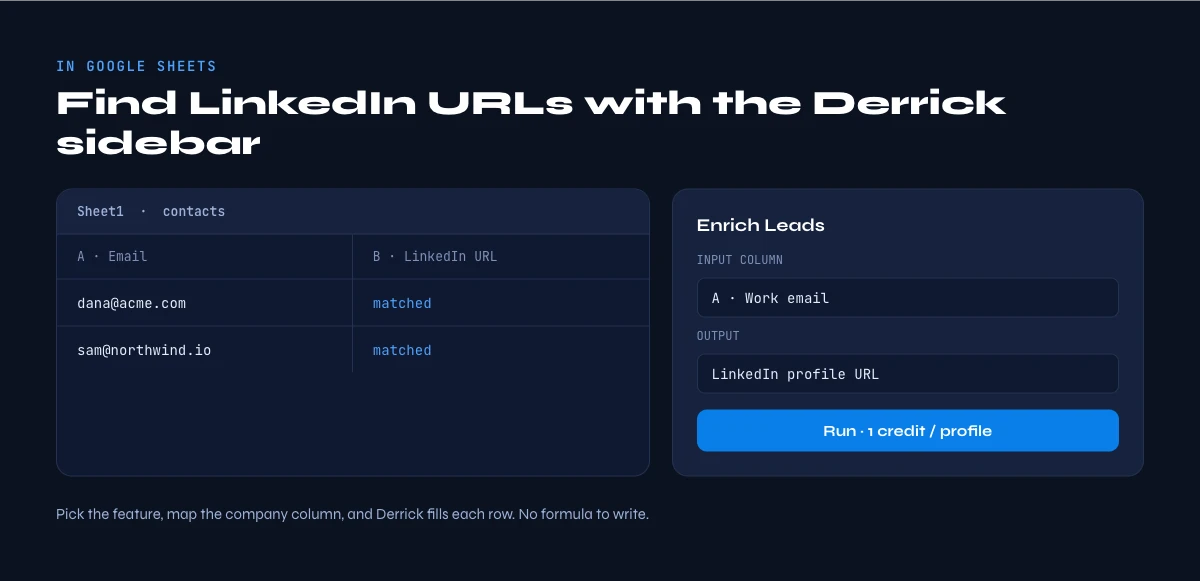
Method 5: Run the whole chain in bulk with Derrick
The manual methods above are fine for one prospect. For a list of fifty, five hundred or five thousand, you want the email-to-name-to-profile chain to run on every row at once. That is exactly what Derrick does from its web app or a Google Sheets sidebar, no copy-paste and no switching tabs.
Try the picker below to see which actions and which credit budget fit your starting point and volume.
Compare the five methods
| Method | Cost | Best for | Bulk? |
|---|---|---|---|
| Read name from email | Free | Clear firstname.lastname addresses | No |
| Google X-ray search | Free | Name + company, distinctive names | No |
| Company directory | Free | Resolving generic handles | No |
| Reverse lookup tools | Paid per lookup | Mixed lists, no manual time | Partial |
| Derrick (web app or Sheets) | Free plan: 100 credits/month, then paid | Lists from 50 to 10,000 rows | Yes |
Work email versus personal email: what to expect
The single biggest factor in your success rate is whether the address is a work email or a personal one. A work email carries two strong signals: the name in the local part and the employer in the domain. Combine them and match rates are high across every method. A personal address (gmail.com, outlook.com, yahoo.com) carries neither an employer nor, often, a full name, so you are left cross-matching against external databases. Expect 70 to 90% success on corporate addresses and 30 to 40% on personal ones. If your list is mostly personal webmail, plan for partial coverage and keep a manual fallback for the misses.
One category sits in between and deserves a warning: role addresses such as info@, sales@ or contact@. These point to a shared inbox, not a person, so there is no individual profile to find. The right move with a role address is to first identify a named person at the company through its directory or LinkedIn, then enrich that person rather than the inbox. Catch-all domains, where the server accepts any address, are the other trap: they make pattern guessing look successful when the mailbox may not exist at all, so confirm the person separately before you trust the match.
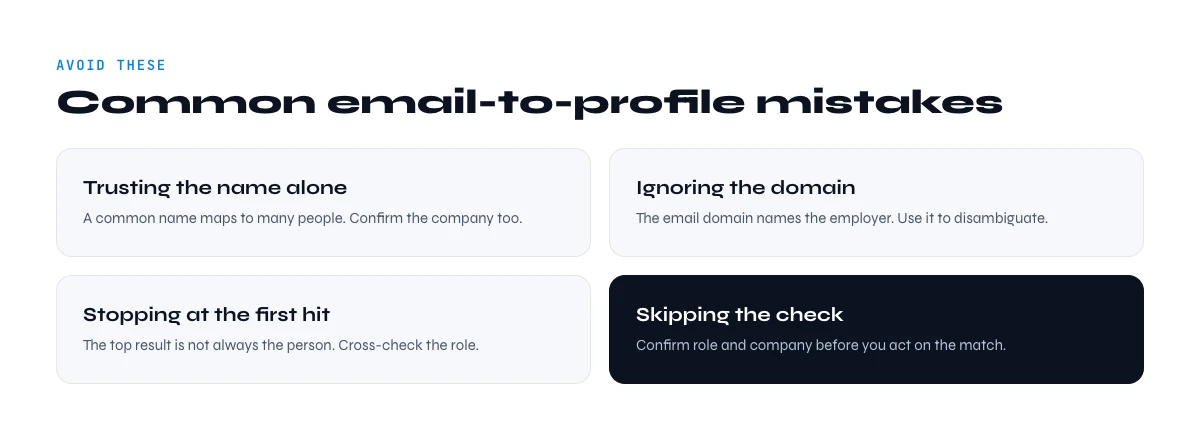
Five common mistakes when matching emails to profiles
- Inventing a first name from an initial. jdoe@ could be Jane, John, Jordan or Jamal. Search the last name plus the company instead of guessing.
- Trusting a personal address. A gmail.com address gives you no employer, so do not expect the deduction methods to work on it.
- Skipping the company confirmation. Two people share most names. The domain is what proves you found the right profile, so never drop it from the search.
- Treating a role inbox as a person. sales@ has no LinkedIn profile. Find a named contact first.
- Doing it one by one at scale. Manual methods are perfect for a handful of prospects and a poor use of time for a list of hundreds. Match the method to the volume.
Is finding a LinkedIn profile from an email GDPR-compliant?
For B2B prospecting, resolving a work email to a public professional profile generally falls under the legitimate interest basis of GDPR (Article 6.1.f, Recital 47). The data involved (name, employer, public LinkedIn profile) is professional and publicly available rather than private consumer data. Two practices keep you on the safe side: prospect work addresses rather than personal inboxes, and give every contact a clear opt-out in your first message. Personal Gmail or Yahoo addresses sit closer to consumer data, so treat those with more caution.
Before you send, run the addresses you collect through a quick quality pass: confirm they are valid professional emails and screen out the risky ones with a bounce email checker so your outreach lands.
Start free with Derrick and turn a column of emails into LinkedIn profiles in the web app or in Google Sheets.
Frequently asked questions
Can you search LinkedIn by email address directly?
What is the fastest free way to find a LinkedIn profile from an email?
How accurate is finding a LinkedIn profile from an email?
Can I find LinkedIn profiles from a whole list of emails at once?
Does Derrick work on the free plan?
Is it legal and GDPR-compliant to find a LinkedIn profile from a work email?
Keep reading
Continue exploring this cluster


Lead Email Finder: The Complete Guide to Finding Your Prospects' Emails
Read →

How to Find a Company Website: Complete 2026 Guide
Read →

Find Company Name & Website from Email: 4 Methods (2026, Tested)
Read →

Valid Email Finder: How to Find and Verify Valid Professional Emails
Read →