
LinkedIn Email Finder: From a Profile URL to a Verified Work Email
Turn a LinkedIn profile into a verified work email from Sheets, an AI agent or the API. 5 credits per email found, nothing for a miss.


A LinkedIn email finder turns a profile URL into a verified work email. It reads the public name and current company, derives the address the company actually uses, then checks that address against the mail server before handing back a verified result. Three steps, a few seconds, and the result is either a verified address you can send to, or an honest "no result".
This page shows that exact gesture on the surfaces you already work on: the web app or a Google Sheets sidebar for a list of profiles, Claude over MCP for a one-off question, and a REST API for a pipeline. It also gives you a free pattern generator, and a real CSV to download further down: fifteen B2B agencies in Austin with their public LinkedIn company pages, no emails and no phone numbers inside.
How a LinkedIn Email Finder Works: Profile, Pattern, Verification
Every LinkedIn email finder runs the same three steps. Knowing them tells you where a result can go wrong, and which step you are actually paying for.
- Read the profile. The public page gives a first name, a last name and a current employer. That is all the raw material there is: LinkedIn does not publish work email addresses on profiles, so nothing can simply be copied.
- Derive the company pattern. Almost every company uses one convention across its whole domain, such as
first.last@,flast@orfirst@. Resolving the employer to a domain and knowing its convention narrows thousands of possibilities down to a handful. - Verify against the mail server. The candidate address is tested in real time. The server answers, and the address comes back as verified, invalid, or catch-all, which is the polite way of saying the domain accepts everything and nothing can be proven.
Step three is where the quality lives. A LinkedIn email finder that stops after step two hands you a plausible address that may bounce; one that verifies hands you a verified address you can send to. When you compare LinkedIn email finder tools, ask what happens at the verification step, not how pretty the button is.
One consequence is worth stating plainly. B2B contact data decays at roughly 2 to 3 percent per month as people change jobs, so an address that was correct last year may be dead today. Re-verifying at the moment of the lookup is what separates a verified result from a cached guess, and it is why a slick interface on a stale database still hands you bounces. The same logic applies to the catch-all domains that never resolve cleanly: an honest tool flags them rather than passing them off as valid.
Email pattern generator: the candidate addresses behind a LinkedIn profile
Type the first name, last name and company domain you read on the profile. The generator lists the conventions companies actually use, ranked by how common they are. It does not find the address: it shows you the candidates, so you know exactly what a finder has to choose between.
Fill in the three fields, or pick an example, to see the candidate addresses.
Runs entirely in your browser. Nothing is sent anywhere, nothing is stored, and no credit is used. These are conventions, not results: only a check against the mail server tells you which one exists.
What a LinkedIn Email Finder Costs: 5 Credits Per Email Found, 0 Per Miss
Most LinkedIn email finder pricing is a monthly plan with a quota of lookups, which means an attempt that returns nothing still costs you. Derrick bills the Email Finder per result found: 5 credits when an address comes back, nothing when it does not. One hundred profiles with a 60 percent match rate costs 300 credits, not 500.
| Surface | What you do | What it costs |
|---|---|---|
| Google Sheets sidebar | Paste a column of LinkedIn profile URLs, run Email Finder on the whole column in bulk | 5 credits per email found |
| Claude and other MCP clients | Ask for the work email behind a profile, in plain language | 5 credits per email found |
| REST API | One call per contact, inside your own pipeline or CRM | 5 credits per email found |
| Web app | Available now, for the same work without a spreadsheet | Same credits, same account |
Two things have to be said plainly, because the rest of this market is vague about them. First, Email Finder is a paid feature. The free plan gives you 100 credits per month at no cost and no card, and those credits cannot be spent on finding emails. What they can do is import and enrich profiles and companies, at 1 credit per row, which is the step before. Second, verification is a separate call: Email Verification costs 1 credit per address and is also on paid plans.
Paid plans start at 20 euros per month, and the credit price falls as volume rises, down to a floor of 0.0016 euros per credit on the largest plan. At that floor a found email costs less than a cent. Published prices, no sales call: the full grid is on the pricing page.
LinkedIn Email Extractor: A Search, A List, Or A Sales Navigator Export
One profile at a time is fine until your target list has three hundred rows, and that is where a LinkedIn email finder stops being enough on its own. That is when people start looking for a LinkedIn email extractor rather than a finder: the same job, applied in bulk to a search result or a saved list instead of a single page.
The workflow splits in two, and each half is priced separately. First you import the people: Import LinkedIn Leads pulls a Sales Navigator search or a saved list into the web app or a sheet at 1 credit per profile, and it works on the free plan. Then you run Email Finder down the column you just filled, at 5 credits per email found.
The arithmetic is worth doing before you start. One hundred profiles imported costs 100 credits. If 60 of them resolve to a verified work email, the finding step costs 300 credits. Total 400 credits for 60 verified contacts, and the 40 misses cost nothing. Count the steps, not the features: a workflow that looks like one action is often two calls on the invoice.
For a whole account list rather than a people list, the same pattern applies one level up: import the companies, then work down to the people. Our guide to the bulk lead workflow walks through the column-by-column version.
In the web app or Google Sheets
Judge a finder on results, not on a feature list
The buying criteria in this guide all reduce to one test. Run a sample through Derrick from your list: you are charged per address returned, so the hit rate and the cost of the test are both visible at the end of the run.
- Feature
- Lead Email Finder
- Credit cost
- 5 credits per email found
The first button opens the web app (nothing to install): 5 credits per email found, available from the STANDARD plan. The second details the feature and its cost per plan.
Chrome Extension Or Not?
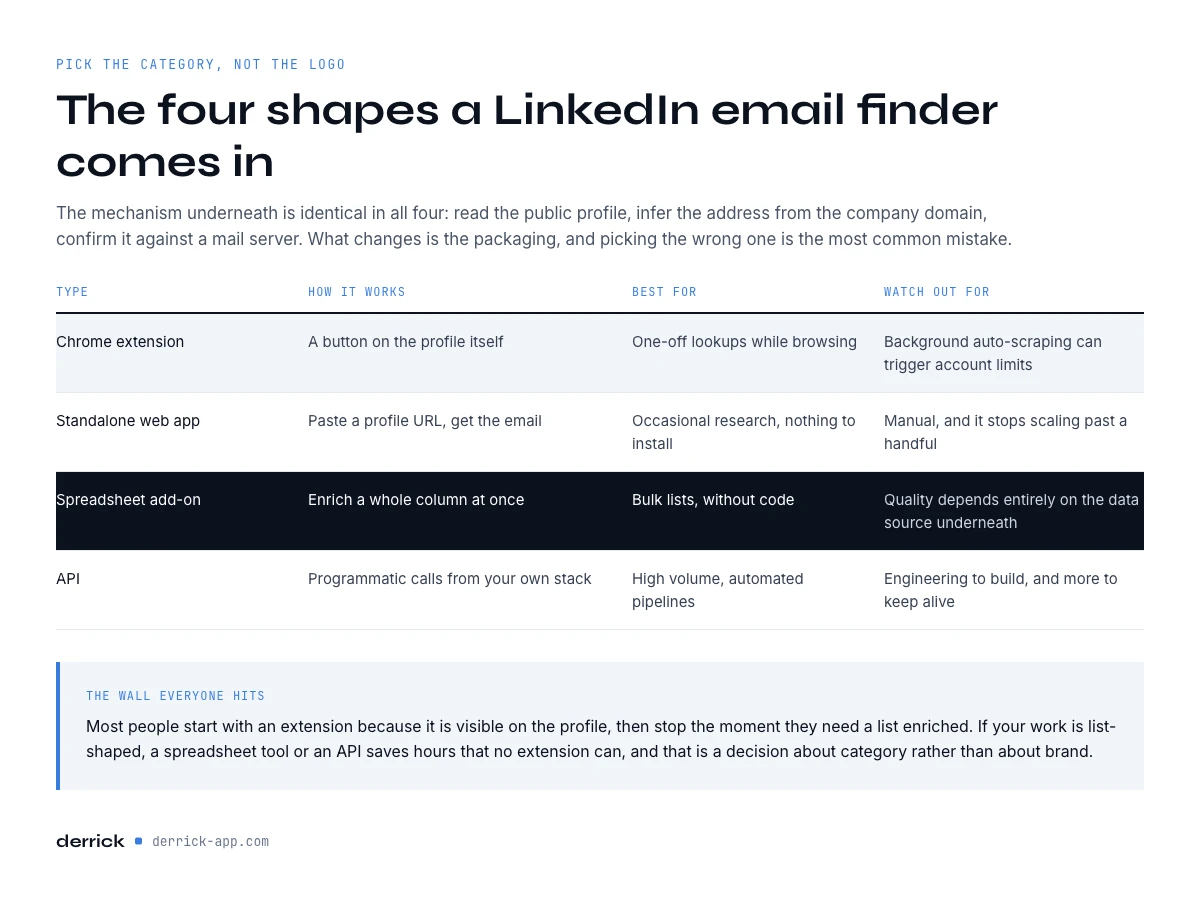
Six out of ten pages on this subject sell a LinkedIn email finder extension, and the question deserves a straight answer: you need the Chrome extension for the tools that read LinkedIn itself, and you do not need it for anything else.
The extension is what lets Derrick see a LinkedIn page you are logged into, which is required for importing profiles, companies and Sales Navigator lists. It acts when you click, not in the background, which is the whole point of the next section.
Everything downstream runs without it. The Google Sheets sidebar enriches a column that is already in your sheet. The MCP server answers a question typed into Claude or any other MCP client, which is the fastest path when you have one profile and no spreadsheet open. The REST API does the same inside your own code. And the web app serves people who want the workflow online without a spreadsheet at all, with nothing to install.
| You want to | Best surface | Extension needed |
|---|---|---|
| Import a Sales Navigator list or a profile you are looking at | Chrome extension | Yes |
| Enrich a column of 300 profile URLs | Google Sheets sidebar | No |
| Ask for one email while working in an AI agent | MCP | No |
| Enrich every new lead entering your CRM | REST API | No |
Bulk And API: Scaling Beyond One Profile
The moment a machine or a spreadsheet touches the list, you want a LinkedIn email finder designed for bulk from the start rather than an extension bolted onto a workflow it was never built for.
For a list, the spreadsheet route lets you paste hundreds of profile URLs and enrich them in one bulk pass, then export a clean, verified file for outreach. For automation, the API delivers the same enrichment inside your own pipeline, so a new lead gets a verified email the moment it enters your CRM. Catch-all handling matters more at volume: a 2 percent bad-data rate on 10,000 rows is 200 bounces you did not plan for.
There is also a hidden cost to scaling the wrong way. Clicking through profiles one by one is not just slow, it concentrates all that activity on your logged-in LinkedIn session, which is exactly the pattern the platform flags. Moving list work off the profile and into a spreadsheet or an API saves time and spreads the load away from your account, so throughput and safety improve together instead of trading off.
Compliance And Account Safety
This deserves its own section because it is where a cheap tool costs you the most. LinkedIn enforces commercial-use and search limits, and anything that crawls profiles in the background to build a database can put your account at risk without you noticing.
Two habits keep you safe. Prefer tools that act only on your explicit click rather than crawling continuously. And separate finding from sending: enrich your list, verify it, then send from a proper outreach setup, so no single tool is doing suspicious volume on your logged-in session. If you need to work backward from an address instead, a reverse lookup from email to LinkedIn is safer than mass profile crawling.
The goal is a verified email for every reachable contact, without a warning banner on your account. A tool that cannot explain how it protects that is not worth the euros it saves.
What To Check Before You Trust A Result
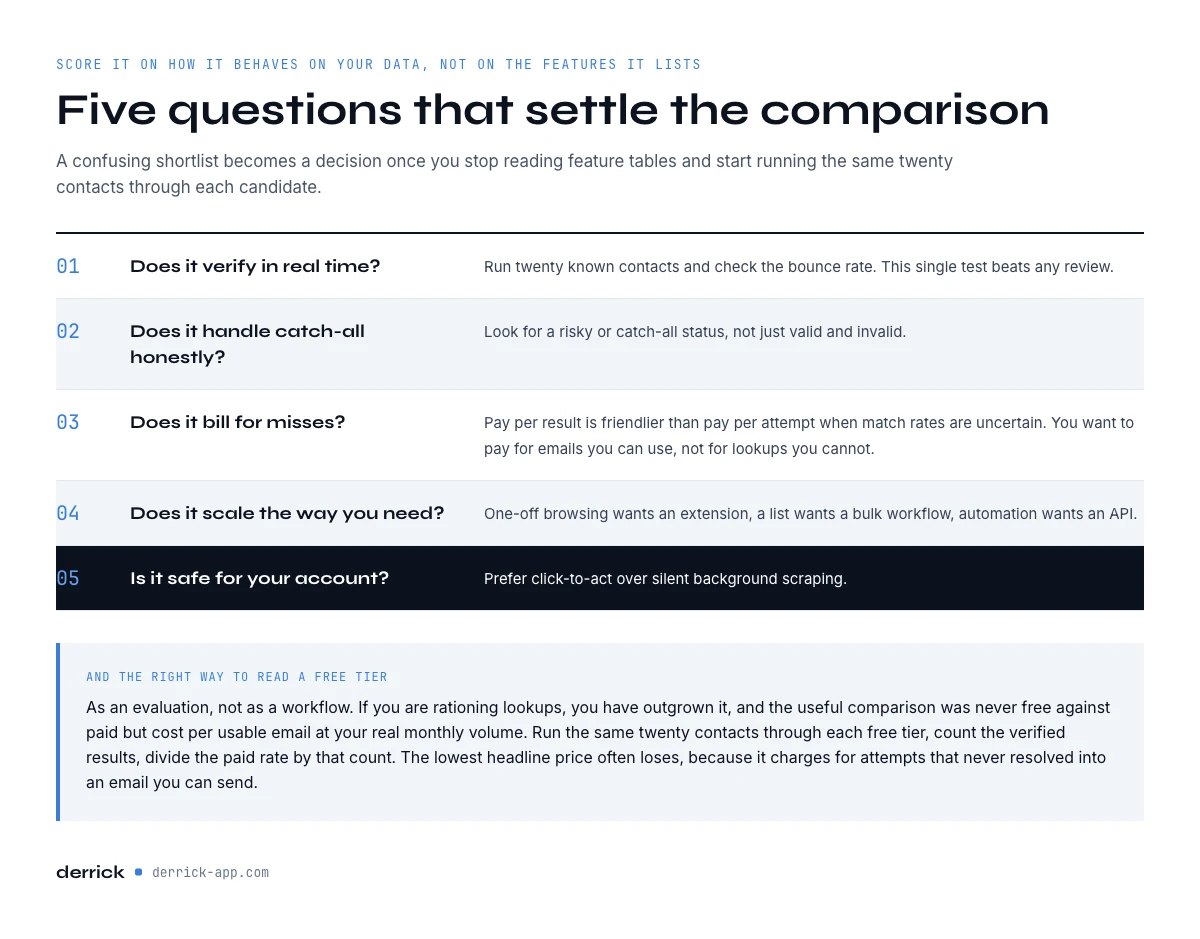
Score a LinkedIn email finder on how it behaves on your own data, not on the feature list it publishes. Four checks, in order of how much they predict.
- Does it verify in real time? Run 20 known contacts through it and measure how many come back verified, then measure the bounce rate. This single test beats any review.
- Does it handle catch-all domains honestly? Look for a risky or catch-all status. A tool that never returns anything but valid is not verifying, it is guessing. Our guide to a valid, verified email covers what real verification means.
- Does it bill for misses? Per-result billing is friendlier than per-attempt when match rates are uncertain. You want to pay for emails you can use, not for lookups that resolved to nothing.
- Is it safe for your LinkedIn account? Click-to-act beats silent background scraping, every time.
Coverage is the fifth, and it is the one you can only test yourself: a tool that is strong on US tech contacts can be thin on French industrial ones. Run a sample of your own target list before you trust a match-rate claim on a landing page.
When There Is No Result
No LinkedIn email finder resolves every profile, and the honest ones tell you so. Three cases produce most of the blanks.
Freelances and very small structures. The domain is often a personal one with no convention to learn, and sometimes there is no company domain at all. The pattern generator above is useless here by design: there is nothing to pattern.
Recent job changes. The profile says the new company, the databases still say the old one. This is the decay problem in its sharpest form, and it is why real-time verification matters more than database size.
Founders and executives. They are the most targeted mailboxes on the market, so their addresses are the most protected and the most likely to sit behind a catch-all. Our guide to finding a founder email covers the paths that still work.
When the address does not come back, you have two moves left that cost nothing or almost nothing: run the pattern generator on the domain and verify the most likely candidate for 1 credit and keep only what comes back verified, or change the entry point and go through the company rather than the person. Neither is a guess dressed up as a result, and that distinction is the whole quality bar on this market.
Choosing Your LinkedIn Email Finder
Two questions decide your LinkedIn email finder. What shape is your work: one profile in front of you, a list, or an automated pipeline? That picks the surface. And does the tool verify in real time, flag catch-all honestly, bill only for results, and keep your LinkedIn account safe? That picks the tool.
If your work is list-shaped, the fastest way to know is to import a real list on the free plan, then run the finding step on a paid plan for the twenty contacts you already know. The match rate on your own market is the only number that has ever predicted anything, and it is exactly the number a ranking of logos cannot give you.
Frequently asked questions
What is a LinkedIn email finder?
Is using a LinkedIn email finder legal?
Is there a free LinkedIn email finder?
How accurate is a LinkedIn email finder?
Do I need a Chrome extension or LinkedIn Premium?
Can I find emails in bulk from a LinkedIn search?
What happens when no email comes back?
What is the difference between an email finder and an email extractor?
Keep reading
Continue exploring this cluster


Lead Email Finder: The Complete Guide to Finding Your Prospects' Emails
Read →

How to Find a Company Website: Complete 2026 Guide
Read →

Find Company Name & Website from Email: 4 Methods (2026, Tested)
Read →

Valid Email Finder: How to Find and Verify Valid Professional Emails
Read →