
How to Find Someone's Email from a LinkedIn Profile
Turn any LinkedIn profile URL into a verified work email. The free manual tricks, their real hit rates, and a bulk Google Sheets workflow that scales.


Last updated: 2026-07-11 · Tested by Derrick on a mixed sample of B2B and personal LinkedIn profiles.
You are on someone's LinkedIn profile, you know exactly who they are, and you still cannot see their email. That is by design: LinkedIn treats the email field as private and reveals it only to close connections. Finding someone's email from a LinkedIn profile therefore means turning the public profile into a name and a company, then resolving the verified work address behind them. This guide walks through the free manual routes, the reliable finder route, and a bulk workflow that runs from a spreadsheet when you have a whole list, with the hit rates you can actually expect from each.
Before you start: what you actually need
Every method below runs on the same two ingredients, so gather them first. You need the person's full name, which the profile gives you directly, and their current company, which sits at the top of their Experience section. The name plus the company domain is what turns a hidden email into a solvable problem, because the domain is where the address lives and the name is what fills the local part before the @ sign.
Two details are worth a glance up front. Confirm the current role rather than a past one, since an outdated company sends you to the wrong domain entirely. And note whether the name is common: a "John Smith" at a large firm will need the company to disambiguate, while a rare surname often resolves on its own. With those two things in hand, the rest is mechanical.
Why the email is hidden on a LinkedIn profile
Only a small share of members expose an address in their public profile. In practice, somewhere between 15 and 30% put an email in their Contact info, About, or Experience section, and the rest keep it private. If you are not connected, the Contact info panel usually shows a profile URL and little else. That is the whole problem in one sentence: the person is fully identified, but the channel you need to reach them is missing.
So the useful question is never "where is the email on this profile". It is "how do I turn this profile into a first name, last name and company domain, then find and verify the matching work email". Once you frame it that way, the methods below line up cleanly: two are free and manual, one uses a dedicated email finder, and one runs the entire chain in bulk from the Derrick web app or Google Sheets.
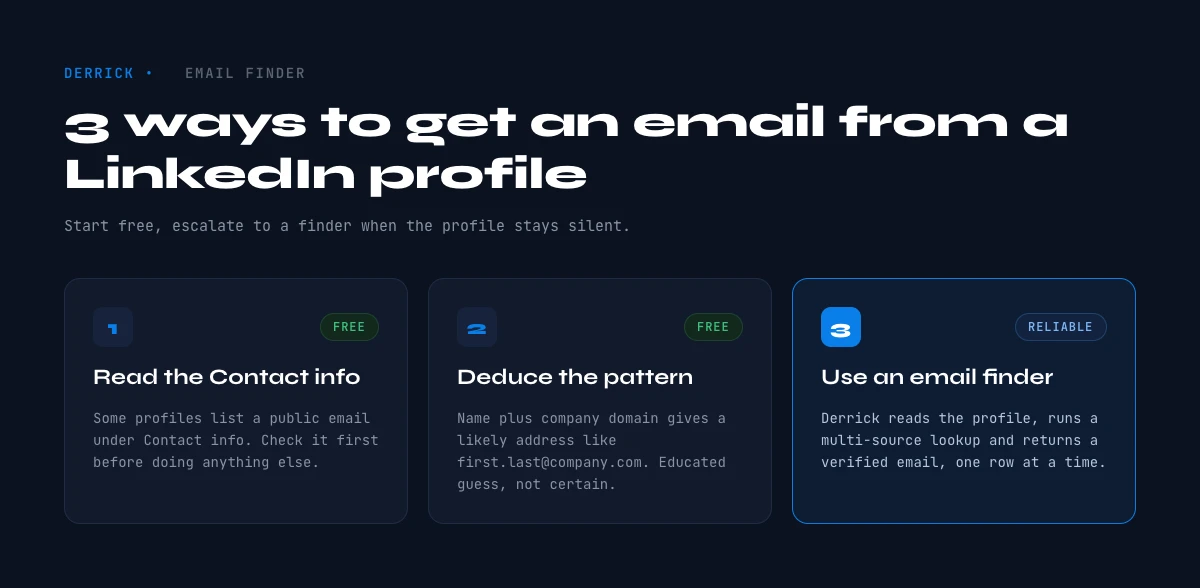
Method 1: Check the profile's Contact info first (free)
Always start here, because when it works it is instant and accurate. Open the profile, click Contact info under the headline, and look for an email. For a first-degree connection this succeeds 40 to 50% of the time; for someone you are not connected to, closer to 10 to 20%. People who publish an email tend to be founders, freelancers, recruiters and salespeople, so your odds are better in those roles.
While you are there, scan the About section and the most recent Experience entries. A surprising number of members drop a contact address in the free-text areas even when the Contact info panel is empty. This costs nothing and takes ten seconds, so it is always worth a look before you spend anything.
In the web app or Google Sheets
Profile URL in, address out
This is the workflow the article describes, run as two columns. Derrick enriches the profile to get the name and the company, then looks up the professional address on the same row, and bills only when one comes back.
- Feature
- Lead Email Finder
- Credit cost
- 5 credits per email found
The first button opens the web app (nothing to install): 5 credits per email found, available from the STANDARD plan. The second details the feature and its cost per plan.
Method 2: Deduce the company email pattern (free)
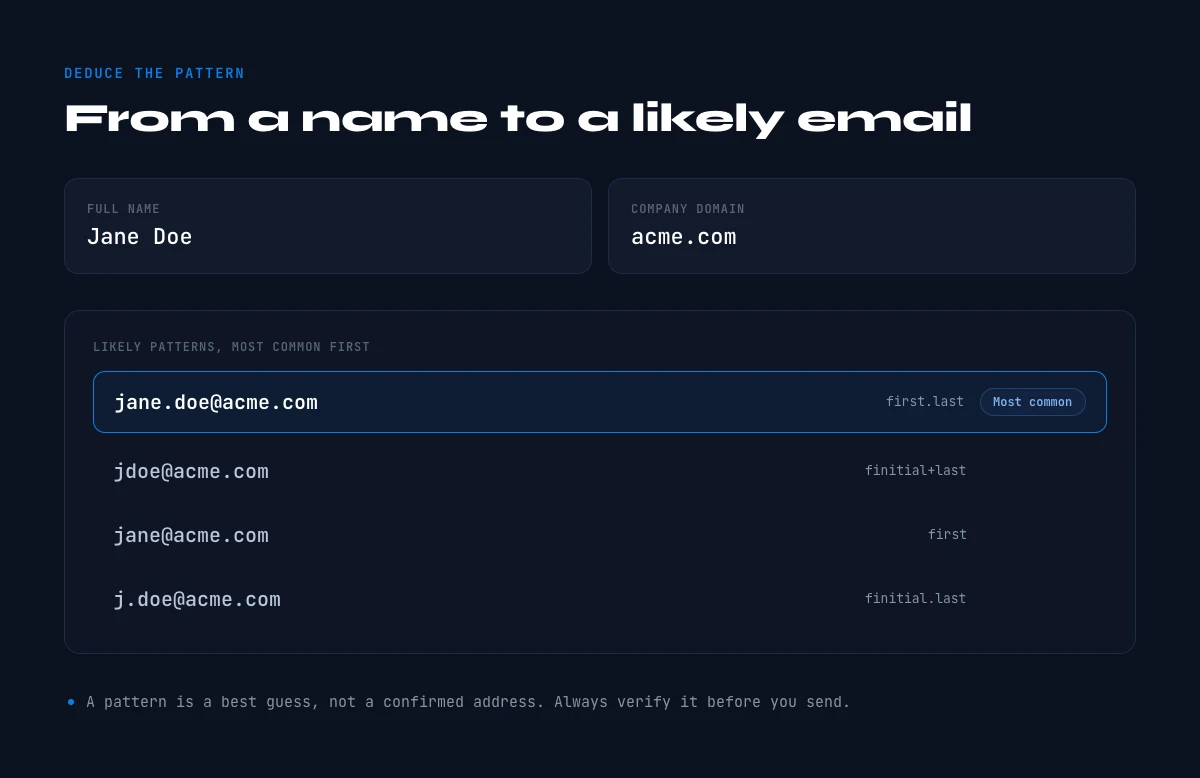
When the profile hides the email but shows the current employer, you can often reconstruct it. Most companies use one consistent format, so if you know the person's name and the company domain, you can build the likely address and confirm it. Read the name from the profile, find the company website to get the domain, then map it against the common patterns.
| Pattern | Example for Jane Doe at acme.com | How common |
|---|---|---|
| first.last@ | jane.doe@acme.com | Most common |
| flast@ | jdoe@acme.com | Common |
| first@ | jane@acme.com | Smaller companies |
| firstl@ | janed@acme.com | Occasional |
| lastf@ | doej@acme.com | Occasional |
One confirmed address on a domain tells you the format the whole organisation uses, which removes the guesswork from every other name on that company. The catch is that a guessed address is only a hypothesis until it is verified: send to an unverified guess and you risk a bounce, which hurts your sender reputation. That is why this method always pairs with a verification step, covered further down.
Method 3: Use a LinkedIn email finder (the reliable route)
A LinkedIn email finder collapses the two manual steps into one. You give it the profile URL, it reads the public name and current company, then it resolves and verifies the work email in a single pass. This is the route to reach for when you need consistency rather than a lucky Contact info hit, and it is the only one that scales past a handful of profiles.
Inside Derrick, the same chain runs from its web app or a Google Sheets sidebar, so there is no separate app to learn and no formulas to write. Paste a column of LinkedIn profile URLs, run Enrich Leads to pull the name, title and company off each profile, then run Email Finder to return the verified professional email next to each row. Email Finder is billed per result found at 5 credits per email, so a profile that comes back empty costs you nothing. Enrich Leads sits on the free and paid plans at 1 credit per profile, and every account starts with 100 credits per month, which is enough to try the whole flow on a real list before you decide anything.
If you only have the email and want the profile instead, that is the mirror task, covered in our guide to finding a LinkedIn profile by email address. And when your starting point is a company website rather than a profile, see finding emails from a website.
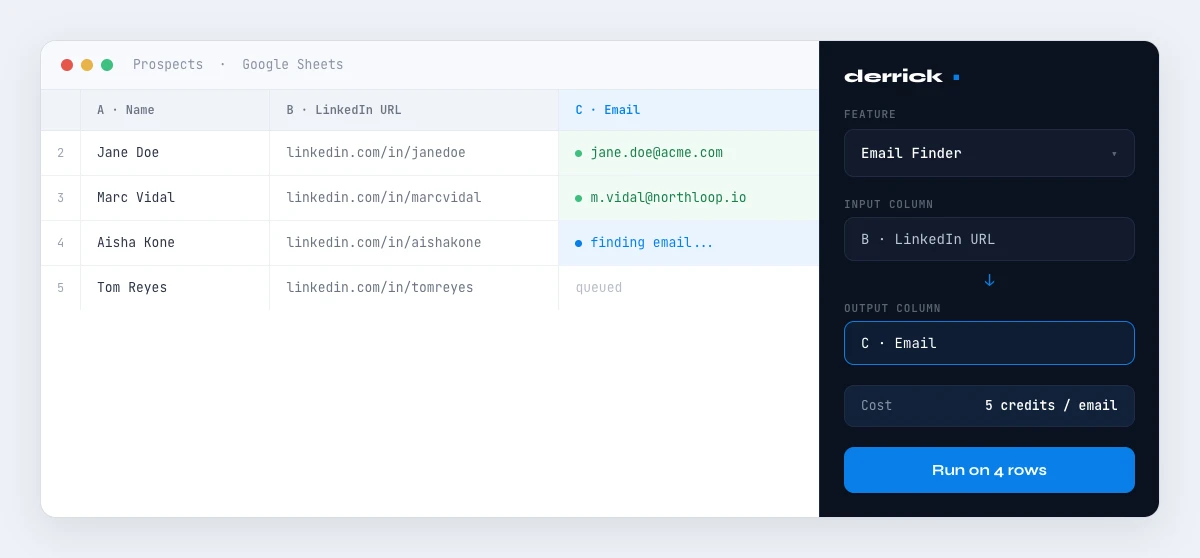
Do a whole list at once in Google Sheets
Everything above works for one profile. The point of a spreadsheet workflow is that it works the same for two thousand. Drop your list of LinkedIn URLs into a column, enrich the profiles to get names and companies, then run Email Finder down the column so every row ends with a verified email you can export. Because the billing is per result found, a messy list is not a problem: you pay for what comes back, not for what you tried.
Email Finder is billed per result found (5 credits per email), so a missed profile costs nothing. Here is what a batch looks like at three realistic coverage rates.
| Batch size | Coverage | Emails found | Credits used |
|---|---|---|---|
| 200 profiles | 90% (clean work profiles) | 180 | 900 |
| 200 profiles | 75% (mixed list) | 150 | 750 |
| 200 profiles | 40% (personal-heavy) | 80 | 400 |
Formula: credits = emails_found × 5. You never pay for the profiles that come back empty, which is what makes bulk lookups cheap even when a list is messy.
This is where Derrick is designed to shine at any volume. The same web app or sidebar that handles ten profiles handles ten thousand without changing your steps, and in Google Sheets the whole table stays where the rest of your outreach data already lives. If you would rather build the list from scratch by targeting roles inside a set of companies, Search Leads finds the matching people first, and the email step is identical afterwards.
Work email or personal email: which to target
For B2B outreach, aim for the work email every time. It reaches people in the context where they make buying decisions, it sits behind a company domain that behaves predictably, and it verifies more reliably than a personal inbox. A personal address, by contrast, is harder to resolve, more sensitive to contact, and far less likely to be the right channel for a business conversation.
This is also why coverage swings so much by profile type. When someone lists a current employer, the work email is usually reconstructable and verifiable. When a profile shows no current company, a recent graduate or someone between roles, there is often no professional domain to work from, and the honest answer is that the address may not exist yet. Targeting profiles with a clear current role is the single biggest thing you control.
When no email comes back
Some profiles will not resolve, and that is normal. When a lookup returns empty, work down a short fallback list rather than forcing a guess. First, apply the company email pattern from Method 2 to the person's name, then verify that single candidate before trusting it. Second, if the company is small, a monitored generic inbox on the same domain can be a legitimate first touch. Third, when email genuinely fails and the person is a priority, a direct dial from Phone Finder is a different channel to the same person, billed at 200 credits per phone found and, like the email step, only when a result comes back.
What you should not do is send to an unverified guess just to fill the cell. An address that bounces costs you more than a blank one, so an empty result that you leave empty is the safe outcome.
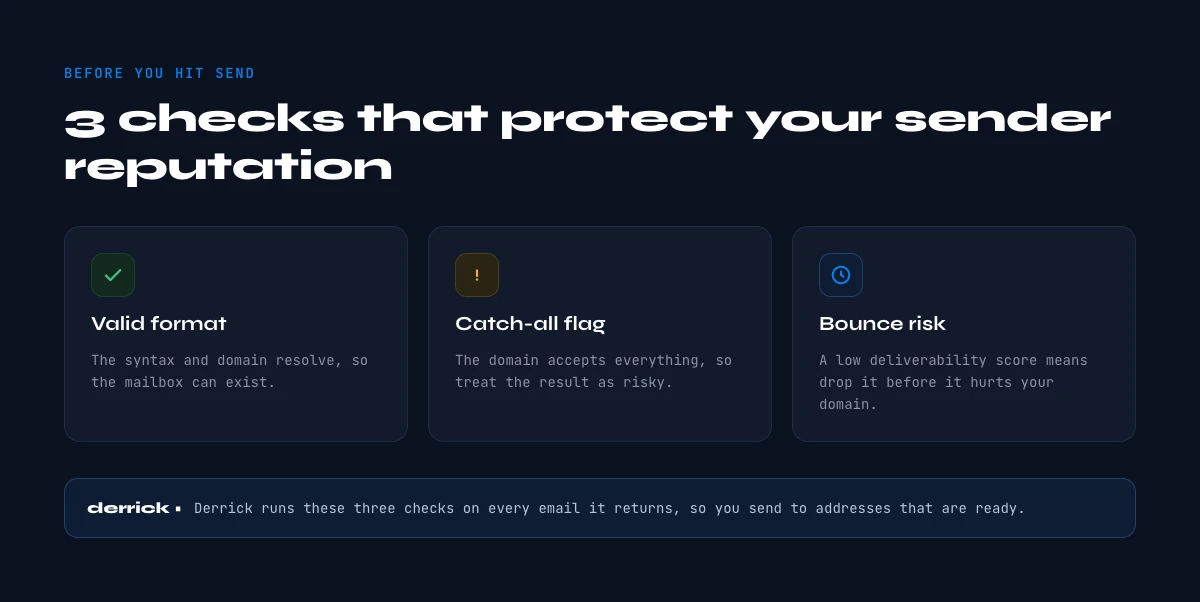
Verify every address before you send
Whether an address came from a guessed pattern or from a finder, treat deliverability as a separate gate. A bounce tells mailbox providers that you are sending to unknown recipients, and enough of them will land your future messages in spam even for the addresses that are perfectly valid. So before any campaign, confirm the list holds valid professional emails and screen the risky ones with a bounce email checker. A finder that verifies as it resolves does most of this for you, but a final pass on a large list is still cheap insurance.
Hit rates and cost: what to actually expect
Set your expectations by the type of list, not by a single best case. Work profiles at established companies resolve far more often than founders using a personal address on a solo project. The table below is the rough shape of what a well-built B2B list returns.
| Type of profile | Typical coverage | Why |
|---|---|---|
| Employee at a mid or large company | 70 to 90% | Predictable domain and email format |
| Small-company or agency staff | 50 to 70% | Domain exists but formats vary |
| Founder or solo operator | 30 to 50% | Often a personal or generic inbox |
| Student or between roles | Under 30% | No current company domain to work from |
Cost follows the same logic. At 5 credits per found email and 1 credit per enriched profile, a clean list of a few hundred people is well within a single month's free allowance for a first test, and the per-result billing keeps larger runs proportional to what you actually collect.
Reach out responsibly
Finding a professional email is the easy part; earning a reply is the rest. Only contact people for whom your message is genuinely relevant, keep the first email short and specific to their role, and make opting out effortless. A tightly targeted list of the right people beats a huge list of the wrong ones on every metric that matters, and it keeps your sender reputation, and your brand, intact.
Personalisation is what makes a found email worth having. Because the profile you started from already tells you the person's role, company and recent activity, you have everything you need to open with a line that could only have been written for them. That is the difference between an email that gets deleted and one that gets a reply, and it is far easier to do well on a short, deliberate list than on a scraped mass of unrelated contacts.
For founders specifically, the address often sits outside the usual company pattern, so our note on finding a founder's email covers the extra steps that pay off there.
Enrich your first list free in the web app →
Start free with Derrick and turn a column of LinkedIn URLs into verified emails, right where your outreach already lives.
Frequently asked questions
Can you see someone's email directly on their LinkedIn profile?
Is it legal to find a professional email from a LinkedIn profile?
What hit rate can I expect when finding emails from LinkedIn?
How does Derrick find emails from LinkedIn profiles?
Should I verify emails I get from LinkedIn before sending?
Can I find emails for a whole list of LinkedIn profiles at once?
Keep reading
Continue exploring this cluster


Lead Email Finder: The Complete Guide to Finding Your Prospects' Emails
Read →

How to Find a Company Website: Complete 2026 Guide
Read →

Find Company Name & Website from Email: 4 Methods (2026, Tested)
Read →

Valid Email Finder: How to Find and Verify Valid Professional Emails
Read →